

Introduction
If you notice spots on mobile screen, they may appear as small white marks, bright areas, dark patches, or clusters of dots that were not visible before. These spots can result from dust, screen damage, pressure, dead pixels, or other display issues. In some cases, the cause is simple to identify and resolve at home. This guide explains the most common causes and practical steps you can take before considering professional repair.
Why This Problem Happens
Your phone’s display is not a single sheet of glass. It is a stack of thin layers, a touch-sensitive layer, the pixel layer, and, on older LCD models, a backlight that shines through everything else. A spot appears when one of those layers gets disrupted, whether by pressure, moisture, a stuck pixel, or a glitch in how the software is rendering the screen.
The type of iPhone you own matters here. Older models like the iPhone XR, 11, and SE (2020/2022) use LCD panels, so a spot on display is often backlight bleed, where light leaks unevenly through a compressed area. Newer OLED iPhones (X and later, including the Pro and Plus models) do not use a backlight, so spots there are more likely to be a pixel-level issue, image retention, or something entirely unrelated to hardware, like a software element you mistook for damage.
Common Causes of Spots on Mobile Screen
Before trying any fix, it helps to know what you are actually dealing with. Here are the causes worth ruling out first:
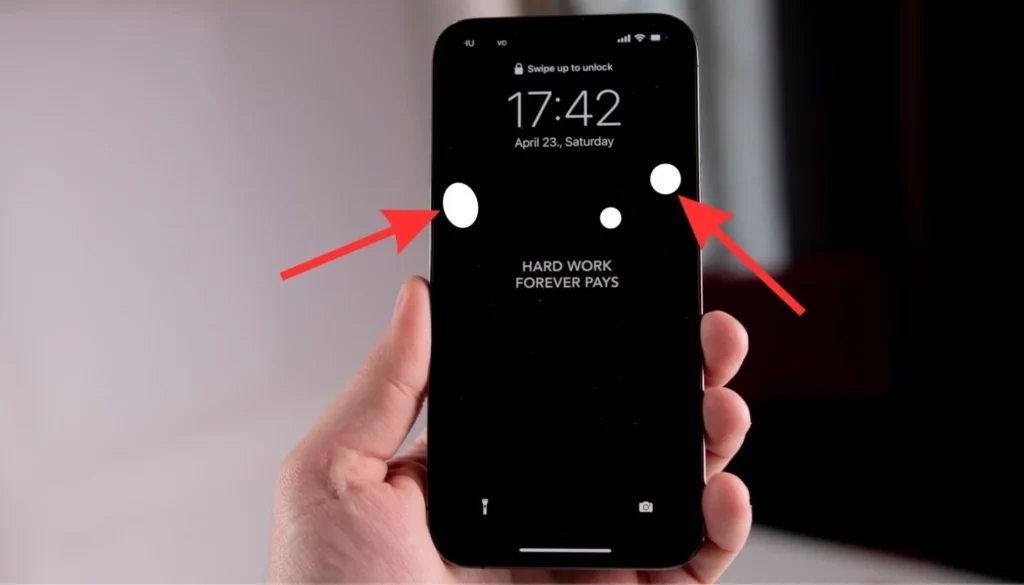
- AssistiveTouch: a small white dot that Apple built into iOS as an on-screen accessibility button. Many people mistake this for a screen defect.
- Pressure damage: a tight case, a rigid or poorly fitted screen protector, sitting on the phone, or storing it in a crowded bag or pocket.
- Trapped dust or debris: a speck caught under a screen protector can look exactly like a white spot on screen iphone users report.
- Stuck or dead pixels: a single pixel that is permanently on (appears bright) or off (appears dark).
- Moisture exposure: water or humidity that seeps between the display layers.
- Screen burn-in or image retention: common on OLED screens after long periods showing the same static image at high brightness.
- A software glitch after an iOS update: rare, but it happens, and it is usually resolved with a restart or update.
- A manufacturing defect: uncommon, but if the spot was there from the day you unboxed the phone, this is worth mentioning to Apple directly.
Warning Signs You Should not Ignore
Most spots are cosmetic and fixable, but a few signs point to something more serious that needs a professional look rather than a DIY fix:
- The spot is getting larger over a few days.
- Discoloration is spreading outward, like a bruise under the glass.
- Faint lines or cracks radiate out from the spot.
- The screen flickers, dims, or loses touch response near the spot.
- The spot appeared right after a drop, bend, or contact with water.
If any of these apply, skip straight to the professional repair section below rather than trying to press or manipulate the screen yourself.
9 Ways to Fix Spots on Mobile Screen
Work through these in order. They are arranged from the safest, quickest checks to the more involved steps, so you don not overcomplicate something that might take thirty seconds to solve.
Fix 1: Rule Out AssistiveTouch First
This single check resolves a surprising number of white spot reports. AssistiveTouch adds a small, semi-transparent button to your screen for accessibility shortcuts, and it can easily look like a stuck spot, especially on a bright background.
- Open Settings, then go to Accessibility.
- Tap Touch, then AssistiveTouch.
- Toggle AssistiveTouch off.
- Check if the spot disappears immediately
If it removes, there is no hardware problem at all, and you can stop here or turn AssistiveTouch back on if you use it regularly.
Fix 2: Force Restart Your iPhone
A restart clears temporary memory and resets background processes, which fixes a lot of display glitches caused by software rather than hardware.
- iPhone 8 and later (including current models): quickly press Volume Up, quickly press Volume Down, then hold the Side button until the Apple logo appears
- iPhone 7 / 7 Plus: hold Volume Down and the Side button together until the Apple logo appears
- iPhone 6s and earlier: hold Home and the Side/Top button together until the Apple logo appears
This doesn’t erase any data, so it’s completely safe to try before anything else.
Fix 3: Clean the Display and Inspect Your Screen Protector
Smudges, condensation, or a speck of dust can look identical to a genuine spot on display. Power off the phone, wipe the screen with a dry microfiber cloth, and look closely under good lighting.
- If you use a screen protector, peel back a corner and check for trapped dust or an air bubble sitting directly under the mark
- Clean both the screen and the protector before reapplying
- If the protector is old, scratched, or has a permanent bubble, replace it rather than reusing it
Fix 4: Remove Your Case and Screen Protector to Release Pressure
A tight case or a rigid, poorly fitted screen protector can press unevenly on the edges of the display over time. This is one of the most common causes of white spots on iphone screen reports, especially on LCD models.
- Remove the case and any screen protector completely.
- Leave the phone flat and unused, face up, for a few hours.
- Check whether the spot fades or shrinks once the pressure is gone
If it does fade, replace the case with a slightly looser fit and consider skipping a rigid screen protector, or switching to a softer one, going forward.
Fix 5: Update iOS to the Latest Version to Remove Spots on Mobile Screen
Apple regularly patches display and rendering bugs in software updates. If your spot only appeared after an update, or has been there for a while regardless, updating to the current version can resolve it.
- Go to Settings, then General, then Software Update.
- Download and install any available update.
- Restart the phone once the update finishes and recheck the screen.
Fix 6: Change Your Wallpaper and Ease Up on Brightness
If you own an OLED iPhone (X or later) and the mark looks like a faint shadow rather than a solid spot, it may be early image retention from a static wallpaper or app left on screen at high brightness for long stretches.
- Switch to a dynamic or photo wallpaper instead of a plain, high-contrast static one.
- Lower your screen brightness a notch, especially for extended reading or navigation sessions.
- Give the display a break from very bright, static screens for a day or two and see if the mark softens.
Fix 7: Reset All Settings if there are Spots on Mobile Screen
This resets system preferences like display, network, and privacy settings back to default, without touching your photos, messages, or apps. It’s a reasonable next step if the spot seems tied to a setting or configuration bug.
- Open Settings, then General, then Transfer or Reset iPhone.
- Tap Reset, then choose Reset All Settings.
- Enter your passcode to confirm, then let the phone restart.
Fix 8: Back Up, Then Erase and Restore as New
If nothing above has worked, a full erase and restore rules out any deeper software corruption. This is a bigger step, so back up first.
- Back up your iPhone through iCloud or your computer before doing anything else
- Go to Settings, then go to General, then go to Transfer or Reset iPhone, then click on Erase All Content and Settings
- Set the phone up as new, rather than restoring from backup, to fully test whether the spot is software-related
- If the spot is still there on a freshly set-up phone, the cause is almost certainly hardware, not software
Fix 9: Run Apple’s Built-In Diagnostics
Apple Diagnostics can check for known hardware issues, including display problems, directly on the device. It won’t fix a hardware fault, but it will tell you clearly whether one exists, which saves time before a repair visit.
- Follow Apple’s official diagnostics instructions for your specific iPhone model.
- Review the results for any display or panel-related codes
- Bring these results with you if you book a Genius Bar or authorized repair appointment
A Common Myth to Avoid
You will see plenty of advice online suggesting you press, rub, or massage the spot with your finger, or use heat from a hairdryer to push the pressure out. Avoid this. Applying force or heat to a cracked or compressed internal layer can spread the damage, crack the glass further, or affect the battery sitting just underneath the display.
If a fix requires physically pressing on your screen, it is not a safe one. The reliable alternative is removing the source of pressure (case, protector, tight pocket) and giving the display time to recover on its own, or having a professional open the device properly if it doesn’t.
When to Seek Professional Help
Book a repair appointment if any of the following apply:
- The spot appeared after a drop, bend, or water exposure.
- It’s growing, spreading, or accompanied by flickering or touch issues.
- A factory reset and full restore as new didn’t remove it.
- Apple Diagnostics flags a display-related fault
- The phone is still under Apple’s warranty or you have AppleCare+, which can make the repair free or significantly cheaper.
You can book directly through Apple Support or the Apple Support app, and choose a Genius Bar appointment, mail-in service, or an authorized service provider near you.
Prevention Tips for Spots on Mobile Screen
- Use a case that fits properly, not one so tight it presses on the screen edges.
- Have screen protectors professionally applied, or check carefully for trapped air and dust yourself.
- Avoid sitting on your phone or wedging it into tight pockets or bags.
- Keep the phone away from moisture, steam, and humid environments.
- On OLED models, use dynamic wallpapers and moderate brightness for long static-screen use.
- Install iOS updates promptly, since many display bugs are patched quickly.
- If a spot appears, address it early rather than waiting, since pressure-related marks are easier to reverse when they are fresh.
Conclusion:
Spots on mobile screen almost always trace back to one of a handful of causes, and most of them are fixable without a trip to the repair shop. Start with the simplest checks, AssistiveTouch, a restart, and removing your case, before moving on to software updates or a full reset.
If the mark is still there after working through these steps, or it is growing, spreading, or tied to a drop or water exposure, that is your signal to get it looked at by Apple or an authorized technician rather than continuing to troubleshoot on your own.
More Relevant Posts:
iPhone Won’t Charge: Here Are 7 Proven Fixes
Face ID Not Working? Try Fixing It With These 7 Steps
iPad Smart Keyboard Not Working? 10 Easy Fixes
AirDrop Not Working? Fix It Fast With These 7 Proven Solutions
iPhone Stuck on Apple Logo: Complete Troubleshooting Guide
How to Free Up Space on iPhone: 6 Proven Fixes
Phone Battery Swelling: Causes, Warning Signs & Safe Fixes
Android Phone Overheating? How To Fix it
Frequently Asked Questions:
It usually means one of three things: the AssistiveTouch accessibility feature is turned on, there’s pressure damage from a case or protector, or, less commonly, a stuck pixel or early hardware fault. Ruling out AssistiveTouch and pressure first will explain most cases.
Yes, if it is caused by AssistiveTouch, a software glitch, or fresh pressure from a case, it can resolve on its own once the cause is removed or the phone is restarted. A spot caused by cracked internal layers won’t fix itself.
It can be, if it is due to a manufacturing defect and your phone is still within Apple’s one-year limited warranty or you have AppleCare+. Damage from drops, pressure, or water usually falls outside standard warranty coverage.
Out-of-warranty screen repair pricing varies by model and is set by Apple, generally running from roughly $129 to $379 depending on the iPhone. Check Apple’s official support site for current pricing on your exact model, since it changes over time.
It can, if it is applied unevenly, has trapped debris underneath, or is a rigid protector that presses on the edges of the display. Removing and reapplying it correctly often resolves marks caused this way.
It might, if the spot is caused by a temporary software glitch. It won’t help with pressure marks, stuck pixels, or hardware damage, but it’s quick and safe enough to always try first.