

Before You Start Troubleshooting
You plug in your cable, wait a few minutes, and check your screen, nothing. That sinking feeling when your iPhone won’t charge is one of the most common complaints we hear from customers. Before you panic, take a breath. Most of the time, an iPhone that refuses to charge isn’t dying, it’s dealing with a simple, fixable issue like a worn-out cable, a dusty charging port, or a stubborn software glitch.
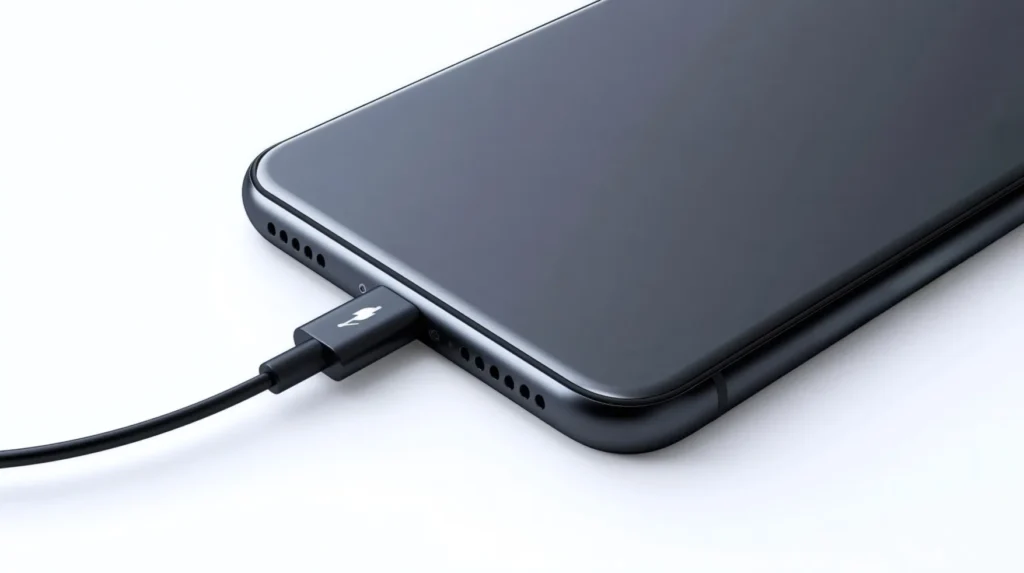
In this guide, we’ll walk through seven proven fixes, in the order our technicians actually try them, so you can get your phone charging again without spending money on repairs you might not need.
Why Won’t My iPhone Charge?
Before jumping into fixes, it helps to understand what’s actually going on. An iPhone stops charging for a handful of common reasons, and narrowing down the cause saves you time.
- Dirty charging port — lint and pocket dust build up and block the connection
- Damaged charging cable — frayed wires or a bent connector break the circuit
- Faulty power adapter — cheap or worn-out bricks can’t deliver steady power
- Software glitches — a buggy app or background process can interfere with charging
- iOS bugs — outdated software sometimes mismanages battery and power functions
- Battery problems — an aging battery may struggle to hold or accept a charge
- Overheating — the phone protects itself by pausing charging when it gets too hot
- Liquid damage — moisture in the port can trigger a safety alert and block charging
- Hardware failure — a damaged charging IC or logic board needs a technician’s help
The good news is that the vast majority of cases trace back to the first six causes on that list, all of which you can troubleshoot yourself at home.
How to Fix an iPhone That Won’t Charge
Work through these seven fixes in order. Each one addresses a different possible cause, starting with the easiest and most common.
Fix 1: Check the Charging Cable and Power Adapter
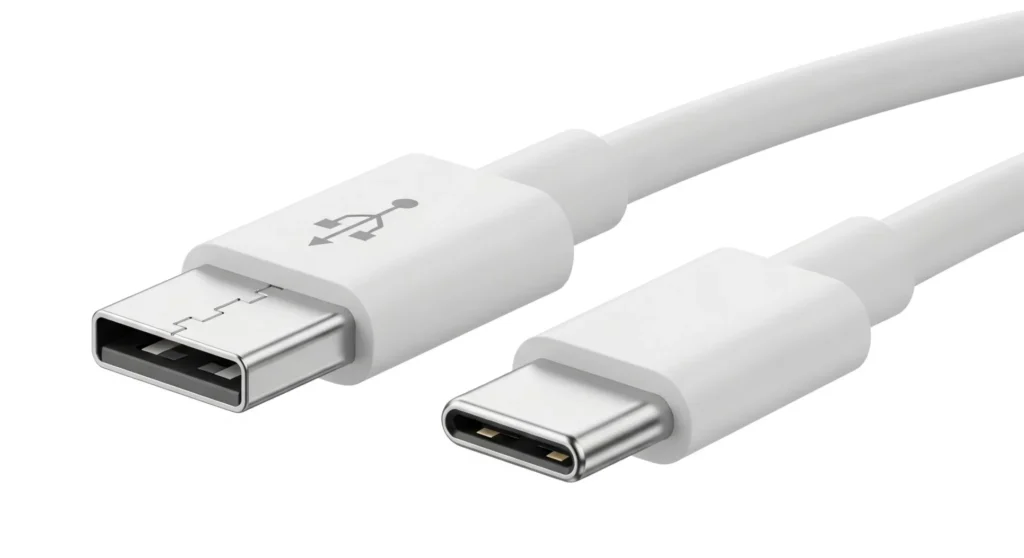
A worn-out cable is by far the most common reason an iPhone won’t charge. Lightning and USB-C cables take a beating from daily bending, and the internal wires can fray long before any damage shows on the outside. Non-certified or knockoff chargers cause similar problems, since they often can’t deliver consistent power and may even trigger Apple’s built-in protection features.
- Inspect your cable for visible fraying, kinks, or exposed wiring near the connector.
- Check the adapter for cracks, loose prongs, or a burnt smell.
- Swap in a different Apple-certified cable and adapter you know works.
- Try charging from a different wall outlet to rule out a power issue
Fix 2: Clean the Charging Port
This fix solves the problem more often than people expect. Pocket lint, dust, and debris pack tightly into the Lightning or USB-C port over time, physically blocking the connector pins from making contact. A charger port iPhone not working issue is almost always a cleaning problem rather than a hardware one.
- Power off your iPhone completely.
- Use a flashlight to look inside the port for visible lint or debris.
- Gently use a soft, dry anti-static brush or a wooden toothpick to loosen debris.
- A can of compressed air held at an angle can blow out loose particles.
- Avoid metal objects like paperclips or pins — they can bend the internal connector pins or cause a short.
Fix 3: Force Restart Your iPhone
Sometimes the hardware is fine, but a frozen background process is preventing the software from recognizing the charger. A force restart clears temporary memory and gives the system a fresh start, which resolves this type of glitch more often than you’d think.
- iPhone 8 and newer: Quickly press and release Volume Up, quickly press and release Volume Down, then press and hold the Side button until the Apple logo appears.
- iPhone 7: Press and hold both the Side button and Volume Down button together until the Apple logo appears.
- iPhone 6s and older: Press and hold both the Home button and the Side (or Top) button until the Apple logo appears.
Plug the phone back in once it restarts.
Fix 4: Check for iOS Software Problems
Outdated iOS versions occasionally contain bugs that affect power management, battery reporting, or how the phone communicates with connected accessories. Apple regularly patches these issues, so an update can resolve charging trouble that has nothing to do with your hardware at all.
- Connect your iPhone to Wi-Fi.
- Go to Settings, then General, then Software Update.
- If an update is available, tap Download and Install.
- Restart your phone once the update finishes and try charging again.
If your iPhone is also experiencing Face ID problems, check our guide on Face ID Not Working for additional troubleshooting steps.
Fix 5: Let the iPhone Cool Down
iPhones are built with temperature protection that automatically pauses charging when the internal temperature gets too high. This usually happens after extended use in direct sunlight or while charging inside a hot car. It’s a safety feature, not a malfunction.
- Remove the phone from its case, since cases trap heat.
- Move it to a cool, shaded area away from direct sunlight.
- Avoid using the phone heavily while it cools down.
- Wait 15 to 20 minutes, then try plugging it back in.
Once the phone returns to a normal temperature, charging typically resumes on its own without any further action needed.
Fix 6: iPhone Won’t Charge When Plugged In
If you’ve tried everything above and your iPhone not charging issue continues, or your iPhone will not charge even while plugged into a working outlet, the problem may be more specific. This is also common when an iPhone does not charge consistently, or is not charging unless the cable sits at a certain angle.
- Loose charging port: a port with worn-out internal contacts may only connect at certain angles
- Intermittent charging: the phone connects and disconnects repeatedly, often pointing to a port or cable issue
- Battery calibration: a battery that reports inaccurate percentages can behave unpredictably when charging
- Accessory compatibility: MagSafe chargers, car mounts, and third-party docks aren’t always fully compatible
- Hardware faults: internal component wear can prevent a steady connection even with a perfect cable
If you notice the charging icon flickering on and off, or the phone only charges when you hold the cable in a specific position, this points toward a hardware issue inside the port itself, which typically needs professional attention.
Fix 7: Contact Apple Support
If you’ve worked through all six fixes above and your phone still won’t charge, it’s time to bring in a professional rather than risk further damage. Certain issues simply cannot be fixed at home.
- Water or liquid damage — moisture inside the port can corrode components over time.
- Bent charging pins — physically damaged pins need precise repair tools.
- Battery failure — a battery that no longer holds a charge needs replacement.
- Charging IC failure — this small chip manages power flow and isn’t user-repairable.
- Logic board issues — deeper hardware faults require diagnostic equipment and specialized skill.
Book an appointment with Apple Support or an authorized service provider so a technician can run proper diagnostics and give you an accurate repair estimate.
Can a Dead Battery Stop an iPhone From Charging?
Yes, and this trips people up more often than you’d expect. If your battery drains to zero and sits uncharged for a while, it can enter a low-power state that takes a few minutes to recognize a charger again.
- Plug the phone into a wall outlet using a certified cable and adapter.
- Wait 20 to 30 minutes before checking for any response, even if the screen stays black.
- Look for the battery icon or a brief vibration, which signals the phone is waking up.
- If there’s still zero response after 30 minutes, this may point to genuine battery failure rather than a simple deep discharge.
Signs of true battery failure include a phone that dies quickly even at high percentages, sudden shutdowns, or a battery health percentage that has dropped significantly in Settings, under Battery, then Battery Health & Charging.
How to Prevent Future Charging Problems
Once your iPhone is charging normally again, a few simple habits will keep it that way.
- Stick to Apple-certified (MFi) cables and adapters instead of cheap alternatives
- Check and clean the charging port every few weeks, especially if you carry your phone in a pocket
- Avoid off-brand chargers that don’t regulate power properly
- Keep your phone out of direct sunlight and hot cars whenever possible
- Don’t charge your phone under a pillow or blanket, which traps heat
- Keep iOS updated so you always have the latest power-management fixes
Final Thoughts on a iPhone Won’t Charge Problem
Most of the time, an iPhone won’t charge because of something small, a worn cable, a dusty port, or a software hiccup rather than a serious hardware failure. Working through these seven fixes in order will solve the issue for the vast majority of readers without ever needing a repair shop.
If you’ve tried everything here and your phone still won’t charge, don’t force it or keep trying random fixes. Reach out to Apple Support or a trusted repair technician for a proper diagnosis.
For more step-by-step troubleshooting guides like this one, browse the rest of the Apple repair articles here on HowFixPro.
Frequently Asked Questions:
The most common causes are a damaged cable, a dirty charging port, or a software glitch. Start with Fix 1 and work through the list in order.
This usually points to a loose or damaged charging port, an incompatible accessory, or a cable that only makes contact at certain angles.
Yes. Lint and debris are among the most frequent causes, and cleaning the port often solves the problem in minutes.
Intermittent charging usually means the cable connector or port has worn contacts, causing the connection to break and reconnect.
Yes. iPhones pause charging automatically when they get too hot, as a safety measure to protect the battery.
Signs include a cable that only works at certain angles, visible bent pins, or charging that stops when you move the phone.