

Before You Start Troubleshooting
If you have picked up your phone recently and thought why is my phone so hot, you are not imagining it, android phone overheating is one of the most common complaints people search for, and in almost every case, it is fixable without a repair shop. Whether your phone gets hot during a video call, warms up while charging, or just feels warm sitting in your pocket for no clear reason, this guide walks through exactly why it happens and the specific steps to cool it down.
Why Is My Phone Overheating? Common Causes
Before jumping into fixes, it helps to understand what is actually going on. In most cases, one or several of these is why your phone gets so hot:
- Too many apps running in the background, quietly using your processor even when you’re not actively using them
- Charging issues — using the wrong charger, a damaged cable, or using your phone heavily while it charges
- A phone case trapping heat, especially thick or non-breathable cases
- Direct sunlight or a hot environment — phones are more sensitive to ambient heat than most people realize
- Outdated software or a buggy app silently draining your battery and overworking your processor
- Heavy tasks like gaming, video streaming, GPS navigation, or recording video, all of which push your processor and battery harder than everyday use
Let’s go through the fixes, starting with the ones that solve the problem most often.
Fix 1: Close Background Apps and Check What’s Overheating Your Phone
A big share of why does my phone get hot so fast cases come down to one or two apps quietly running in the background and overworking your processor.
How to Check What’s Using Your Battery on Android
- Go to Settings → Battery
- Tap Battery usage (naming varies slightly by phone brand)
- Look for any app using an unusually high percentage, especially one you haven’t actively used recently
- Tap that app → Force stop, and consider uninstalling it if the problem continues after force-stopping it
Close Everything Running in the Background
- Tap the recent apps button (usually a square icon, or swipe up and hold depending on your phone)
- Swipe away all open apps, or tap Clear all
- Give your phone a minute to cool down and see if the warmth fades
Fix 2: Remove the Case and Let Your Phone Cool Down
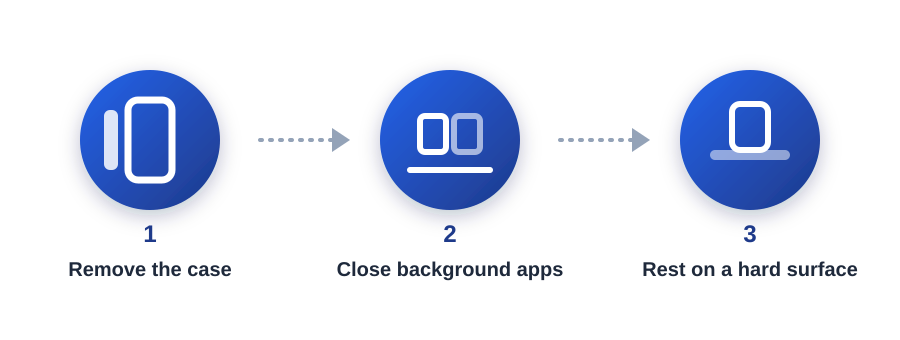
This sounds almost too simple, but it is one of the most effective quick fixes. Phone cases, especially thick, rugged, or non-breathable ones, trap heat against the phone’s body instead of letting it dissipate naturally.
- Remove your phone’s case completely
- Place your phone on a flat, hard surface (not a pillow, blanket, or your lap, all of which trap heat)
- Let it sit for 10-15 minutes without using it
- Check if it’s noticeably cooler before putting the case back on
If your phone consistently runs hot whenever the case is on, consider switching to a thinner, more breathable case.
Fix 3: Fix Phone Overheating While Charging
Why does my phone get hot when charging is one of the most common versions of this problem, and it usually comes down to one of a few specific causes.
Use the Right Charger and Cable to Stop Phone Overheating
Using a cheap, damaged, or mismatched charger (not originally made for your phone) can cause it to charge inefficiently and generate excess heat. Use the charger and cable that came with your phone, or a certified replacement from the same brand.
Avoid Using Your Phone While It Charges
Gaming, streaming video, or navigating with GPS while your phone is plugged in makes it work hard and charge at the same time, both processes generate heat, and combined, they can push your phone noticeably hotter than normal. If your phone gets hot when charging, try leaving it alone (screen off) while it charges instead.
Check Your Charging Environment
Charging your phone under a pillow, on a soft blanket, or in direct sunlight traps heat with nowhere to escape. Always charge your phone on a hard, open surface.
Fix 4: Manage Battery-Draining Settings
Certain phone settings can keep your processor and radios working harder than necessary, contributing to a phone that feels warm even during light use.
Turn Off Unused Connectivity
If you are not actively using them, turn off:
- GPS/Location services
- Bluetooth
- Mobile hotspot
- Wi-Fi (if you’re on mobile data instead, and vice versa)
These all run in the background searching for signals, which adds up over time.
Reduce Screen Brightness and Timeout
Your screen is one of the biggest battery (and heat) consumers on your phone. Lowering brightness and shortening your screen timeout reduces how hard your phone works overall.
Fix 5: Update Your Software and Clear App Cache
Outdated software is a frequently overlooked cause of a phone that heats up more than it used to.
- Go to Settings → System → System update, and install any pending Android updates
- Go to Settings → Apps, select any app you use heavily, and tap Storage → Clear Cache
- Repeat for a few of your most-used apps, especially social media and streaming apps, which tend to accumulate large caches over time
Fix 6: Avoid Direct Sunlight and Extreme Heat
Phones are more temperature-sensitive than most people assume, manufacturers generally recommend keeping devices between 32°F and 95°F (0°C to 35°C). Leaving your phone on a car dashboard, by a sunny window, or outside on a hot day can cause it to overheat even while sitting completely idle.
The same core fixes, removing the case, avoiding direct sun, closing background apps, and using an official charger, resolve the vast majority of iPhone overheating cases too.
When to Worry: Signs of a Real Problem
Most overheating is temporary and harmless, but a few signs suggest something more serious:
- Your Android shows an actual “overheating” warning on-screen, sometimes shutting down apps or the camera automatically to protect itself, this is a built-in safety feature, not something to ignore repeatedly
- Visible battery swelling (a puffed-up back panel or a battery that no longer sits flat)
- Your phone stays hot even when idle and unused for a long period
- Battery draining unusually fast alongside the heat, especially if this is new/sudden behavior
If you notice any of these, it’s worth having your battery checked by a professional rather than continuing to use the phone as normal.
Quick Checklist Before You Give Up
- Closed background apps and checked battery usage for a runaway app
- Removed your phone case and let it sit on a hard surface
- Used your original or a certified charger, and avoided heavy use while charging
- Turned off unused GPS, Bluetooth, and hotspot
- Updated your software and cleared cache on heavy-use apps
- Kept your phone out of direct sunlight and extreme heat
Frequently Asked Questions:
This usually points to a specific app or process running heavily in the background, check Settings → Battery → Battery usage for anything unusually high, and force-stop it.
A phone that is warm while sitting idle almost always has something running in the background, a stuck app, a pending update, or a sync process. Restarting your phone often clears this temporarily while you investigate further.
No reason usually means the cause is not obvious from the screen, it is worth checking Battery usage stats specifically, since a misbehaving app can drain battery and generate heat without any visible sign on your home screen.
Gaming pushes your processor and graphics chip to their limits for extended periods, which naturally generates more heat than everyday use. This is normal to a point, but if it becomes uncomfortably hot or triggers a warning message, take a break and let it cool down before continuing.