

Why Is My Epson Printer Printing Blank Pages?
An Epson printer printing blank pages does not always mean the printer is broken. The problem can come from clogged nozzles, low or incorrectly installed ink, print settings, the document itself, or the connection between your computer and printer. Before replacing ink or repeatedly cleaning the print head, run a nozzle check.
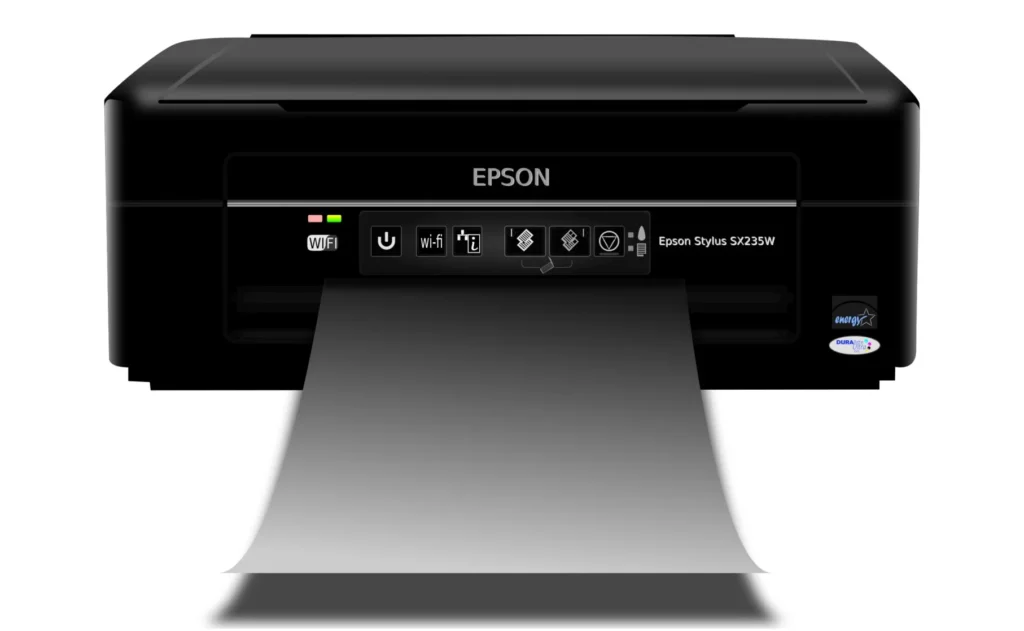
The result tells you where to look next: a damaged or incomplete nozzle pattern points toward the printer and ink system, while a clean nozzle check means you should investigate the document, settings, printer selection, driver, or connection.
We have seen plenty of cases where someone’s Epson printer is printing blank pages. They jump straight to replacing a cartridge that was never empty, when the real issue was a Word file with a stray blank page at the end. Diagnose first, fix second.
Common Causes of Blank Pages on Epson Printers
- Clogged nozzles
- Low/incorrectly installed ink
- New cartridge protective tape/seating
- Document contains no printable content
- Wrong printer selected
- Driver/software issue
- Print settings
- Connection/spooler issue
Warning Signs and What They Mean
- Every page comes out fully blank: check ink/tank levels and cartridge seating first, then run the nozzle check
- Only black text is missing: it is almost always the black nozzle row or the black cartridge specifically
- One color is missing: same logic: check that color is ink and its row on the nozzle pattern
- Text prints faint or has thin white gaps: that is classic clogged-nozzle behavior, not a settings issue
- Nozzle check prints perfectly but the document is still blank: stop looking at the printer, the fault is in the document, printer selection, settings, driver, or connection
Do Not Clean the Printer Until You’ve Diagnosed the Problem.
Nozzle check first. Copy test second. Then decide whether you are troubleshooting the printer or the computer.
Fix 1: Check Ink Levels
Do not trust the on-screen ink icon alone, especially on EcoTank models, open the tank covers and look at the actual liquid level against the printed min/max lines on the tank itself. For cartridge models, pull each cartridge and confirm it clicked fully into place.
Fix 2: Print a Nozzle Check
Step 1. Check ink
Step 2. Run a nozzle check
Step 3. Make a direct copy
Step 4. If nozzle check is bad → clean print head
Step 5. If nozzle check is good → troubleshoot computer/document
A healthy pattern shows solid, unbroken lines for every color. Jagged gaps, a missing segment, or a color that does not print at all means clogged nozzles. If the pattern comes out perfectly clean and the document is still blank, cleaning a print head that is not clogged just burns ink for nothing.
Fix 3: Make a Direct Copy
If your model has a built-in scanner, make a plain copy directly from the control panel, no computer involved. A blank copy points straight back at ink or the print head. A normal copy means the printer hardware is fine and the problem lives somewhere between your computer and the printer.
Also try a completely different file. If a PDF comes out blank but a plain Notepad or TextEdit document prints fine, the PDF itself, or the app that exported it, is the likely culprit, not the printer.
Fix 4: Clean the Print Head
If the nozzle check shows gaps, run the built-in Head Cleaning function from the same Maintenance menu. Here is the part most guides skip: Epson’s own documentation says not to run this back-to-back indefinitely. For EcoTank printers, the rule is up to 3 cleaning cycles, then a full 12-hour wait with the printer left alone before trying again.
Do not interrupt a cleaning cycle or disconnect the printer while it is running. Follow the instructions displayed by the printer.
Fix 5: Use Power Cleaning
Power Cleaning is an advanced maintenance step and should only be used when your Epson model recommends it.
You have already done the normal cleaning cycles above, waited the required 12 hours, and the nozzle check still has not improved. It is not a shortcut to skip straight to.
On Epson models that require this check, make sure each ink tank is at least one-third full before running Power Cleaning. Epson explicitly warns that running Power Cleaning on low ink can damage the printer, since it flushes ink through the entire tube system, not just the print head.
Fix 6: Check Paper and Print Settings
Open the print dialog and check that paper size, media type, and orientation match what is actually sitting in the tray. Check paper size, media type, orientation, and print-quality settings because incorrect settings can cause poor, missing, or unexpected output.
If the print preview itself is blank, however, the problem is in the document or application rather than the printer. Before you hit print, open print preview.
Fix 7: Check the Correct Printer
If you have ever installed printer software, a scanner app, or a PDF printer, Windows or macOS may be quietly defaulting to one of those instead of your actual Epson. On Windows, check Settings > Printers & Scanners and confirm your exact model is set as default, not a duplicate or a network printer entry.
On Mac, check System Settings > Printers & Scanners the same way. Print one simple one-page test document to confirm, this fix alone solves it surprisingly often when the printer’s own nozzle check is fine but every computer document comes out blank.
Fix 8: Test Another Document
Most Epson models can run a nozzle check or built-in test straight from the control panel with zero computer involvement. If the printer-side test comes out clean, the hardware is probably fine, so focus on the document, print settings, printer selection, driver, or connection. If the test is still blank after the recommended maintenance steps, continuing to clean the print head is unlikely to help, and professional diagnosis may be appropriate.
Fix 9: Check Driver and Connection
If the printer’s own nozzle check and a direct copy both work but computer print jobs still come out blank or do not print at all, restart both the printer and the computer first, that clears a surprising number of stuck print-spooler jobs on its own.
If it is still happening, uninstall the current driver and install the current one from Epson’s support site for your exact model and OS version rather than relying on Windows’ generic driver.
When to Seek Professional Help
If your Epson printer still prints blank pages after working through the recommended fixes, stop troubleshooting and get a professional opinion rather than continuing to guess. Contact Epson support or a qualified technician when the safe steps above do not restore printing.
You should also seek professional help if the printer displays a hardware error, leaks ink, makes unusual grinding or clicking noises, or shows a maintenance-box warning that will not clear.
How to Prevent Epson Printer Blank Pages
- Use ink that Epson specifies as compatible with your exact printer model and follow the manufacturer’s refill or cartridge instructions.
- Store paper flat and dry and use paper that meets your printer’s specifications.
- If the printer sits unused for long periods, occasional printing can help reduce the chance of dried ink contributing to clogged nozzles.
- Follow your model’s actual cleaning limits instead of running cycle after cycle hoping it works
- Never interrupt a cleaning cycle by powering off or unplugging mid-process
- Check ink or tank levels before a big print job, not after it fails halfway through
Common Myth to Avoid
Do not inject household alcohol, window cleaner, or vinegar into the ink system, and do not scrape at the print head with a pin or blade. These “hacks” show up constantly in forum threads, and they are more likely to damage the nozzles permanently or contaminate the ink path than to fix anything.
Conclusion
When an Epson printer is printing blank pages, resist the urge to start swapping cartridges or mashing the clean button. Run the nozzle check first. It tells you in under a minute whether you are dealing with a hardware clog or a software/settings issue. And that one test saves you from wasting ink on cleaning cycles that were never going to fix a driver problem, or fiddling with settings when the real issue was a blocked nozzle.
If you have worked through ink, the nozzle check, cleaning within the model’s limits, paper and print settings, printer selection, a direct copy test, and the driver, and your Epson printer prints blank pages regardless, that is the point to loop in Epson support rather than keep guessing.
More Printer Troubleshooting Guieds:
Epson Printer Offline for No Reason? Here are the Actual Fixes
Printer Printing Blank Pages? Don’t Buy a New One Yet
HP Printer Not Printing? 9 Very Easy Fixes
HP Printer Not Connecting to WiFi? 9 Proven Fixes
HP Printer Offline? How To Get It Back Online
Frequently Asked Questions:
Start with a nozzle check before replacing the cartridge. Clogged nozzles, low ink, a cartridge that isn’t fully seated, mismatched print settings, a blank spot in the document, or a driver/connection issue can all cause it, the nozzle check tells you which category you are in.
Full ink does not guarantee it’s actually reaching the paper. If your Epson printer is printing blank pages with full tanks, run the nozzle check first, clogged nozzles behave identically whether the tank is full or nearly empty.
Confirm the cartridge clicked in fully and that the orange protective tape is actually removed, not just the outer packaging. Run a nozzle check before doing any cleaning. A fresh cartridge sometimes just needs the ink to prime through the lines.
That is a strong sign the printer itself is fine. Check print preview, confirm the right printer is selected as default, and check for a stuck print-spooler job before touching the print head.
If the printer has been unused for a long period, dried ink can contribute to clogged nozzles. Run a nozzle check first, and if you see gaps, run the standard head-cleaning cycle for your model before considering Power Cleaning.