

Introduction
Boarding pass. Permission slip. That one invoice you needed five minutes ago. Doesn’t matter what it is, you go to print it and there it is Epson printer offline. The lights are on, nothing looks obviously wrong, and Windows still refuses to print.
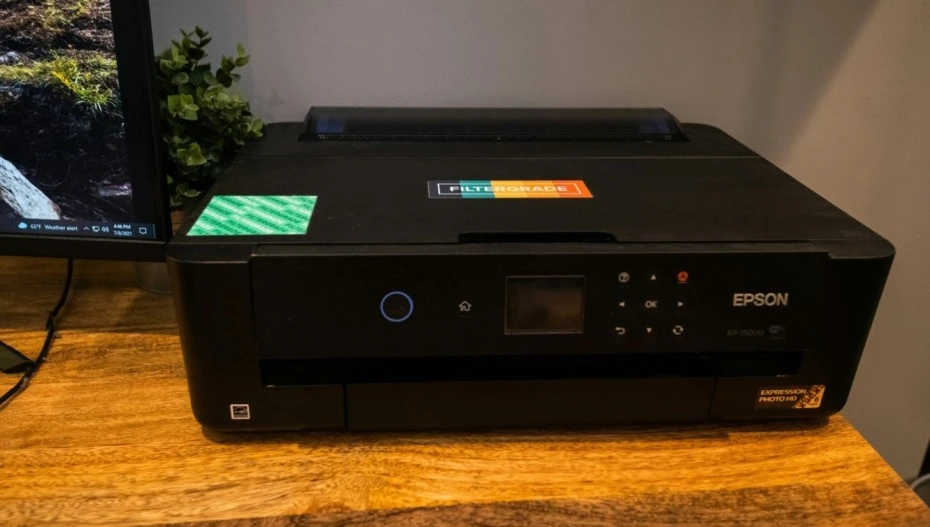
The good news: an Epson printer showing Offline usually doesn’t mean the printer is broken. A stuck print job, Windows’ offline setting, a frozen Print Spooler, Wi-Fi connection problem, changed IP address, or incorrect printer port can all cause the same message.
Before reinstalling drivers or resetting the printer, work through the fixes below in order. Start with the printer itself, then check Windows, the connection, and finally the network settings. If the printer keeps going offline after you get it working again, the IP address or printer port is worth checking next.
Quick Diagnosis: Where Is the Problem?
Before trying the fixes below, use this quick check to narrow down the cause:
| What happens | Most likely problem |
|---|---|
| Printer cannot print its own test/nozzle-check page | Printer or hardware issue |
| Printer prints its own test page, but Windows says Offline | Windows, driver, or printer-port issue |
| Printer works over USB but not Wi-Fi | Wi-Fi or network issue |
| Printer works until the router restarts | IP address, printer port, or network issue |
| Printer appears online but jobs remain stuck | Print queue or Print Spooler issue |
| Printer keeps disappearing from Windows | Network, driver, or printer-port issue |
Tip: If the printer can successfully print its own test page, focus on the connection between the printer and computer rather than the printer hardware itself.
Why Does My Epson Printer Keep Going Offline?
If your Epson printer keeps going offline, there is usually a communication problem between the printer and your computer rather than a serious printer failure. The exact cause can be different depending on whether you use Wi-Fi or USB.
Common causes include:
- A print job is stuck in the queue
- Windows has Use Printer Offline enabled
- The Windows Print Spooler has stopped responding
- The printer lost its Wi-Fi connection
- Your computer and printer are connected to different networks
- The printer’s IP address changed after a router restart
- Windows is using an outdated or incorrect printer port
- A USB cable, port, or hub is causing the connection to drop
- Firewall or security software is interfering with printer communication
- The printer has a hardware or maintenance error
- Outdated Epson software, drivers, or firmware are causing compatibility problems
If the problem happens repeatedly, don’t keep clicking Use Printer Online every time. That may bring the printer back temporarily without fixing the underlying connection problem. Work through the fixes below to identify what is actually causing the offline status.
Is It the Printer, Computer, or Network?
Before changing Windows settings, figure out where the problem is. A quick test from the printer itself can tell you whether you’re dealing with a printer problem or a connection problem.
If the printer itself cannot print
If your Epson printer cannot print a built-in nozzle check, self-test, or status page, check the printer for:
- Paper jams
- Empty or incorrectly installed ink
- Maintenance or error messages
- A problem shown on the printer’s display
- A disconnected network or USB connection
In this situation, changing Windows settings is unlikely to fix the underlying problem.
If the printer can print its own test page
If the printer successfully prints its own test page but Windows still shows it as Offline, the problem is more likely to be between the printer and computer.
Look for signs such as:
- Print jobs remain stuck in the queue
- Use Printer Offline is enabled
- The Print Spooler is not responding
- The printer keeps disappearing from Windows
- The printer is connected to Wi-Fi but Windows cannot communicate with it
- Windows is using an incorrect or outdated printer port
This distinction matters because it tells you where to start troubleshooting instead of changing several settings at random.
11 Fixes for an Epson Printer Offline Error
Fix 1: Run a Self-Test From the Epson Printer
Before changing anything in Windows, test the printer itself. Depending on your Epson model, you may be able to print a nozzle check, status sheet, or other built-in test page from the printer’s control panel.
Look under options such as Setup, Maintenance, or Printer Settings. The exact menu and test available will vary by model.
- If the printer successfully prints the test page: the printer can print on its own, so the problem is more likely related to Windows, the connection, or the printer’s network settings.
- If the printer cannot complete the test: check the printer’s display or indicator lights for paper, ink, maintenance, or other error messages before troubleshooting Windows.
This simple test tells you whether you should focus on the printer itself or the connection between the printer and your computer.
Fix 2: Check Whether Windows Shows the Epson Printer as Offline
If the Epson printer can print its own test page but Windows still cannot print, check the printer’s status in Windows before reinstalling drivers or changing advanced settings.
On Windows 11:
- Open Settings.
- Select Bluetooth & devices.
- Select Printers & scanners.
- Click your Epson printer.
- Check whether Windows shows it as Offline, Paused, or otherwise unavailable.
If Windows shows the printer as offline, continue with the next troubleshooting steps rather than assuming the printer itself is broken.
Also check the printer’s physical connection:
- For USB printers, make sure the cable is firmly connected to both the printer and computer. If possible, try another USB port.
- For Wi-Fi printers, make sure the printer is connected to the same Wi-Fi network as the computer.
- If the printer recently changed networks or the router was replaced, Windows may still be trying to communicate with the printer using an old connection.
Don’t remove and reinstall the printer yet. First determine whether Windows can communicate with the existing printer connection. That makes the later troubleshooting much more targeted.
Fix 3: Restart the Epson Printer and Clear Its Print Queue
A stuck print job can make an Epson printer appear offline or prevent new documents from printing. Restarting the printer and clearing the Windows print queue can often resolve the problem without changing drivers or other settings.
First, turn off the Epson printer and wait about 30 seconds. Turn it back on and allow it to finish starting up.
Then check the print queue in Windows:
- Open Settings.
- Go to Bluetooth & devices → Printers & scanners.
- Select your Epson printer.
- Click Open print queue.
- If there are documents waiting, cancel the stuck print jobs.
- Try printing a small document again.
If the queue keeps getting stuck or Windows continues showing the printer as offline, the Print Spooler service may be the problem. In that case, the next step is to restart the Print Spooler service before moving on to drivers or network settings.
Fix 4: Restart the Windows Print Spooler Service
If the Epson printer is detected by Windows but documents remain stuck in the queue, the Print Spooler service may have stopped responding. This Windows service manages print jobs and passes them to the printer.
To restart it:
- Press Windows + R to open the Run dialog.
- Type
services.mscand press Enter. - Find Print Spooler in the list.
- Right-click Print Spooler and select Restart.
- Wait a few seconds for the service to restart.
- Try printing again.
If the Restart option is unavailable, select Stop, wait a few seconds, and then select Start.
If the printer starts printing after this: the problem was likely caused by a temporary Windows printing-service issue.
The Epson printer still shows Offline: continue to the next fix. At this point, it’s worth checking whether Windows is using the correct printer port or network connection.
Fix 5: Make Sure “Use Printer Offline” Is Turned Off
Sometimes Windows can place a printer into offline mode even though the Epson printer is powered on and connected. If Use Printer Offline is enabled, Windows may keep sending jobs to the queue without actually communicating with the printer.
To check it:
- Open Settings → Bluetooth & devices → Printers & scanners.
- Select your Epson printer.
- Click Open print queue.
- In the print queue window, select the Printer menu.
- If Use Printer Offline is checked, click it to turn the option off.
- Also make sure Pause Printing is not enabled.
- Close the queue and try printing again.
If Use Printer Offline was already disabled, don’t change anything here. Move on to the next fix.
If the printer immediately comes back online: try printing a test page to confirm the problem is resolved.
If Windows still shows the Epson printer as Offline: the next thing to check is whether Windows has assigned the printer the wrong port or an outdated network address.
Fix 6: Restart the Router, Then the Computer
Use this one for going from Epson printer offline to online when the Wi-Fi seems okay but the printer still won’t respond. Router first, give it a minute or two to fully reconnect, then the computer. Do it in that order. Restarting the computer while the router’s mid-reboot basically wastes your time.
Fix 7: Confirm the Printer Is Actually on Your Wi-Fi
Look at the Wi-Fi light or network menu on the printer itself. No solid light means no real connection, whatever your computer might be telling you. And check both devices are on the same network, 2.4GHz vs. 5GHz dual-band routers and guest networks cause this constantly, more than people expect.
Fix 8: Check the Epson Printer’s IP Address
For a Wi-Fi Epson printer, Windows can show the printer as Offline if its IP address has changed or if the computer can no longer reach that address.
First, find the printer’s current IP address. Depending on your Epson model, you may be able to find it under Wi-Fi/Network Settings, Network Status, or by printing a network status sheet.
Once you have the IP address, compare it with the address configured for the printer in Windows.
You can check the Windows port by:
- Press Windows + R.
- Type
control printersand press Enter. - Right-click your Epson printer.
- Select Printer properties.
- Open the Ports tab.
- Select the printer’s network port and click Configure Port if that option is available.
- Check the Printer Name or IP Address field.
Windows is using an old IP address while the Epson printer now has a different one, Windows may continue trying to send print jobs to the wrong address.
If the IP addresses match: the network address is probably not the immediate problem.
If they don’t match: the printer may need to be configured with the correct network port rather than simply being reinstalled.
The printer has the correct IP address but Windows still cannot communicate with it, the next step is to test whether the computer can actually reach the printer over the network.
Disable SNMP Status if Windows says Offline but the printer works
Press Windows + R
Type Control Printers
Right-click the Epson printer
Select Printer properties
Open Ports Select the active port
Choose Configure Port
Look for SNMP Status Enabled Test with it disabled
Check Whether Windows Is Using a WSD Printer Port
Your Epson printer can be connected to Wi-Fi and have the correct IP address, but Windows may still show it as Offline if it is communicating through an outdated or unreliable printer port.
To check:
- Press Windows + R, type
control printers, and press Enter. - Right-click your Epson printer and select Printer properties.
- Open the Ports tab.
- Look at the port with the check mark next to it.
If the selected port starts with WSD, Windows is using a WSD connection.
If your printer keeps going offline, disappears from Windows, or stops responding after a router restart even though it is still connected to Wi-Fi, you can try creating a Standard TCP/IP Port using the printer’s current IP address.
Go to Printer properties → Ports → Add Port → Standard TCP/IP Port, then follow the wizard and enter the printer’s current IP address.
You don’t need to change a WSD port if your Epson printer is working normally. This step is mainly useful when the printer repeatedly shows Offline despite having a working network connection.
Fix 9: Check the Epson Printer Port in Windows
If Windows still shows your Epson printer as Offline, the printer may be installed correctly but assigned to the wrong port. This is especially common with Wi-Fi printers when the printer’s network address has changed.
To check the port:
- Press Windows + R.
- Type
control printersand press Enter. - Find your Epson printer in Devices and Printers.
- Right-click the printer and select Printer properties.
- Open the Ports tab.
- Check which port is selected.
For a USB Epson printer, you will typically see a USB port such as USB001 or a similar USB printer port.
For a Wi-Fi Epson printer, you may see a Standard TCP/IP Port or another network-related port.
If the selected port no longer matches how the printer is connected, Windows may be sending print jobs to the wrong destination.
Important: Don’t randomly change the port. If you’re unsure which port belongs to the Epson printer, leave the current setting unchanged and continue troubleshooting.
If the printer’s port appears correct but Windows still reports it as offline, the next step is to check the printer’s IP address and determine whether Windows can still reach it over the network.
Fix 10: Run the Windows Printer Troubleshooter
If the Epson printer is reachable on the network but Windows still shows it as Offline, use Windows’ built-in printer troubleshooting tools. They can identify common problems with the printer service, configuration, or communication between Windows and the printer.
On Windows 11:
- Open Settings.
- Select System → Troubleshoot → Other troubleshooters.
- Find Printer.
- Click Run.
- Follow the instructions shown on screen.
- After Windows finishes checking the printer, try printing again.
Windows may recommend actions such as changing the default printer, clearing a stuck print job, or correcting a configuration problem.
If Windows finds and fixes a problem: print a test page to confirm that the Epson printer is working normally.
If Windows reports that it could not identify the problem: don’t immediately reinstall the printer. The next step is to check whether the Epson printer driver is outdated, corrupted, or incorrect for your model.
Fix 11: Update or Reinstall the Epson Printer Driver
If the Epson printer is connected correctly but Windows still shows it as Offline, a damaged, outdated, or incorrect printer driver can prevent Windows from communicating with the printer properly.
Before reinstalling anything, check which Epson model is installed. The exact driver depends on the printer model and Windows version.
Try updating the driver first:
- Right-click the Start button and select Device Manager.
- Expand Printers or Print queues.
- Find your Epson printer.
- Right-click it and select Update driver.
- Choose Search automatically for drivers.
- Restart the computer if Windows installs an update.
If Windows says the best driver is already installed but the printer remains offline, the existing driver may still be corrupted. In that situation, removing the printer and installing the correct driver from Epson can be more effective than repeatedly updating the same driver.
Important: Download the driver for your exact Epson model and Windows version. Avoid installing a driver for a similar-looking Epson printer simply because the model name is close.
If the printer started showing Offline immediately after a Windows update, also consider whether the update changed the printer driver or configuration.
After updating or reinstalling the driver doesn’t fix the problem, the next step is to remove the Epson printer completely and add it again using the correct connection method.
What If It Keeps Happening
If the printer comes back online for a day and then drops again, stop repeating Fix 5 on loop. That’s a band-aid, not a fix. A printer going offline again and again almost always traces back to one root cause: an IP conflict, a weak signal reaching it, or security software quietly interfering.
Worth checking too:
- Firewall or antivirus software, some security suites block printer communication ports by default. Disabling it briefly can confirm whether it’s the culprit.
- Router changes, if the offline errors started right after a firmware update or a brand-new router, that is your clue.
- Distance and interference, a printer sitting far from the router, or surrounded by other wireless devices, can have a weak enough signal that it looks like a full disconnection.
When to Just Call Epson Support If Your Printer Shows Offline
Some of this genuinely is not a DIY job. Call Epson, or a technician, if:
- The printer can not even complete its own built-in self-test
- A hardware or maintenance error won’t clear no matter what you try
- It keeps losing connection even after you’ve set up a proper reserved IP
- The USB port or connector looks physically damaged
- There’s any liquid or physical damage to the unit
Fixes to Avoid
A short list of things that tend to backfire: changing router security settings you do not fully understand, downloading drivers from some random third-party site, digging around in Windows system files, or mashing the network reset button over and over without knowing what it actually wipes. Just work through the order above instead, printer, queue, offline setting, connection, network, software. You will get there without inventing a second problem along the way.
Preventing This From Happening Again
- Set a DHCP reservation so the printer’s IP address never changes
- Keep firmware and drivers reasonably up to date
- Use a solid USB cable and connect directly when troubleshooting
- Restart the printer and router together when something feels off, not just the printer alone
- Clear out abandoned print jobs instead of piling new ones on top
- Keep your Epson model number and Wi-Fi password somewhere handy for next time
Bottom Line
The Epson printer offline message looks scarier than it is, most of the time. Self-test, queue, offline setting, spooler, connection, network, software, work it in that order and you’ll probably be printing again before you hit step six. And if this keeps happening week after week, stop treating the symptom. Go fix the IP address and the network stability. That’s genuinely where the problem usually lives.
More Printers Troubleshooting Blogs:
HP Printer Not Printing? 9 Very Easy Fixes
HP Printer Not Connecting to WiFi? 9 Proven Fixes
HP Printer Offline? How To Get It Back Online
Frequently Asked Questions:
Start with a self-test from the printer itself, then restart it, clear the print queue, restart the Windows Print Spooler service, and check that Use Printer Offline isn’t turned on. For wireless models, check the network connection next.
Make sure it is powered on and connected first. On Windows, open the print queue and uncheck Use Printer Offline. For wireless models, confirm both devices are on the same network, and consider a fixed IP address if it keeps reverting.
Usually a changing IP address, a dropped Wi-Fi connection, a stuck print queue, or security software interfering. If it is recurring rather than a one-off, an IP conflict is the most likely cause.
Being connected to Wi-Fi doesn’t guarantee your computer can actually reach it. Confirm both devices are on the same network, restart the router and computer, and check whether the printer’s IP has changed.
Only after the simpler checks fail. A reset wipes saved Wi-Fi info, so have your network name and password ready, and follow the instructions for your specific model rather than a generic one.
Usually an offline setting left on, a jammed queue, or a frozen Print Spooler service. Clear the queue, restart the spooler, and check the offline setting before you consider reinstalling anything.