

Why Is Your HP Printer Not Connecting to WiFi?
If your HP printer won’t connect to WiFi, don’t worry. This guide will help you fix the problem step by step. An HP printer not connecting to WiFi is one of the most common tech headaches out there, and it usually happens at the worst possible time, like right before you need to print a boarding pass or a school assignment that’s due in ten minutes.
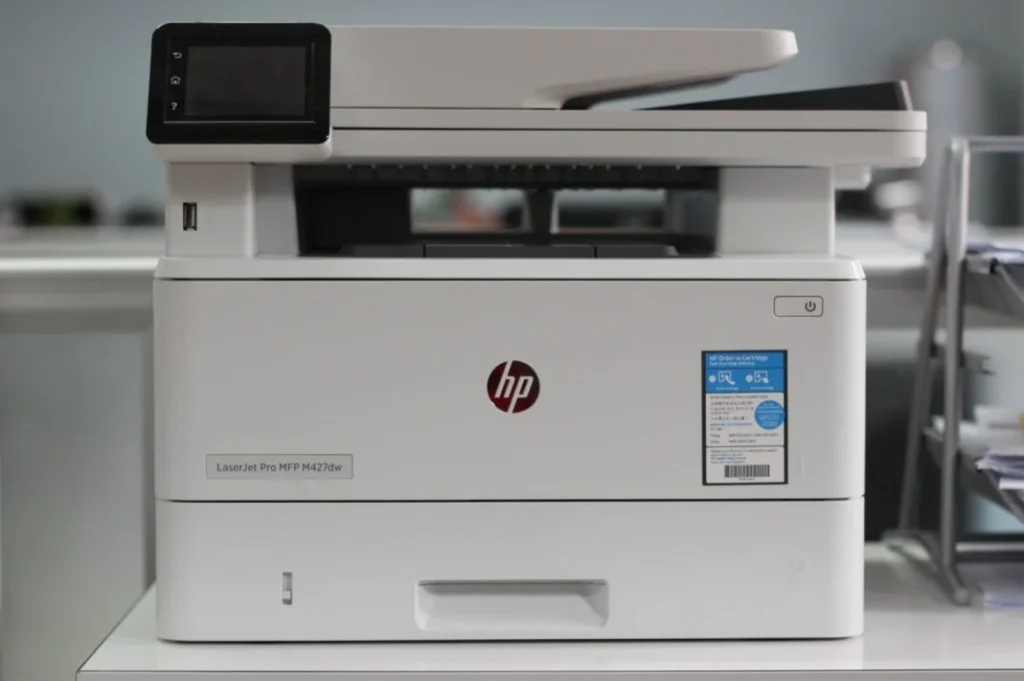
In this guide, we will walk through exactly why your HP printer is not connected to internet in the first place, then go through practical, step-by-step fixes, starting with the simplest ones first. No guesswork, just a clear path to get your printer back online.
Before jumping into fixes, it helps to know what is actually going wrong. A HP wireless printer not connecting usually comes down to one of these culprits:
- Wrong WiFi password entered on the printer’s control panel
- The printer is trying to join a 5GHz network (most HP printers only support 2.4GHz)
- The printer is too far from the router, or there’s interference from walls or appliances
- Outdated or corrupted printer drivers/firmware
- Router settings like MAC filtering or band steering blocking the printer
- A temporary glitch in the router or printer’s network adapter
- Firewall or antivirus software blocking the printer on your computer
Once you know the likely cause, the fixes below become a lot less like guesswork and more like a checklist.
How to Fix an HP Printer Not Connecting to WiFi
Fix 1: Restart Your Printer, Router, and Computer
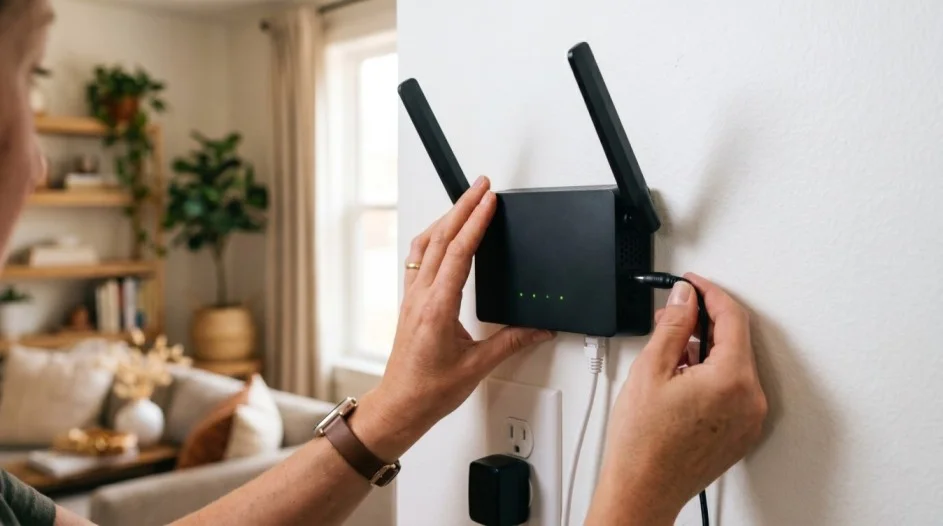
It sounds too simple, but a full restart clears out temporary glitches on both ends of the connection.
- Turn off the printer using the power button (not just the plug).
- Unplug your router and modem, wait 30 seconds, then plug them back in.
- Once your router’s lights are stable, turn your printer back on.
- Restart your computer or phone as well before trying to reconnect.
A large number of HP printer won’t connect to WiFi cases are resolved by this step alone.
Fix 2: Make Sure You’re Connecting to a 2.4GHz Network
This is one of the most overlooked reasons an HP wireless printer not connecting keeps failing. Most HP printers can only join 2.4GHz WiFi networks, not 5GHz.
- If your router broadcasts a combined network name, log into your router settings and temporarily split it into separate 2.4GHz and 5GHz names
- On the printer’s control panel, select the 2.4GHz network specifically when connecting
- Once connected, you can merge the networks back if you prefer
Fix 3: Move the Printer Closer to the Router
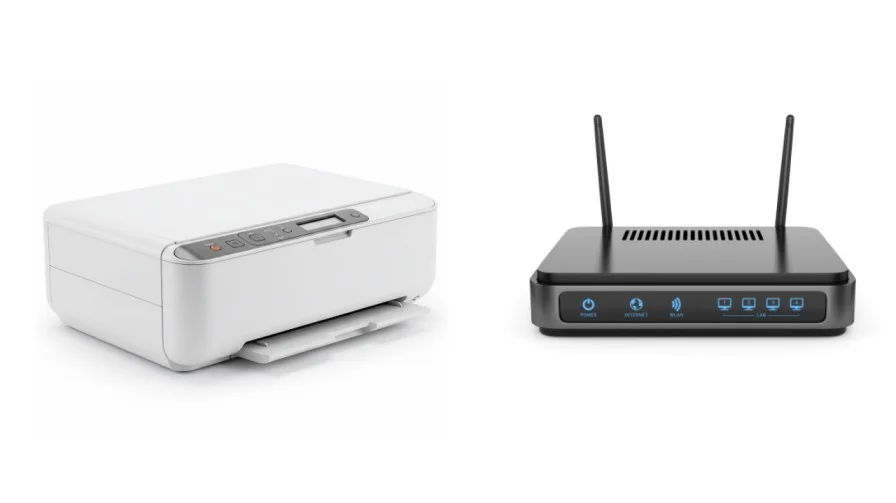
WiFi signal weakens with distance and drops significantly through walls, floors, and large appliances. If you are facing an HP printer not connecting to WiFi, and the printer is in another room or near a microwave or cordless phone base, try moving it closer to the router temporarily to see if that resolves the issue. If it does, consider using a WiFi extender for a more reliable long-term connection.
Fix 4: Forget and Reconnect the Network on the Printer
A stale or corrupted network profile on the printer itself is a common reason an HP printer cannot connect to WiFi even with the right password.
- On the printer’s touchscreen, go to the Wireless or Network Setup menu.
- Select your current network and choose to forget or remove it.
- Run the wireless setup wizard again and reconnect from scratch, typing the password carefully.
Fix 5: Update the Printer’s Firmware
Outdated firmware can cause compatibility issues with newer router security protocols. Most HP printers let you check for updates directly from the control panel under Setup or Tools, then Firmware Update or Printer Updates. If your printer has a screen but no update option, you can check for the latest firmware on HP’s official support site by searching your exact printer model.
Fix 6: Update the Printer’s Firmware
Sometimes the printer connects to WiFi just fine, but your computer can’t communicate with it because of an outdated or corrupted driver. This is a common reason people say their HP printer is not connected to internet even though the printer’s own display shows a strong signal.
- Uninstall the current printer software from your computer’s list of installed programs.
- Restart your computer.
- Download the latest full driver package for your exact model from HP’s official support site.
- Install it and let the setup wizard reconnect to your printer over WiFi.
Fix 7: Run HP Print and Scan Doctor
HP offers a free diagnostic tool called HP Print and Scan Doctor that automatically detects and fixes many common connectivity issues. It checks your network, driver, and printer communication in one pass, and it’s often faster than troubleshooting manually.
- Download it from HP’s official support site
- Run it and select your printer when prompted
- Follow the on-screen recommendations for any issues it finds
Fix 8: Check for Router-Side Blocks
If you still can’t connect HP printer to WiFi after trying the steps above, your router settings might be the issue.
- MAC filtering: check whether your router only allows specific devices to connect, and add your printer’s MAC address if needed
- Band steering: some routers automatically push all devices to 5GHz, which can strand a 2.4GHz-only printer, look for an option to disable this
- Guest network isolation: make sure your printer and your computer are on the same network, not one on a guest network
Fix 9: Reset the Printer’s Network Settings
As a last resort before a full factory reset, most HP printers let you reset just the network settings without wiping other configurations.
- Go to the printer’s Network or Wireless menu.
- Select Restore Network Settings or Reset Network Settings.
- Run the wireless setup wizard again once the reset completes.
HP Printer Connected to WiFi But Still Not Printing?
Sometimes the network connection itself is not the problem, the printer shows as connected, but print jobs just sit in the queue. If that is your situation:
- Clear the print queue and try printing a single test page
- Make sure the printer is set as the default printer on your computer
- Check that the printer isn’t paused in your computer’s printer settings
- Confirm the printer and computer are on the same WiFi network, not separate ones
Wireless vs. Wireless Direct vs. USB: Which Should You Use?
If WiFi troubleshooting isn’t working right away, it helps to know your alternatives while you sort it out.
| Method | Best For | Limitation |
| Wireless (router-based) | Everyday home or office printing from multiple devices | Needs a stable WiFi network and correct password |
| HP Wireless Direct | Printing without a router, or when WiFi keeps failing | Only one or two devices can connect at a time |
| USB connection | Fastest way to rule out network issues | No wireless printing from other devices |
Conclusion
An HP printer not connecting to WiFi is frustrating, but it’s rarely a sign that something is seriously wrong with your printer. Most of the time, it is a small mismatch, a 5GHz network the printer can’t see, a saved password that is out of date, or a driver that needs updating. Working through the fixes in order, starting with a simple restart and ending with a network reset if needed, resolves the vast majority of cases.
If you have gone through every fix here and your HP printer still won’t connect to WiFi, it may be worth contacting HP support directly, since that can indicate a hardware fault with the printer’s wireless adapter. But for most people, one of the steps above gets things printing again.
Frequently Asked Questions:
This usually points to a weak signal, router power-saving settings, or outdated firmware. Try moving the printer closer to the router and updating both the printer firmware and router firmware.
Yes. Most HP printers with a touchscreen let you connect directly through the Wireless Setup Wizard on the control panel, without needing a computer at all.
When you get a new router or change your WiFi password, the printer still has the old network details saved. Forget the old network on the printer and run the wireless setup again with the new name and password.
USB is a reliable temporary fix while you troubleshoot, but it limits you to printing from one connected computer. It’s worth fixing the WiFi connection for the convenience of printing from any device.
No. Most HP inkjet and budget models only support 2.4GHz. Some newer HP models do support 5GHz, so check your specific model’s specifications if you’re unsure.