

Introdution
A black line on laptop screen Dell devices can be worrying, especially when it suddenly appears while you are working. The line may be thin and barely noticeable or large enough to affect text, images, and other content on the display. In some cases, the cause is a temporary software or graphics issue, while in others, it may point to a problem with the screen or its internal connection. The good news is that you can perform several simple checks before assuming the display needs repair or replacement.
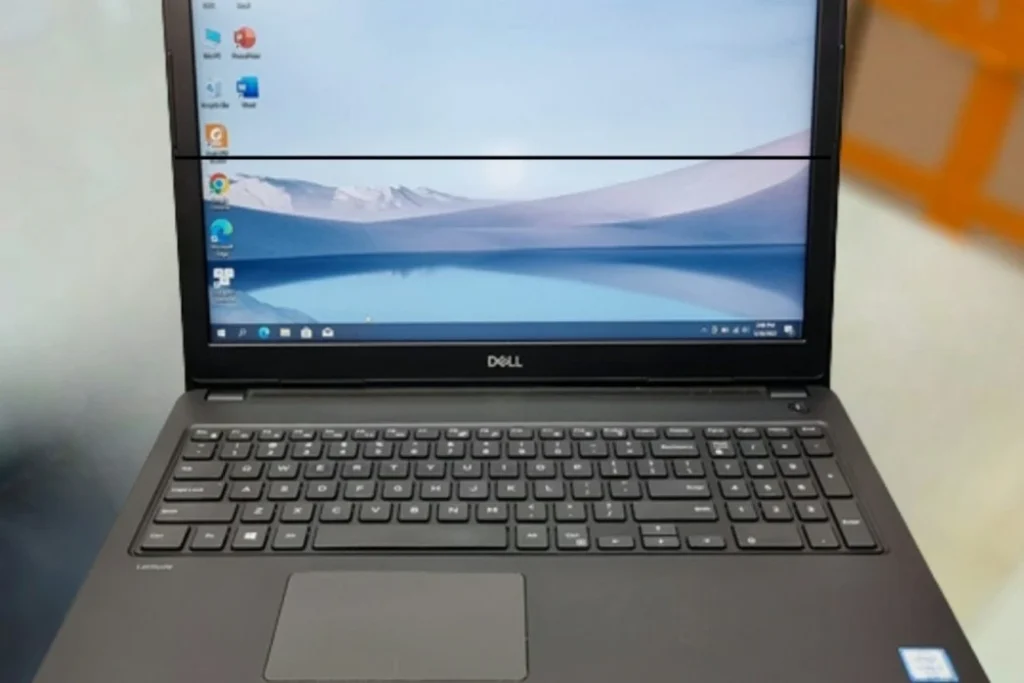
Why a Black Line Shows Up on a Dell Laptop Screen
A laptop screen is made up of millions of tiny pixels, each one controlled by a grid of wires and a thin ribbon cable that carries the video signal from your graphics card to the panel itself. A black line on Dell laptop screen units usually means one section of that grid has stopped receiving a proper signal.
That can happen for two very different reasons: something in the software is telling the wrong pixels to go dark, or something in the physical hardware, like the cable, the panel, or the connection between them, has been damaged. Working out which one you’re dealing with is the whole point of the fixes below.
Common Causes of a Black Line on Dell Laptop Screen
- Outdated, corrupted, or mismatched display drivers, often after a Windows update.
- A loose or partially disconnected display cable inside the lid.
- Physical pressure on the screen, such as something resting on the closed lid or a bag that is too tight.
- A drop, bump, or the laptop being closed too forcefully.
- A failing LCD panel, where individual pixels or pixel columns have died.
- A graphics card (GPU) fault, which is less common but shows up on external monitors too.
- Manufacturing defects in the panel itself, which Dell has acknowledged on some models.
Warning Signs to Watch For
Not every black line behaves the same way, and how it behaves tells you a lot,
- A line that changes position, flickers, or comes and goes usually points to a loose cable or driver issue.
- A line that stays in exactly the same spot, no matter what’s on screen, usually points to dead pixels or a panel fault.
- Lines that appear only after you open the lid to a certain angle often mean a cable connection is being pinched.
- Additional lines, colored streaks, or flickering that spreads over time is a sign the panel is deteriorating and won’t fix itself.
7 Fixes for a Black Line on Your Dell Laptop Screen
Try the solutions in order, starting with the easiest ones. The first few can help rule out software issues, while the later steps will help you figure out whether the problem is related to the screen hardware and what to do next.
Fix 1: Restart Your Laptop
It sounds too simple, but a full restart clears out a lot of temporary display glitches caused by a stuck driver process or a graphics memory error. Save your work, restart normally (not just sleep), and see if the line is still there.
Fix 2: Refresh the Display Driver Without Restarting
Windows has a built-in shortcut that restarts just the graphics driver, without rebooting the whole system. Press Windows key + Ctrl + Shift + B. Your screen will flash black for a second and you may hear a beep. If the black line on your Dell laptop screen disappears after this, you’re almost certainly dealing with a software issue, not a hardware one.
Fix 3: Run Dell’s Built-In LCD Self-Test
This is the single most useful test for narrowing down the problem, because it runs before Windows even loads, which rules out software entirely. The steps vary slightly by model, so check your exact laptop’s method on Dell’s support site, but the general process is:
- Shut the laptop down completely.
- Disconnect the charger.
- Press and hold the D key on your keyboard.
- While still holding D, press the power button, then keep holding D for a few seconds after the laptop starts.
- The display will show a sequence of solid colors, including white, red, green, blue, and black.
If the black line on Dell laptop screen shows up during this test, the panel itself is at fault. If the test screens are completely clean, the hardware is fine and the problem lives in Windows.
Fix 4: Connect an External Monitor
Plug your Dell laptop into an external monitor or TV using HDMI or USB-C. If the picture is completely normal on the external screen, the problem is isolated to your laptop’s built-in panel or its cable, and your graphics card is working fine. If the black line shows up on the external monitor too, the issue is more likely the GPU, and it’s worth getting the laptop looked at rather than continuing to troubleshoot the screen.
Fix 5: Boot Into Safe Mode if Black Line on Dell Laptop Screen
Safe Mode loads Windows with only the most basic, generic display driver. To get there, hold Shift while clicking Restart, then choose Troubleshoot > Advanced Options > Startup Settings > Restart, and press 4 or F4 for Safe Mode. If the line vanishes in Safe Mode, a third-party app, a display setting, or your regular graphics driver is the culprit.
Fix 6: Update or Reinstall the Display Driver
Outdated or corrupted graphics drivers are one of the most common software causes of a black line on Dell laptop screen displays, especially right after a Windows update. To update:
- Right click the Start button and open Device Manager.
- Expand Display adapters.
- Right click your graphics card and choose Update driver.
- If that does not help, right-click again and choose Uninstall device, then restart your laptop so Windows reinstalls a fresh copy.
For the most reliable version, download the driver directly from Dell’s support page or through Dell SupportAssist, since it’s matched to your exact model.
Fix 7: Update the BIOS if Black Line Appears on Dell Laptop Screen
A Dell BIOS update can occasionally resolve display communication issues between the hardware and the operating system. Only download BIOS updates from Dell’s official support site for your specific service tag, keep the laptop plugged in throughout, and never interrupt the update once it starts. This fix is less common than a driver update, so try it after the earlier software fixes, not before.
Myth to Avoid: Do Not Press or Massage the Screen
A common piece of advice online is to gently press, rub, or massage the area around the black line to push a stuck pixel or trapped bubble back into place. This might work on some external monitors with certain panel types, but on a laptop’s built-in LCD it is risky. Laptop panels are thinner and more fragile, and pressure can crack the glass, damage the backlight, or spread the dead-pixel area rather than fix it. If a line is hardware-related, the safe path is the self-test and cable check above, followed by a professional repair, not physical pressure on the screen.
When to Seek Professional Help
Book a repair or contact Dell support if any of the following apply:
- The line appears during the BIST self-test, confirming a panel issue
- The line also shows up on an external monitor, pointing to a GPU problem
- The line only appears or worsens at certain lid angles, suggesting a damaged cable
- The laptop was recently dropped or something heavy was placed on the lid
- The line is spreading, multiplying, or joined by flickering or color distortion
If your laptop is still under Dell’s standard warranty or you purchased Accidental Damage coverage, start with Dell support before paying an independent shop, since the repair may be free.
How to Prevent a Black Line on Your Dell Laptop Screen
- Never place anything on top of a closed laptop, even something light like a phone or notebook
- Use a padded sleeve if you carry the laptop in a bag with other items
- Close the lid gently, using the edge rather than slamming it shut
- Keep your graphics drivers and Dell BIOS up to date through Dell SupportAssist or Windows Update
- Avoid picking the laptop up or carrying it by the screen
- Keep an eye on GPU temperature during heavy use, since consistent overheating can shorten a display’s lifespan
Final Thoughts
A black line on laptop screen Dell models can be alarming to see, but it is rarely worth panicking over before you have worked through the basics. Start with a restart and the driver refresh shortcut, run the built-in self-test, and check an external monitor. Those four steps alone will tell you, with a fair amount of confidence, whether you are dealing with a quick software fix or a hardware issue that needs a repair. Either way, you will know exactly what you are dealing with instead of guessing.
Related Posts:
Vertical Black Line On Laptop Screen? 9 Easy Fixes
Laptop ASUS Black Screen? 9 Proven Ways To Get Your Display Back
Black Spots On MacBook Screen? Try These Fixes First
MacBook Pro Battery Not Charging? How To Fix It
MacBook Won’t Turn On: 10 Fixes That Actually Work
Laptop Won’t Turn On? Try This Before You Panic
HP Laptop Overheating? Why It’s Heating Up And How To Fix It
Frequently Asked Questions:
It depends on the cause and your warranty type. Lines that appear on their own, without a drop or spill, are sometimes covered as a manufacturing defect under Dell’s standard warranty. Damage from an impact is only covered if you have Accidental Damage protection. Check your coverage using your Service Tag at dell.com/support.
A software-related line, caused by a driver glitch, can disappear after a restart, driver update, or the Windows+Ctrl+Shift+B shortcut. A hardware-related line, caused by a damaged panel or cable, will not resolve on its own and typically stays the same or gradually worsens.
Yes, in the short term, especially if it is a thin line that does not interfere much with your work. But if it’s caused by physical damage, it can spread over time, so it is worth diagnosing the cause and getting it looked at rather than ignoring it indefinitely.
No, it is a diagnostic step, not a fix. An external monitor just tells you whether the problem lives in your laptop’s built-in panel and cable, or somewhere upstream in the graphics card. You will still need to repair the laptop’s own screen for it to work correctly on its own.