

Why Does an ASUS Laptop Screen Go Black?
If you are dealing with a laptop ASUS black screen, the cause can vary. The laptop may not actually be powering on, the screen itself could have a problem, or something like a graphics driver or stuck Windows update may be preventing the display from working.
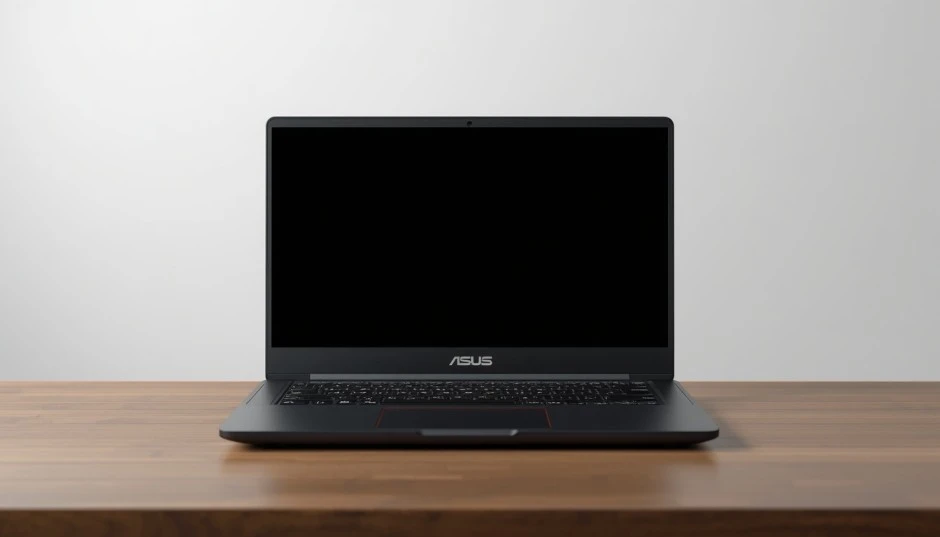
Because these issues can look identical, the smartest approach is to try the fixes in order, starting with the simplest solutions before moving to more advanced troubleshooting.
Common Causes of the ASUS Laptop Black Screen Problem
Most cases of an ASUS laptop black screen problem trace back to one of these,
- A drained or faulty battery, or a charger/cable that is no longer delivering power.
- The laptop is actually asleep or in hibernation, not off.
- A graphics driver that crashed or didn’t finish installing after a Windows update.
- A second monitor or dock still remembered by Windows, so the display output is being sent to the wrong screen.
- An interrupted BIOS update.
- A loose internal display cable or a failing screen panel or backlight.
- A faulty RAM module or connection, on models where the memory is user-accessible.
Warning Signs Before Your ASUS Laptop Display Fails
A screen rarely dies without warning. Watch for these signs, since catching them early can help you diagnose the problem faster if the screen does eventually go black,
- Flickering, dimming, or a screen that only lights up at certain angles.
- A faint image visible only with a flashlight.
- Random freezes or crashes right before or after graphics-heavy tasks.
- The laptop working fine when connected to an external monitor, but not on its own screen.
How to Fix an ASUS Laptop Black Screen
Work through these in order. Most people solve their ASUS laptop screen not working issue within the first four or five steps.
Fix 1: Check if Your Laptop Is in Sleep Mode First
Before anything else, make sure the laptop is not simply asleep. Press a key, tap the trackpad, or briefly press the power button (not hold it). Give it 10–15 seconds, since some models take a moment to wake up. This sounds obvious, but it is the single most common false alarm.
Fix 2: Check the Power and Charging Connection
Confirm the charger LED is lit and the cable is firmly seated in both the wall outlet and the laptop. Try a different outlet if you have one nearby. If the battery is fully drained, plug in the charger and let it charge for 15–20 minutes before trying to power on again, since some ASUS models won’t display anything at all with a critically low battery.
Fix 3: Disconnect All External Devices
Unplug any external monitor, USB drive, mouse, dock, or hub, then try powering on again. If a second display is connected, Windows sometimes sends the entire desktop to it and leaves the laptop’s own screen blank.
Fix 4: Perform a Hard Reset of Laptop ASUS Black Screen
This is ASUS’s own recommended first step for a black screen and it resolves a surprising number of cases. According to ASUS support, you should:
- Shut the laptop down and disconnect the charger
- If the battery is removable, take it out
- Press and hold the power button for 40 seconds
- Reconnect the battery (if removed) and the charger, then power on normally
This clears residual power from the motherboard and often unsticks a display that failed to initialize properly.
Fix 5: Adjust Brightness and Check for a Faint Image
Use the Fn key plus the brightness keys (usually F7/F8, marked with a sun icon) in case brightness was accidentally turned all the way down. While you are at it, shine a flashlight at an angle across the screen in a dark room. If you can faintly make out your desktop, the panel itself is fine and the problem is almost certainly the backlight, which usually needs a technician.
Fix 6: Test With an External Monitor
Connect the laptop to an external monitor or TV using HDMI or USB-C, then power it on. If the image shows up perfectly on the external screen, your graphics card and motherboard are working, the issue is isolated to the laptop’s own display or its internal cable, which points toward a hardware repair rather than a software fix.
Fix 7: Boot Into Safe Mode and Update the Graphics Driver
If you can see the Windows logo or login screen but the display goes black once the desktop loads, a corrupted or outdated graphics driver is the most likely culprit. Boot into Safe Mode, then open Device Manager and reinstall or roll back the display adapter driver. You can download the correct driver for your exact model from ASUS’s own support and driver download page.
Fix 8: Resume an Interrupted BIOS Update
If the black screen started right after a BIOS update was interrupted (for example, by a power loss or forced shutdown), don’t panic and don’t try to force a normal boot repeatedly. ASUS publishes a specific recovery procedure for this exact scenario on its support site, which walks you through safely resuming the update using a second computer and a USB drive.
Fix 9: Reseat the Memory (RAM), If Your Model Allows It
On ASUS models with a user-accessible RAM compartment, a loose or failing memory module can cause a black screen with no display at all, even though the power light is on. Power off, unplug the charger, remove the battery if possible, then open the RAM access panel, remove the module(s), and reseat them firmly. If you have a second, known-good RAM stick, testing with it can help confirm whether memory is the cause. Skip this step entirely on ultra-thin models where the RAM is soldered to the motherboard, check your model’s specifications before opening anything.
A Common Myth Worth Avoiding
A myth that circulates in online forums is that tapping, shaking, or repeatedly slamming the lid of a black-screen laptop will jolt a loose connection back into place. This is nt a real fix, it can knock an already-loose display cable further out of place or damage the hinge and screen. If you suspect a loose internal connection, the safe move is a proper diagnostic by a technician, not physical force.
When to Seek Professional Help
It is time to contact ASUS support or a qualified repair technician if,
- The external monitor test works but the built-in screen stays black.
- You can see a faint image only with a flashlight.
- The laptop was recently dropped, bent, or exposed to liquid.
- None of the software-based fixes above make any difference.
Trying to replace a screen, backlight, or internal cable yourself can void your warranty and risks further damage, so this is one repair best left to professionals unless you are experienced with laptop hardware.
How to Prevent an ASUS Laptop Black Display Next Time
- Let Windows and BIOS updates finish completely, and never force-shut-down mid-update
- Keep your graphics driver updated through ASUS’s official driver page rather than third-party tools
- Avoid stacking heavy objects on a closed laptop, which stresses the screen and hinge
- Use a surge-protected outlet or a genuine ASUS charger to protect against power spikes
- Disconnect external monitors properly (through Windows display settings) before unplugging them
Conclusion:
A laptop asus black screen problem feels alarming in the moment, but it is rarely a sign of a dead machine. Start with the simplest checks, sleep mode, power, and cables, then move through the driver and hardware tests in order. Most people find their answer well before reaching the last few steps. If you do land on a hardware cause like a failed backlight or a damaged cable, ASUS support or a trusted repair shop can usually get your screen working again without needing a full laptop replacement.
Related Posts:
Black Spots on MacBook Screen? Proven Fixes
HP Laptop Overheating? Fix it Instantly
Laptop Won’t Turn On? Real Fixes
MacBook Pro Battery Not Charging? Fit it Now
MacBook Won’t Turn On? Fixes that Actually Work
Frequently Asked Questions:
This usually means the laptop is powering on but the display is not receiving or showing a signal, most often due to sleep mode, a driver crash, or a display connection issue.
Rarely. A truly dead laptop usually shows no lights, no fan noise, and no reaction at all to the power button. If you are seeing any signs of life, the motherboard is very likely fine.
Hold the power button for about 10–15 seconds to force a shutdown, wait a few seconds, then press it again to restart. If that does not work, try the full 40-second hard reset.
This points to a display or graphics driver issue rather than a power problem, since Windows is clearly loading.
A few attempts are fine, but repeated forced restarts without trying anything else can be a sign you should stop and work through the diagnostic steps instead, since the underlying cause won’t fix itself through repetition alone.