

Introduction
Few things trigger instant panic like pressing the power button on your laptop and getting… nothing. No lights, no sound, no screen, just silence. Before you assume the worst, take a breath. A laptop that won’t turn on is very often caused by something simple and fixable, not a dead motherboard. This guide walks through exactly what to check, starting with the quickest, most common fixes.
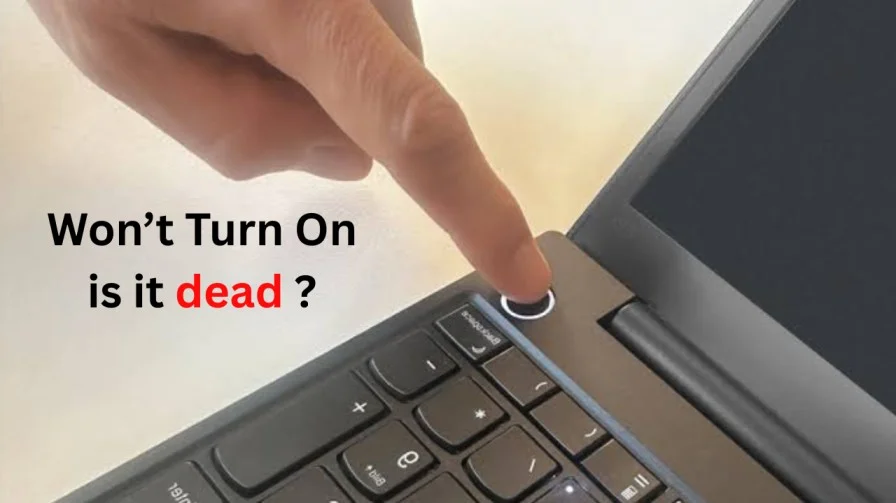
Why Won’t My Laptop Turn On? Common Causes
Before diving into fixes, it helps to understand what’s actually going on. In most cases, one of these is the reason your laptop won’t power on:
- A drained or disconnected battery, or a charger that isn’t actually delivering power
- A display issue, where the laptop is technically powering on, but the screen itself isn’t showing anything
- A stuck power cycle, where residual electrical charge in the system needs to be cleared
- A loose or faulty charging port or cable
- A more serious hardware fault (less common, but possible if nothing else resolves it)
Let’s go through the fixes, starting with the ones that solve this most often.
Fix 1: Confirm It’s Actually Getting Power
- Plug the charger directly into a wall outlet (not a power strip or surge protector, which can sometimes fail silently)
- Check for a charging light on the laptop itself — most laptops show a small LED near the charging port or on the body when power is connected
- If there’s no light at all, try a different outlet, and if possible, a different charger cable to rule out a bad cord
- Let it charge for at least 15-20 minutes before trying to turn it on, in case the battery was completely drained
Fix 2: Do a Hard Reset (Power Cycle)

This is one of the most effective fixes for a laptop that won’t turn on. It works by clearing any residual electrical charge that can sometimes prevent a normal startup.
- Unplug the charger completely
- If your laptop has a removable battery, take it out
- Press and hold the power button for 30 seconds, even though the laptop is off and unplugged
- Reconnect the battery (if removed) and plug the charger back in
- Try turning it on again
Fix 3: Check for a Display Issue (Not Actually a Power Problem)
Sometimes a laptop that “won’t turn on” is actually powering on just fine — the screen simply isn’t displaying anything, which looks identical from the outside.
- Turn on the laptop and listen closely for fan noise or any sound of the drive spinning up
- Look closely at the screen in a dark room — a very dim image can sometimes be seen even when brightness seems completely off (this points to a backlight issue, not a power issue)
- Try connecting the laptop to an external monitor via HDMI — if an image appears on the external screen, the problem is with your laptop’s display, not its power system
Fix 4: Disconnect External Devices
USB drives, external hard drives, SD cards, or other peripherals can occasionally prevent a laptop from booting normally.
- Unplug everything connected to your laptop except the charger
- Try turning it on again with nothing else attached
Fix 5: Rule Out a Charging Port or Cable Issue
- Gently check the charging port for any visible damage, bent pins, or debris
- Wiggle the cable slightly while it’s plugged in — if the charging light flickers on and off, the port or cable connection is likely loose or damaged
- If you have access to a different compatible charger, try it to rule out the original charger being the problem
Dell Laptop Won’t Turn On or Power On? Dell-Specific Steps
If you’re specifically dealing with a Dell laptop not turning on, Dell devices have a couple of additional built-in tools worth trying alongside the general fixes above.
Dell Laptop Screen Won’t Turn On, But Lights Are On
If your Dell laptop’s power light turns on but the screen stays completely black, this usually points to a display or graphics issue rather than a true power problem:
- Try the external monitor test from Fix 3 above
- Press and hold Fn + the appropriate function key for external display toggling (varies slightly by Dell model, usually F8 or a similar key with a monitor icon)
- If an image appears on an external monitor but not the laptop screen itself, this points to a display panel or cable issue inside the laptop, which likely needs professional repair
Dell Laptop Not Switching On or Powering On At All
If your Dell laptop won’t power on whatsoever — no lights, no fan, nothing:
- Perform the hard reset described in Fix 2 — this resolves a significant share of Dell-specific “won’t power on” cases
- Check the small battery status light on the side or front of the laptop (most Dell models have one) — if it’s not lighting up even while plugged in, this points to a charger or battery-specific fault
- Try Dell’s built-in hardware diagnostics: power on while repeatedly tapping the F12 key to access the boot menu, then select Diagnostics if the laptop powers on far enough to reach this screen
Dell Laptop Not Turning On After a Windows Update
If your Dell laptop was working fine until after a recent update, and now won’t power on or gets stuck, this is sometimes caused by an interrupted update rather than a hardware fault. Try the hard reset (Fix 2) first, and give the laptop a few extra minutes on its first boot attempt afterward, since a delayed post-update startup can sometimes look like the laptop isn’t turning on at all.
When It’s Time to Call a Repair Shop
If you’ve tried everything above and your laptop still won’t turn on, these signs suggest a genuine hardware issue that needs professional attention:
- A burning smell or visible damage near the charging port or battery
- The laptop gets warm but never shows any sign of powering on (screen, lights, or sound) even after a hard reset
- Visible battery swelling (a puffed-up bottom panel)
- The problem started immediately after a drop, spill, or physical damage
Quick Checklist Before You Give Up
- Confirmed the charger is delivering power (checked for a charging light)
- Tried a different outlet and/or charging cable
- Performed a full hard reset (30-second power button hold)
- Tested with an external monitor to rule out a display-only issue
- Disconnected all external devices/peripherals
- Checked the charging port for damage or a loose connection
- For Dell laptops: checked the battery status light and tried the F12 diagnostics menu
Frequently Asked Questions:
If the charging light is on but the laptop itself won’t power on, try the hard reset in Fix 2 first — this clears a stuck power state that’s a common cause of exactly this symptom.
This is often an interrupted update process rather than true hardware failure, try a hard reset, then give it extra time on the next boot attempt, since post-update first boots can take noticeably longer than usual.
This almost always means your laptop is powering on successfully, but the screen or its backlight isn’t displaying anything. Test with an external monitor (Fix 3) to confirm, if the external display works, the issue is isolated to your laptop’s screen.
If plugging directly into a wall outlet (bypassing the battery entirely, on laptops that allow this) lets the laptop power on, the battery itself is the likely culprit. If it still won’t turn on even directly plugged in, the issue is elsewhere.
Still stuck after trying all of this? Contact us with your laptop’s brand and model, and what you’ve already tried , we’re happy to help you dig deeper.