

Before You Start Troubleshooting
If your Lenovo laptop screen is flickering, it can turn even the simplest task into a headache. Maybe the screen flashes for a split second every few minutes. Or maybe it dims and brightens on its own. Maybe you are staring at a black screen that comes back a second later, or watching thin lines crawl across the display while you are trying to work. Whatever form it takes, a flickering screen lenovo laptop owners deal with almost always traces back to one of a handful of causes. A graphics driver, a Windows display setting, a mismatched refresh rate, or a power-saving feature that’s misbehaving.
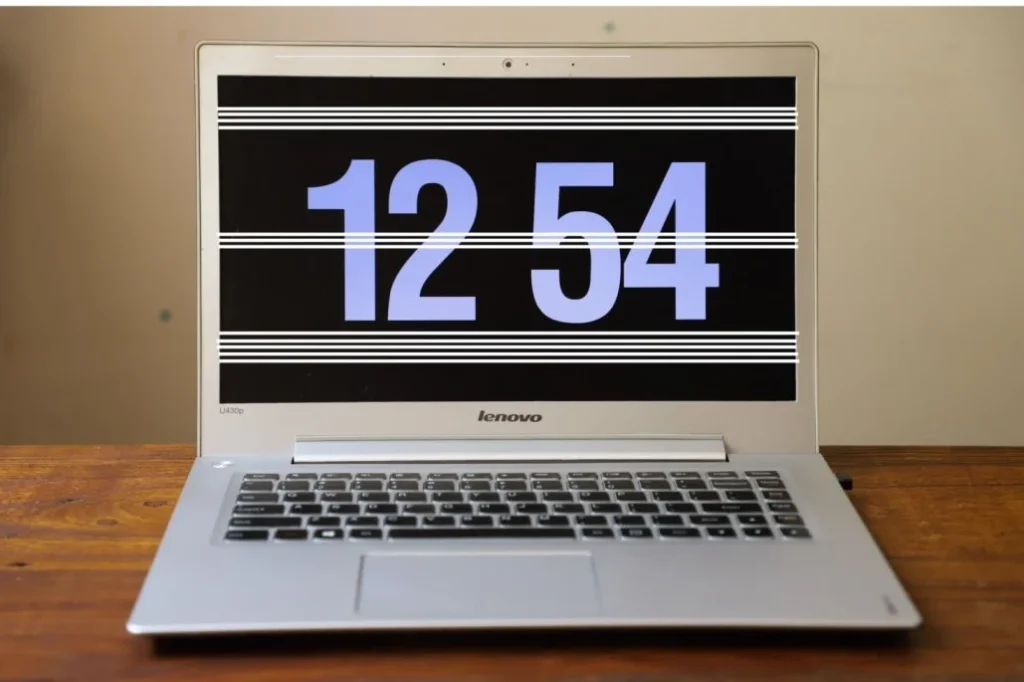
Here is the reassuring part, most of these causes can be tested from your keyboard, with no tools and no trip to a repair shop. Before you assume the worst, work through the checks below in order. They are arranged from quickest to most involved, so you will rule out the easy stuff first.
Why Lenovo Screen Start Flickering in the First Place
To understand why the display misbehaves, it helps to know what is actually happening behind the glass. Windows builds the image you see, hands it off to the graphics driver, which passes it to the GPU, which sends it down a cable to the LCD panel itself. That is four separate handoffs, and a hiccup at any one of them can show up as flickering on the screen.
As a rule of thumb, software-related flickering tends to show up right after something changed. A Windows update installed overnight, a new driver got pushed, or a setting got flipped without you noticing. Hardware-related flickering behaves differently. It tends to react to physical movement, get worse or better when you tilt the lid. Or it shows up before Windows has even finished loading. Keeping that distinction in mind will save you a lot of guesswork as you go through the fixes.
What Usually Causes Lenovo Laptop Screen Flickering
The most frequent culprits are software-side: an outdated or corrupted graphics driver, a refresh rate the panel does not fully support, display settings that conflict with an app, a power-saving graphics feature kicking in at the wrong moment, or bugs introduced by a recent Windows update.
On the hardware side, the usual suspects are a worn or partially disconnected display cable, a loose connection inside the lid hinge, a panel that is starting to fail, or a fault somewhere in the graphics hardware itself. It is also worth knowing that certain Lenovo lines have documented, model-specific display quirks. Which is one more reason to check Lenovo’s own support pages for your exact model before assuming the worst.
Warning Signs That Point to a Hardware Problem
Not every flicker means the same thing, and a few signs should make you more cautious about testing this on your own:
- Lines, vertical or horizontal, that do not go away, rather than flashing briefly
- Flickering that gets noticeably better or worse as you open, close, or shift the lid
- A black screen, washed-out colors, or blocks of corrupted, garbled pixels
- The exact same glitch showing up on the Lenovo logo or in the BIOS screen, before Windows even starts
- Any recent drop, squeeze on the lid, spilled liquid, or other physical impact
If any of those match what you are seeing, keep that in mind as you read on, some of the fixes below won’t apply. You may be better off skipping ahead to the professional-help section.
9 Fixes for Lenovo Laptop Screen Flickering
Fix 1: Restart Your Lenovo Laptop if Screen Flickering
It sounds almost too simple, but a full restart clears out temporary graphics states and forces the display driver to reload from scratch. Save whatever you’re working on, restart Windows completely not just sleep mode, and watch the screen closely once it is back up. A surprising number of flicker complaints disappear at this stage, and if yours does not, at least you’ve ruled out the easiest explanation before moving on.
Fix 2: Test With an External Monitor
Plug your Lenovo into a monitor or TV you know works, using whatever port your model supports, HDMI, DisplayPort, or USB-C. Then compare the two displays side by side.
If the external screen stays rock steady while the built-in panel keeps flickering. That points toward the internal display, its cable, or the panel connection rather than anything happening in Windows. If both screens flicker together, the problem is more likely sitting in the graphics driver or the GPU itself, which narrows your next steps considerably.
Fix 3: Update the Graphics Driver Through Lenovo
Rather than downloading a generic driver from a random site, go through Lenovo Vantage or the Lenovo Support page and search using your laptop’s exact model number. Lenovo builds and tests its driver packages against specific hardware configurations. So a driver made for your model is far less likely to cause the mismatches that trigger flickering in the first place. Install whatever update is offered, restart, and give the screen a few minutes of normal use before deciding whether it helped.
Fix 4: Roll Back a Recent Display Driver
If you noticed the lenovo laptop screen flickering horizontal lines or general flicker start right after installing a new driver, rolling it back is worth trying before anything else. Open Device Manager, expand Display adapters, right-click your graphics adapter, and choose Properties. On the Driver tab, check whether Roll Back Driver is available — if it is, follow the prompts and restart once it finishes.
Fix 5: Review the Refresh Rate if Your Lenovo Laptop Screen Keeps Flickering
Head to Settings > System > Display > Advanced display and look at which refresh rate is currently selected. Every laptop panel has a range of rates it actually supports, and picking one outside that range. Or one Windows applied automatically after a driver update, can cause exactly the kind of instability that looks like flickering. If you remember changing this setting around the time the problem started, switch it back to whatever worked before.
Fix 6: Disable Panel Self Refresh
Certain Lenovo ThinkPad and Yoga models have a documented display quirk tied to a power-saving feature called Panel Self Refresh. Lenovo’s own support documentation covers disabling this feature through the Intel Graphics Command Center on the models it affects. This is not a fix for every Lenovo laptop screen flickering complaint, only check Lenovo’s documentation for your specific model before making the change, since it won’t apply to every configuration.
Fix 7: Install Any Pending Windows Updates
Open Settings > Windows Update and let it check for anything waiting to install. Sometimes the fix for a flickering screen lenovo has already shipped in a patch you have not installed yet. After updating and restarting, watch the display for a while under normal use. If the flickering actually started right after a Windows update rather than before it, it is also worth checking Lenovo Support for a matching driver or BIOS update rather than making bigger changes to your system.
Fix 8: Check the Screen Before Windows Loads
Restart the laptop and watch closely during the Lenovo logo screen, or enter your model’s firmware/diagnostic menu if it has one. If flickering or lines show up before Windows has even started loading, that’s a strong signal pointing away from a software cause and toward the hardware itself. Artifacts that appear this early are worth getting looked at by someone qualified rather than chasing further software fixes.
Fix 9: Stop Immediately After Physical Damage if Lenovo Screen Flickering
If the laptop has been dropped, squeezed, sat on, or exposed to any liquid, resist the urge to press on the screen or twist the lid to see what happens, even out of curiosity. Back up anything important first, then get it looked at by a professional. A damaged cable or a compromised panel usually needs an actual internal repair, not a workaround.
One myth worth clearing up here: pressing on the bezel or repeatedly flexing the lid does not permanently fix a flickering display. It might temporarily jostle a loose connection back into place, but just as often it makes cable or panel damage worse. Test the software angles first, and if movement is clearly changing the symptom, treat that as a sign to get it repaired rather than a DIY solution.
When to Get Professional Help
If you have worked through the driver and display-setting checks above and the lenovo screen flickering laptop problem is still there, it is time to bring in a professional, especially if the flicker shows up before Windows even starts loading. Lines that persist rather than flash, whether vertical or horizontal, are also a stronger sign that something inside the machine needs attention rather than a setting.
Reach out to Lenovo directly or a repair shop you trust if there has been any physical damage, liquid exposure, a display cable you suspect is failing, or a panel that seems to be going bad. Having your model number and serial number ready ahead of time will make the whole process faster, since it lets whoever’s helping you pull up the correct parts and repair information immediately.
Preventing Flickering Going Forward
- Keep Windows and Lenovo’s recommended drivers reasonably current, without going overboard on every minor update
- Check for driver and firmware updates through Lenovo Vantage or Lenovo Support rather than third-party sites
- Avoid carrying or lifting the laptop by the display, it puts strain on the hinge and internal cable
- Keep the vents clear and use the laptop on a firm, flat surface so it does not overheat
- Skip unofficial driver packages and random registry fixes you find in forum posts
- Back up your files before installing major updates or attempting any repair
Final Thoughts
A flickering screen does not automatically mean your Lenovo needs a new display. Start with a simple restart, test against an external monitor, check for a model-specific driver through Lenovo. Your review your refresh rate, and make sure Windows is fully updated. That combination resolves the majority of cases.
If the flicker keeps coming back, shows up before Windows even loads, changes when you move the lid, or comes with lines that just won’t go away, stop troubleshooting on your own and get it inspected. That is the safest way to avoid paying for repairs you did not need. While making sure a real hardware issue doe snot get worse from being ignored.
More Laptops Troubleshooting Guides:
What To Do When Your Acer Laptop Won’t Turn On
Why Your MacBook Screen Suddenly Looks Orange: How to Fix It
Black Spots on MacBook Screen? Try These Fixes First
MacBook Pro Battery Not Charging? How To Fix It
MacBook Won’t Turn On: 10 Fixes That Actually Work
Laptop Won’t Turn On? Try This Before You Panic
Frequently Asked Questions:
The most common causes are graphics driver issues, mismatched display settings, a recent Windows update, or a power-saving feature acting up. Less commonly, it is a hardware fault such as a damaged cable or a failing panel.
Lenovo laptop screen flickering horizontal lines can come from graphics software glitches, a weak display signal, a damaged cable, or a panel that is starting to fail. If the lines are already there during startup, before Windows loads, hardware becomes the more likely explanation.
Check Windows Update and Lenovo Support for a newer, model-specific driver, sometimes a fix has already been released. If the flickering began immediately after installing a driver rather than a Windows update, rolling that driver back is worth trying first.
Lenovo laptop screen flickering vertical lines are often tied to display settings or a graphics driver conflict, but lines that do not disappear can point to a cable, panel, or graphics hardware fault instead.
Often, yes. A large share of cases trace back to drivers or settings rather than the panel itself. That said, flickering caused by hardware may still require replacing a cable, the panel, or another internal part.