

Before You Panic
There is nothing worse than opening your camera right as something worth capturing happens, only to find your iPhone camera not working. Maybe the screen is black, the app won’t stop crashing, or one camera works while the other does not.
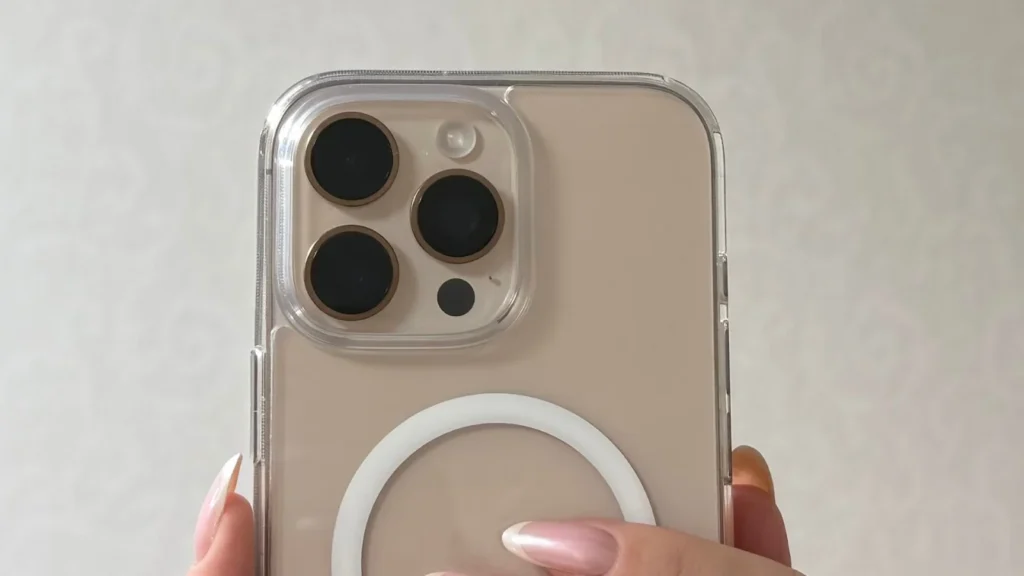
This is almost always a software problem, not a broken lens, and most people fix it in the time it takes to read this article. Here is a quick look at what s probably going on, followed by the exact steps to fix it.
Quick Diagnosis: What’s Likely Wrong
| Symptom | Most Likely Cause | Fastest Fix |
| Camera app opens but the screen is black | App failed to load the camera feed | Force-quit the Camera app, then reopen it |
| Front camera not working, back camera is fine | Software glitch, blocked lens, or a permissions issue | Restart your iPhone and check Camera permissions |
| Back camera not working, front camera is fine | Smudged or blocked rear lens, or an app-specific bug | Clean the lens, remove your case, try a different app |
| Camera works in one app but not another | Per-app camera permission is turned off | Settings > Privacy & Security > Camera |
| Camera app keeps freezing or crashing | Low storage, background app conflict, or outdated iOS | Free up storage, then update iOS and restart |
| Photos are blurry or won’t focus | Smudged lens, case/screen protector in the way, or a focus bug | Clean the lens, remove accessories, tap to focus |
| Camera broke right after an iOS update | A known post-update software bug | Check for a follow-up update; reset settings |
| Both cameras are black on every app, no fixes help | Possible hardware damage (drop, moisture, cracked lens) | Contact Apple Support or book a Genius Bar visit |
Quick Fixes That Solve Most Camera Problems
Before digging into specific symptoms, run through this short list. It resolves the majority of cases where an iPhone camera is not working, regardless of whether it’s the front or back lens.
- Force-quit the Camera app. Swipe up from the bottom of the screen (or double-click the side button on older models) to open the app switcher, then swipe the Camera app card away. Reopen the app.
- Restart your iPhone. A simple restart clears out background glitches that stop the camera from initializing properly.
- Check for anything blocking the lens. A thick case, a screen protector that overlaps the lens edge, a finger, or a smudge of pocket lint can all cause a black screen or blurry shots.
- Confirm the app has camera permission. Go to Settings > Privacy & Security > Camera and make sure the app you are using is toggled on.
- Update iOS. Apple regularly patches camera bugs. Go to Settings > General > Software Update and install anything available.
- Check your available storage. If your iPhone is nearly full, the Camera app can behave erratically. Go to Settings > General > iPhone Storage to see how much space is left.
If those do not clear things up, the fixes below dig into specific situations.
iPhone Back Camera Not Working (Rear Camera Issues)
The back camera of an iPhone is the one doing the heaviest lifting, everyday photos, video, scanning documents, and QR codes. When the back iPhone camera stops working, it is usually one of a handful of predictable causes.
What Usually Causes It
- A smudged or dirty rear lens from being carried in a pocket or bag
- A case or lens accessory partially covering the camera bump
- A bug tied to one specific app rather than the camera itself
- A recent iOS update that changed how the camera hardware is accessed
- Physical damage from a drop, or moisture that got behind the lens glass
How To Fix iPhone Rear Camera That Won’t Work
- Wipe the lens with a clean microfiber cloth. Cracked screen protectors or dirty lenses are the single most common reason for blurry or non-responsive back camera shots.
- Remove your case entirely and test the camera again. Some cases sit slightly too close to the lens and interfere with focusing or block the flash sensor.
- Switch between lenses if your iPhone has more than one (0.5x, 1x, 2x, and so on). Sometimes only one lens is affected, which points to a specific hardware or software issue rather than a total failure.
- Open a different app that uses the camera, like FaceTime or a messaging app, to see if the problem follows the camera or stays isolated to one app.
- Restart your iPhone, then check for an iOS update.
- Reset all settings through Settings > General > Transfer or Reset iPhone > Reset > Reset All Settings. This clears out corrupted system preferences without deleting your photos, apps, or data.
If Only One Rear Lens Fails
When just the ultra-wide or telephoto lens stops responding while the main lens still works, that is more often a software or app-specific issue than damage to the whole camera system. Restarting the phone and updating iOS resolves this in most reported cases.
iPhone Front Camera Not Working (Selfie Camera Problems)
An iPhone front camera not working is especially frustrating because it affects FaceTime, video calls, and Face ID in some cases. The front-facing camera shares hardware with the TrueDepth sensor system, so troubleshooting it looks slightly different from the back camera.
Why The Front-facing Camera Fails
- A screen protector or case bezel that slightly overlaps the front camera notch or Dynamic Island
- A software bug affecting the TrueDepth camera system
- Camera permission turned off for a specific app
- A bug introduced by a recent iOS update
Fixes For The Front or Selfie Camera
- Check for any physical obstruction around the camera cutout, including cases, screen protectors, and stickers.
- Test the front camera in more than one app. If it works in FaceTime but not in Instagram, the issue is permissions or that specific app, not the camera hardware.
- Restart your iPhone.
- Update to the latest version of iOS.
- If Face ID is also acting up alongside the front camera, go to Settings > Face ID & Passcode and reset Face ID, then set it up again.
- As a last resort, reset all settings from Settings > General > Transfer or Reset iPhone > Reset > Reset All Settings.
Black Camera Screen: Why It Happens and How to Fix It
A black camera screen usually means the Camera app opened, but the live video feed never loaded. You might still hear the shutter sound or see the flash trigger, which tells you the app is running, just not displaying anything.
- Force-quit and reopen the Camera app. This clears the stuck video feed in most cases.
- Try switching lenses or toggling flash. Tapping between the front/back camera or changing flash settings can force the feed to reload.
- Check Screen Time restrictions. Go to Settings > Screen Time > Content & Privacy Restrictions and confirm the Camera hasn’t been disabled there.
- Restart your iPhone. This is the single most effective fix for a black camera screen.
- Update iOS. Black-screen bugs are frequently patched in point updates.
If what you are actually seeing is odd white patches or blotches on the display itself, rather than the camera viewfinder going black, that is a separate display issue, not a camera problem. Our guide, White Marks on iPhone covers what causes it and how to fix it.
iPhone Camera App Freezing or Crashing
If the Camera app closes itself, freezes on the shutter button, or won’t respond to taps, the cause is usually resource-related rather than a hardware fault.
- Free up storage. Delete old videos, offload unused apps, or back up your camera roll to iCloud or a computer, then remove local copies.
- If your Camera app is freezing or crashing because your phone is nearly out of room, that is an easy problem to solve. See our guide, How to Free Up Space on iPhone for the fastest ways to clear space without deleting anything you care about.
- Close background apps. Too many apps competing for memory can cause the Camera app to crash, especially on older iPhone models.
- Restart your iPhone. A full restart clears temporary files and resets background processes.
- If it is not just the Camera app but your whole iPhone that is unresponsive, that is a slightly different fix, see our guide, iPhone Frozen? for the fastest way to get it moving again.
- Update iOS. Crashing bugs tied to specific iOS versions are common and are usually addressed in the next release.
- Reset all settings. If crashing continues after the steps above, a settings reset often clears corrupted preferences without affecting your data.
iPhone Camera Won’t Focus or Photos Look Blurry
Focus problems are almost always physical rather than a deep software fault, which makes them some of the easiest iPhone camera issues to fix.
- Clean both the front and back lenses with a microfiber cloth. Fingerprints and pocket dust are the top cause of blurry photos.
- Remove any case, lens attachment, or magnetic accessory and take the same photo again.
- Tap directly on your subject in the viewfinder to force the camera to refocus on that spot.
- Check your lighting. Low light makes autofocus hunt and can look like a focus problem when it’s really an exposure issue.
- Restart your iPhone if focus issues appear suddenly rather than gradually.
Camera Works in Some Apps but Not Others
When your iPhone’s camera is not working inside one app but works fine everywhere else, the cause is almost always permissions rather than the camera itself.
- Open Settings > Privacy & Security > Camera.
- Find the app in question and make sure the toggle next to it is turned on.
- If the app isn’t listed at all, open the app and look for a prompt asking for camera access, or check the app’s own in-app settings menu.
- Update the app from the App Store. Outdated third-party apps are a frequent cause of camera access errors.
- Delete and reinstall the app if the permission toggle won’t stick or the app still can’t access the camera.
Camera Not Working After an iOS Update
It is common to see reports of an iPhone camera not working right after installing a new version of iOS. These issues are typically software bugs introduced by the update rather than sudden hardware failure, and Apple has a track record of fixing them in the following point release.
- Check for a newer update. Go to Settings > General > Software Update. Apple often ships a follow-up update within days of a problematic release.
- Restart your iPhone. Do this after the update finishes installing, not just after downloading it.
- If your iPhone gets stuck on the Apple logo during any of these restarts and won’t fully boot back up, that is a distinct problem with its own recovery steps. See our guide, iPhone Stuck on Apple Logo, for how to get past it.”
- Reset all settings. Settings > General > Transfer or Reset iPhone > Reset > Reset All Settings clears system preferences that may have been corrupted during the update, without deleting your data.
- Back up, then erase and set up as new, if nothing else works. This is a last resort, but it rules out a corrupted system file left over from the update.
When the Problem Is Hardware, Not Software
If you have worked through the steps above and the camera still isn’t working, it’s worth considering a hardware cause, especially if any of the following apply:
And if your iPhone won’t power on at all, not just the camera, that is a separate issue with its own fix. See our guide, How To Fix An iPhone 17 That Won’t Turn On, to get your device back up and running first.
- Your iPhone was recently dropped, even if the screen is not cracked
- The phone has been exposed to water or heavy moisture
- You can see a visible crack in the camera lens glass
- Both the front and back cameras are completely black in every app, including after a restart and update
In these cases, the fastest path is Apple’s own troubleshooting page for camera issues on iPhone, or booking a Genius Bar appointment for a hardware diagnostic. If you have AppleCare+, camera repairs are often covered at a reduced cost.
A camera that won’t respond can sometimes coincide with battery or power issues on the device as a whole. If your iPhone is also struggling to charge, that’s worth ruling out separately, our guide, iPhone Won’t Charge walks through the most common causes.
How to Keep Your iPhone Camera Working Reliably
- Use a case with a slightly raised edge around the camera bump so it does not collect scratches from flat surfaces
- Wipe the lenses with a microfiber cloth every week or two, especially if you carry your phone loose in a pocket or bag
- Keep at least a few gigabytes of free storage so the Camera app has room to process photos and video
- Install iOS updates within a week or two of release, once initial bug reports have settled down
- Avoid leaving your iPhone in direct sun or a hot car; extreme heat can temporarily disable the camera to protect the hardware
The Bottom Line
Most of the time, an iPhone camera not working comes down to something simple: a smudged lens, a stuck app, a permission that got switched off, or a bug from a recent update. Work through the quick fixes first, isolate whether it is the front or back camera, and only think about hardware once youhave ruled out software. If you have tried everything here and the camera still won’t cooperate, Apple Support can run a proper diagnostic and tell you exactly what is going on.
Frequently Asked Questions:
Sudden camera failures are usually caused by a software glitch, a recent iOS update, or a temporary permissions issue rather than hardware damage. Restarting your iPhone and checking Settings > Privacy & Security > Camera resolves most sudden cases.
A drop can crack the lens glass, dislodge the camera module, or bend the frame just enough to interfere with the sensor. If the camera stopped working immediately after a drop and software fixes don’t help, it’s worth having Apple check the hardware.
Force-quit the Camera app, confirm nothing is covering the front camera cutout, restart your iPhone, and check for a pending iOS update. If the front camera shows black in every app, including FaceTime, that points more toward a hardware issue.
Yes. It is a well-documented pattern: a new iOS version ships, some users report their iPhone camera not working, and Apple releases a fix in a follow-up update within days or weeks. Checking for updates regularly is one of the most reliable fixes after this happens.
No. A black screen is more often a software issue where the video feed fails to load, which a force-quit and restart usually fixes. Hardware causes are more likely when the screen stays black across every app and after a full restart and update.
Cost depends on your iPhone model and whether you have AppleCare+. Camera repairs typically fall under Apple’s out-of-warranty repair pricing for the affected part, and AppleCare+ usually reduces that cost significantly. Checking directly with Apple Support or a Genius Bar appointment gives you an exact price for your device.