

Introduction
Google Find My Device is Google’s free security tool that helps you locate, ring, lock, or erase your lost Android phone. Losing your Android phone can be frustrating, especially when it contains your photos, contacts, banking apps, emails, and other personal information. Whether you have misplaced it at home, left it at a restaurant, or believe it has been stolen, acting quickly can significantly improve your chances of recovering it. As a built-in Android phone tracker, Google Find My Device allows you to track a lost Android phone, make it ring, remotely lock your Android phone, or erase its data if recovery is not possible.
As long as your phone was signed in to your Google account and the required settings were enabled before it went missing, you can manage it from almost any computer or smart phone.
In this guide, you will learn exactly how Google Find My Device works, how to locate a lost Android phone, remotely secure your device, and troubleshoot common problems if the service isn’t working properly.
What Is Google Find My Device?
Google Find My Device is Google’s official device tracking and security service for Android smart phones and tablets. It helps you find a lost Android device using your Google account without installing any additional tracking software.
The service is available on most Android phones, including devices from:
- Google Pixel
- Samsung Galaxy
- Motorola
- OnePlus
- Xiaomi
- Nokia
- Sony
- Oppo
- Vivo
- ASUS
- Other Android manufacturers
Because the feature is integrated into Android, it works directly with your Google account and provides several security tools whenever your device goes missing.
With Google Find My Device, you can:
- 📍 Locate your Android phone on a live map.
- 🔊 Make your phone ring, even when it is on Silent mode.
- 🔒 Lock your phone remotely to prevent unauthorized access.
- 📝 Display a custom message and contact number on the lock screen.
- 🗑️ Erase your personal data if the phone cannot be recovered.
Unlike many third-party tracking apps, Google Find My Device is completely free and does not require a subscription.
How Does Google Find My Device Work?
Many people think Google continuously tracks their phone’s location, but that is not exactly how it works.
Instead, Google Find My Device determines your phone’s location by combining several technologies to provide the most accurate result possible.
GPS
GPS provides the highest level of accuracy and is the primary method used to track a lost Android phone when your device is outdoors.
Wi-Fi Networks
If GPS signals are weak, nearby Wi-Fi networks help estimate your phone’s location more accurately, especially indoors.
Mobile Network
When GPS is not available, Google can estimate the device’s location using nearby cellular towers.
Bluetooth Finding Network
On newer Android devices, Google’s expanded Find My Device network can use nearby Android phones over Bluetooth to help locate compatible devices, even when they are temporarily offline.
Google Account
Every command you send, such as locating, ringing, locking, or erasing the phone, is securely delivered through the Google account connected to your Android device.
This combination of GPS, Wi-Fi, mobile networks, Bluetooth, and your Google account allows Google Find My Device to accurately locate a lost Android phone in many situations.
Requirements Before Google Find My Device Can Locate Your Phone
Before you try to locate your missing Android phone, it is important to know that Google Find My Device only works if a few essential settings were enabled before the phone was lost. If one or more of these requirements are not met, Google may not be able to communicate with your device or display its current location.
Let’s check each requirement.
1. Your Phone Must Be Signed In to a Google Account
Google Find My Device is linked directly to your Google account. If your Android phone was not signed in with a Google account, the service won’t be able to identify or manage your device remotely.
To check your Google account:
- Open Settings.
- Tap Google or Passwords & Accounts.
- Confirm you are signed in with your primary Google account.
Tip: If you use multiple Gmail accounts, always sign in to Google Find My Device using the same account connected to your lost phone.
2. Find My Device Must Be Enabled
Although this feature is enabled on most Android phones during setup, it’s worth confirming that it is turned on.
To check:
- Open Settings.
- Tap Security & Privacy or Security.
- Select Find My Device.
- Ensure the feature is switched ON.
If it was disabled before your phone went missing, you won’t be able to locate or manage the device remotely.
3. Location Services Must Be Turned On
Google uses your phone’s location to show it on the map. If Location Services were disabled, you may only see the Find My Device last known location instead of the phone’s current position.
To enable Location:
- Open Settings.
- Tap Location.
- Turn on Use Location.
For better accuracy, enable Precise Location if your phone supports it.
4. Your Phone Needs an Internet Connection
Google Find My Device communicates with your phone through:
- Wi-Fi
- Mobile Data (4G/5G)
If your phone has no internet connection, it becomes Find My Device offline. In this situation:
- Google may only display the last known location.
- Remote commands such as Ring, Lock, or Erase will remain pending until the phone reconnects to the internet.
5. The Phone Must Have Battery Power
A phone with a completely drained battery can’t report its location or receive remote commands.
If the battery dies, Google will usually display the last known location before the device went offline. This can still help you narrow down where to begin searching.
How to Access Google Find My Device
Once you have confirmed the requirements, you are ready to use Google Find My Device to locate your Android phone.
There are two simple ways to access the service.
Option 1: Use the Official Website
This is the fastest method if you are using a computer or another smart phone.
- Open any web browser.
- Visit https://android.com/find.
- Sign in with the Google account linked to your missing phone.
After signing in, Google will automatically begin searching for your device.
If you own multiple Android devices, simply select the one you want to locate from the list.
Option 2: Use the Find My Device App
If you are borrowing another Android phone, you can also use Google’s official app.
- Open the Google Play Store.
- Search for Find My Device.
- Install the app.
- Tap Sign in as Guest (recommended if using someone else’s phone) or sign in with your Google account.
- Select your missing Android device.
The app provides the same features as the website, including locating, ringing, locking, and erasing your phone.
How to Locate Lost Android Phone with Google Find My Device
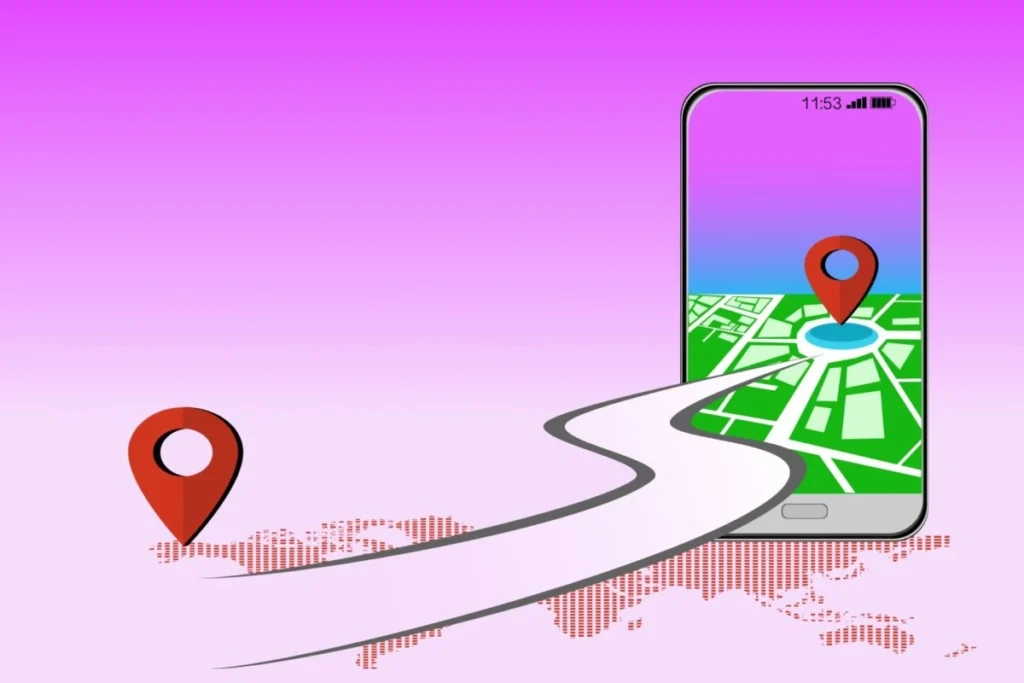
If your phone has gone missing, the first thing you should do is locate your lost Android phone using Google Find My Device. The sooner you check its location, the better your chances of recovering it before the battery dies or someone else finds it.
Follow these steps carefully.
Step 1: Open Google Find My Device
Using any computer, tablet, or another smart phone:
- Open your web browser.
- Visit https://android.com/find.
- Sign in with the same Google account connected to your missing Android phone.
If you use multiple Gmail accounts, make sure you select the correct one.
Step 2: Select Your Android Device
If you have more than one Android device linked to your account, choose the phone you want to locate.
Google will now start communicating with your device. This usually takes a few seconds.
Once connected, you’ll see:
- Device name
- Battery percentage
- Network status
- Current or last known location
Step 3: View Your Phone’s Location on the Map
When your phone is online, Google displays its location on an interactive map.
This allows you to:
- Track a lost Android phone in real time.
- Estimate how far away the phone is.
- Decide whether it’s safe to recover it yourself.
If the phone is nearby, you can immediately move on to the Play Sound feature covered in the next section.
Understanding Google Find My Device Location Status
Not every location shown by Google means the same thing. Knowing the difference helps you understand whether your phone is currently connected or whether you’re only seeing its previous location.
Current Location
If Google successfully communicates with your phone, you will see its live location.
This usually means:
- The phone is switched on.
- It has battery power.
- It’s connected to Wi-Fi or mobile data.
- Location Services are enabled.
This is the best situation because you can continue using all remote features.
Find My Device Last Known Location
Sometimes Google cannot contact your phone but still displays its last known location.
This usually happens when:
- The battery has died.
- The phone was switched off.
- Internet access was lost.
- The device entered Airplane Mode.
Although this is not the phone’s live position, the Find My Device last known location often provides valuable clues about where to start searching.
For example, if Google shows your phone was last seen at a shopping centre, it is worth checking the customer service desk or contacting the store where you last used it.
Find My Device Offline
If your screen shows Find My Device offline, don’t panic.
This simply means Google cannot currently communicate with your phone.
Common reasons include:
- No internet connection.
- Weak mobile signal.
- Phone switched off.
- Battery completely drained.
When this happens:
- Google continues waiting for the phone to reconnect.
- Any commands you send (Ring, Lock, or Erase) remain pending.
- As soon as the phone comes online again, Google automatically sends those commands.
Technical Tip
Don’t keep refreshing the Google Find My Device page every few seconds.
If your phone is currently offline, checking every 15–30 minutes is usually enough. Many users recover their phones after they reconnect to Wi-Fi later in the day, allowing Google to update the location automatically.
Can’t Find Your Phone Nearby? Make It Ring
If Google shows that your phone is close to your current location but you still can not see it, the next step is to make it ring. Even if your phone is set to Silent or Vibrate mode, Google Find My Device can usually force it to ring at maximum volume, making it much easier to find.
How to Ring Your Lost Android Phone Using Google Find My Device
If Google Find My Device shows that your phone is nearby but you still can not find it, the Play Sound feature is the fastest way to locate it. Whether it is buried under sofa cushions, left inside your car, or hidden in a backpack, making your phone ring can save you a lot of time.
Unlike calling your own number, Google Find My Device can usually make your phone ring even if it was set to Silent or Vibrate mode. This makes it one of the most useful features of Google’s built-in Android phone tracker.
When Should You Use the Play Sound Feature?
The Play Sound feature is ideal when:
- You misplaced your phone at home.
- You left it at your workplace.
- You think it’s somewhere nearby.
- The phone is inside a bag, drawer, or under furniture.
- A friend or family member may have found it but hasn’t noticed it yet.
If you believe your phone has been stolen or is no longer nearby, skip this step and move to remotely locking your Android phone later in this guide.
How to Make Your Android Phone Ring
Follow these simple steps:
Step 1: Open Google Find My Device
Visit:
Sign in using the same Google account connected to your missing Android phone.
Step 2: Select Your Device
If multiple Android devices are linked to your Google account, choose the one you want to locate.
Wait a few seconds until Google establishes a connection.
Step 3: Click Play Sound
Click the Play Sound button.
If your phone is online, it will begin ringing at maximum volume for approximately five minutes.
The ringing stops when:
- You find the phone and unlock it.
- Someone presses the Power button.
- The battery runs out.
Will My Phone Ring If It’s on Silent Mode?
Yes.
This is one of the biggest advantages of Google Find My Device.
In most cases, the Play Sound feature overrides:
- Silent Mode
- Vibrate Mode
- Do Not Disturb (on supported Android versions)
Even if you normally keep your phone silent, Google can usually force it to play a loud ringtone.
What If My Phone Does not Ring?
If nothing happens after clicking Play Sound, there could be several reasons.
Your Phone Is Offline
If your device is not connected to Wi-Fi or mobile data, it cannot receive the command immediately.
Google keeps the request pending and automatically sends it once the phone reconnects to the internet.
The Battery Is Dead
A phone with a completely drained battery cannot ring.
In this situation, rely on the Find My Device last known location to continue your search.
You are Using the Wrong Google Account
Many users accidentally sign in with the wrong Gmail account.
If your phone doesn’t appear or refuses to respond, double-check that you’re using the same Google account that was signed in on the missing device.
Find My Device Was Disabled
If Google Find My Device wasn’t enabled before your phone was lost, remote features like Play Sound won’t work.
Unfortunately, this setting cannot be enabled remotely after the device has gone missing.
Tips While Your Phone Is Ringing
As soon as the ringtone starts:
- Walk slowly around the area.
- Listen carefully before moving to another room.
- Check under furniture and cushions.
- Look inside bags, backpacks, and jacket pockets.
- Search inside your car if you’ve recently driven.
Many people discover their “lost” phone was simply hidden somewhere they had not checked.
Technical Tip
Avoid pressing the Play Sound button repeatedly. If your phone has a weak internet connection, it may take 30 to 60 seconds for Google’s command to reach the device. Give it a moment before assuming the feature isn’t working.
Still Can not Recover Your Phone? Secure It Immediately
If your phone is not nearby or you believe someone else may have found it, your next step should be to remotely lock your Android phone. This prevents unauthorized access to your personal information while allowing an honest person to contact you using the message displayed on your lock screen.
How to Remotely Lock Your Android Phone with Google Find My Device
If you can not recover your phone immediately, the next step is to remotely lock your Android phone. This prevents anyone from accessing your personal information while still allowing an honest person to contact you if they find the device.
Unlike erasing your phone, locking it does not delete your data. Instead, it secures the device with your existing screen lock and lets you display a custom message on the lock screen.
If you believe your phone is simply lost rather than stolen, this is usually the safest option before considering a factory reset.
When Should You Lock Your Android Phone?
You should remotely lock your Android phone if:
- You left it in a public place.
- You think someone has picked it up.
- You won’t be able to retrieve it immediately.
- The phone contains sensitive personal or work information.
- You want to prevent unauthorized access while continuing to track it.
If there is still a chance of recovering the phone, locking it is much better than erasing it.
How to Remotely Lock Your Android Phone
Step 1: Open Google Find My Device
Visit:
Sign in using the Google account connected to your missing phone.
Step 2: Select Your Device
If you have multiple Android devices linked to your account, select the phone you want to secure.
Wait until Google successfully connects to the device.
Step 3: Click Secure Device
Click the Secure Device button.
Depending on your Android version, this option may also appear as Lock Device.
Google will ask you to enter additional information before sending the command.
Step 4: Add a Recovery Message
Enter a short message that will appear on the phone’s lock screen.
For example:
This phone has been lost. If found, please call 0123456789. Thank you.
A polite message often encourages honest people to return the device.
Step 5: Add an Alternative Contact Number
Enter a phone number where someone can reach you.
Use:
- Your spouse’s number
- A family member’s phone
- Your office number
- A spare mobile phone
Avoid entering the number of the missing phone.
What Happens After You Lock Your Phone?
Once Google sends the command successfully:
- The phone is locked immediately.
- Your recovery message appears on the lock screen.
- Your contact number is displayed.
- Your apps, photos, messages, and files remain protected.
- You can continue tracking the device using Google Find My Device.
If the phone is currently offline, the lock request remains pending and is automatically applied the next time the device connects to the internet.
Can Someone Still Access My Phone?
In most cases, No.
If your Android phone already had a PIN, password, or pattern lock enabled, the remote lock simply ensures nobody can bypass it.
However, if your phone never had a secure screen lock before it was lost, someone could potentially access your information before Google’s lock command reaches the device.
This is why every Android user should enable a screen lock, even if they never expect to lose their phone.
Technical Tip
Don’t erase your phone immediately after locking it.
Many lost phones are returned within 24 to 48 hours. Locking the device protects your personal information while allowing you to continue tracking its location. Only choose to erase the device if recovery becomes unlikely or you believe your sensitive information is at risk.
Still Can’t Recover Your Phone?
If your phone appears to have been stolen or you are certain it won’t be returned, your final option is to remotely erase your Android phone. This permanently removes your personal information and helps protect your privacy, but it should only be used as a last resort because you won’t be able to track the device afterward.
How to Remotely Erase Your Android Phone Using Google Find My Device
If you have tried locating your phone but believe it has been stolen or cannot be recovered, the safest option may be to remotely erase your Android phone. This feature performs a factory reset, removing your personal information from the device to protect your privacy.
However, this should always be your last resort. Once your phone is erased, Google Find My Device can no longer track its location, making recovery much more difficult.
If there is still a chance of getting your phone back, it’s better to keep it locked rather than erase it immediately.
When Should You Erase Your Android Phone?
Consider remotely erasing your Android phone if:
- You believe it has been stolen.
- Your phone contains sensitive business or personal data.
- You no longer expect to recover the device.
- Your banking apps, passwords, or confidential files are at risk.
- You’ve already locked the phone but still can’t recover it.
If your phone is simply misplaced at home or left at a friend’s house, avoid erasing it. Continue using Google Find My Device to locate it instead.
How to Remotely Erase Your Android Phone
Step 1: Open Google Find My Device
Visit:
Sign in using the same Google account connected to your missing Android phone.
Step 2: Select Your Device
Choose the Android phone you want to erase.
Wait while Google establishes a connection with the device.
Step 3: Click Erase Device
Select Erase Device from the available options.
Google will display a warning explaining what happens after the reset.
Read the warning carefully before continuing.
Step 4: Confirm the Factory Reset
Click Erase Device again to confirm your decision.
If your phone is connected to the internet, the factory reset usually begins within a few minutes.
If the device is currently offline, Google keeps the erase command pending and automatically performs the reset the next time the phone reconnects to Wi-Fi or mobile data.
What Data Will Be Deleted?
A remote factory reset removes almost everything stored on your phone, including:
- Photos and videos
- Contacts
- Text messages
- Downloaded apps
- Saved passwords
- Documents and files
- Google account information stored on the device
- Personal settings
If you have enabled Google Drive or Google Photos backups, your backed-up data will remain safe in your Google account and can be restored on a new device.
Can You Track the Phone After Erasing It?
No.
Once the factory reset is complete, Google Find My Device can no longer communicate with the phone.
This means:
- You won’t receive updated locations.
- You can’t make it ring.
- You can’t lock it again.
- You can’t send any additional remote commands.
For this reason, only erase the phone when you are certain recovery is unlikely.
What Is Factory Reset Protection (FRP)?
Even after your phone has been erased, most modern Android devices remain protected by Factory Reset Protection (FRP).
FRP prevents someone else from setting up the phone unless they know the original Google account and password that were previously linked to the device.
This security feature makes stolen Android phones much less valuable because they can’t be activated without the owner’s Google account credentials.
Technical Tip
Before remotely erasing your Android phone, take a moment to confirm that your important data has been backed up.
Most Android devices automatically back up:
- Contacts
- Calendar events
- Wi-Fi passwords
- App data
- Photos (if Google Photos Backup is enabled)
Checking your backups first ensures you can restore your information easily when setting up a replacement device.
What If None of These Fixes Work?
If you have tried every solution above and Google still can’t find your phone:
- Check the Find My Device last known location for clues.
- Contact places where you recently visited.
- Ask your mobile carrier to suspend your SIM card if you suspect theft.
- Change passwords for important accounts such as:
- Banking apps
- Social media
- File a police report if your phone has been stolen.
Even if the device is not recovered, these steps help protect your personal information.
Don’t keep refreshing the Find My Device page every few seconds. If your phone is currently offline, check again every 15–30 minutes. Many devices automatically reconnect to Wi-Fi later in the day, allowing Google to update the location without any additional action from you.
Frequently Asked Questions:
No. If your Android phone is completely switched off or the battery has run out, Google Find My Device cannot display its live location because the device is no longer connected to Google’s servers. However, you may still see the Find My Device last known location, which shows where the phone was before it went offline. If someone later charges the phone and reconnects it to the internet, its location may update automatically.
Yes. Google Find My Device is completely free and comes built into most Android phones.
You only need:
A Google account
An Android device
Find My Device enabled
Google Find My Device works best when your phone is connected to Wi-Fi or mobile data. If your phone is offline:
Google may only display the last known location. Ring, Lock, and Erase commands remain pending. Commands are delivered automatically once the phone reconnects to the internet.
In most situations, Google Find My Device is very accurate. When GPS, Wi-Fi, and Location Services are enabled, the location is often accurate within a few meters