

Why Is My iPhone Speaker Not Working?
An iPhone speaker not working is one of those problems that feels bigger than it usually is. In most cases it is dust in the grille, a stuck setting, or a software hiccup rather than a broken part, and you can usually sort it out in a few minutes without booking a repair.
This guide starts with the fastest fixes, then walks through specific situations, calls, the earpiece, the bottom speaker, and what it means when every speaker on your iPhone goes quiet at once.
Quick Diagnosis: What’s Likely Wrong
| Symptom | Likely Cause | Try This First |
| No sound on calls, but ringtones and music play fine | Speakerphone not engaged, or audio routed to Bluetooth | Check the speaker icon on the call screen and disconnect Bluetooth |
| Every speaker is silent — ringer, media, calls | Silent mode, Do Not Disturb, or a software glitch | Check the Ring/Silent switch, then restart |
| Bottom (loudspeaker) sound is missing or muffled | Lint or debris blocking the bottom grille | Inspect and gently brush out the speaker holes |
| Ear speaker (top of screen) is quiet during calls | Debris near the earpiece or a screen protector covering it | Remove the screen protector/case and clean the earpiece |
| Sound is distorted, crackly, or buzzing | Debris, a temporary audio bug, or liquid exposure | Dry the phone, avoid max volume, restart |
| Speaker works through headphones but not built-in | iPhone thinks headphones are still connected | Restart, unplug/reconnect, clean the port |
Quick Fixes to Try First
Work through these before anything more involved, they solve the majority of cases where a speaker not working on iPhone turns out to be a setting rather than a hardware fault.
- Check the Ring/Silent switch and volume. Make sure the switch on the side isn’t showing orange, and use the volume buttons to confirm the level isn’t at zero.
- Turn off Bluetooth. Go to Settings > Bluetooth and turn it off. If your iPhone is quietly connected to a speaker, headphones, or your car, audio will play there instead of your iPhone.
- Check Do Not Disturb and Focus modes. Open Settings > Focus and make sure nothing is active that could be silencing alerts or calls.
- Remove your case and screen protector. Bulky cases can cover the speaker openings, and a poorly cut screen protector can block the earpiece.
- Clean the speaker and earpiece openings. Use a small, soft, dry, lint-free brush to clear out visible dust or pocket lint. Never insert anything metal or sharp into the openings.
- Restart your iPhone. A simple restart clears a surprising number of audio glitches tied to a stuck app or process.
- Update iOS. Go to Settings > General > Software Update. Apple regularly patches audio-related bugs.
- Test with more than one app. Try a phone call on speaker, a Voice Memo playback, and a YouTube video. If sound works in one but not another, the issue is likely software, not the speaker itself.
If your iPhone storage is full, checkout our proven fixes guide how to free up space on iPhone.
Why Is My iPhone Speaker Not Working?
A few things typically explain speaker not working iPhone complaints:
- Physical blockage — lint, dust, or debris sitting in the speaker grille or earpiece.
- A stuck audio session — an app or call left the iPhone thinking audio should route elsewhere.
- Liquid exposure — even a small splash can temporarily muffle or silence a speaker until it dries out.
- A software bug, often after an iOS update, that affects Sounds & Haptics settings.
- Physical damage from a drop, which can loosen or damage the speaker component.
- Normal wear on an older iPhone, where the speaker driver itself is starting to fail.
iPhone Speaker Not Working During Calls
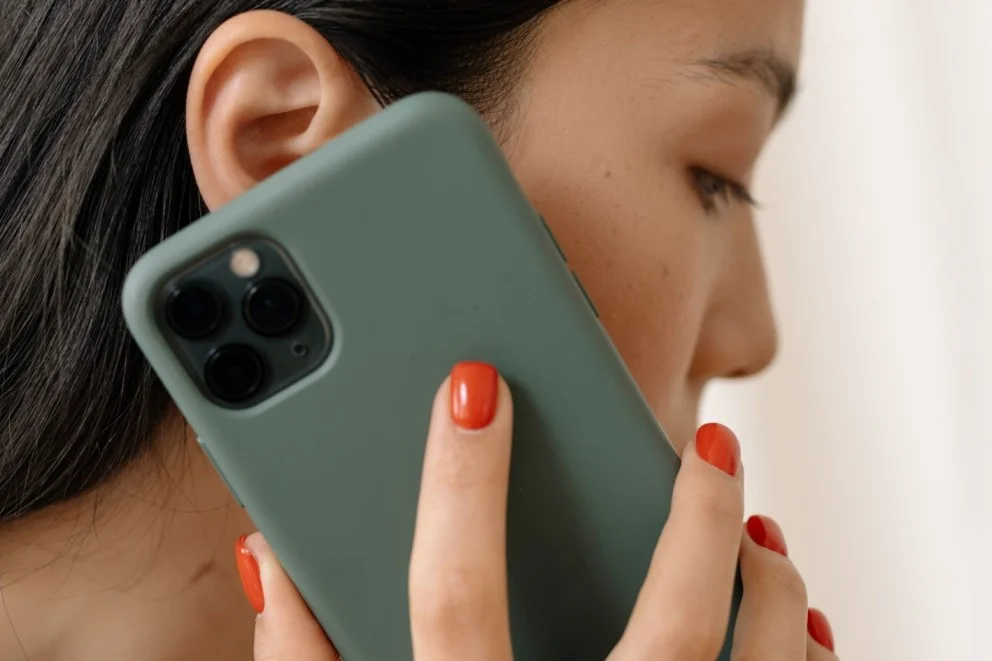
Call audio behaves differently from ringtones and media, which is why a call speaker iPhone not working issue can show up even when everything else sounds normal. iPhone calls can route through three places: the top earpiece (default), the bottom loudspeaker (when you tap Speaker), or a connected Bluetooth device.
When Speakerphone Won’t Play Sound
If the phone speaker not working on calls issue only happens after you tap the speaker icon:
- Tap the speaker icon again to toggle it off and back on.
- Open Control Center during the call and check whether a headphone, car, or Bluetooth icon is shown next to the audio output, if so, tap it and choose iPhone.
- Go to Settings > Bluetooth and turn Bluetooth off entirely, then try the call again.
- Restart your iPhone and place a test call.
If a phone call speaker not working problem happens on every call regardless of who you are talking to, it points to your iPhone rather than the network but if it only happens with certain contacts or locations, poor reception could be the actual cause.
iPhone Ear Speaker (Receiver) Not Working
When the iPhone ear speaker not working problem is specific to holding the phone to your face, sound plays fine on speakerphone but is quiet or silent through the earpiece, the earpiece itself, not the main speaker, is usually to blame.
- Check the thin slot above the screen (next to the front camera) for lint or dust.
- Clean it gently with a soft, dry brush — don’t blow into it, and don’t use compressed air, which can push debris deeper in.
- Remove any screen protector and check whether its cutout properly lines up with the earpiece.
- Take off your case in case it’s pressing against or covering the top edge.
An iPhone speaker ear not working issue that persists after cleaning and removing accessories is more likely a hardware problem with the earpiece component.
If your iPhone has frozen, check our guide to quickly fix it.
iPhone Bottom Speaker Not Working
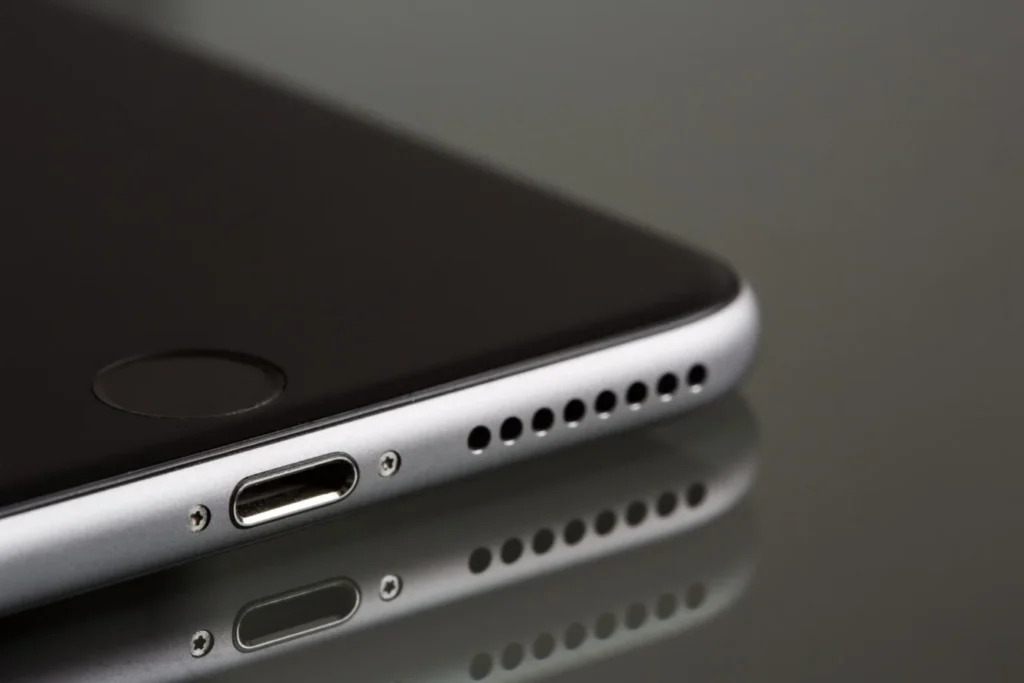
The main (loudspeaker) grille sits along the bottom edge next to the charging port, and it handles ringtones, speakerphone calls, and media playback. An iPhone bottom speaker not working problem is most often caused by:
- Debris in the speaker holes — pocket lint is the most common culprit.
- Moisture trapped in the speaker from a splash, rain, or a humid bathroom.
- A charging port jammed with lint, which can sometimes affect the nearby speaker grille too.
To fix it:
- Inspect the bottom edge in good light and gently brush out any visible debris with a soft, dry, lint-free brush.
- If the iPhone was recently near water, place it speaker-side down on a paper towel and let it sit in a dry, room-temperature spot for a few hours before testing again.
- Avoid tapping the phone against your hand or using compressed air, both can push moisture or debris further into the speaker.
- Test with a phone call on speaker or a song at a moderate volume once it is dry.
If your iPhone camera not working, check our guide for immediate and fast fix.
Speaker Sound Is Distorted, Crackling, or Muffled
Not every speaker in iPhone not working case is total silence, sometimes it is buzzing, crackling, or a muffled tone instead.
- Lower the volume slightly; some iPhones distort briefly at maximum volume.
- Clean the speaker grille, since even light debris can cause a rattling or buzzing sound.
- Play the same audio through wired or Bluetooth headphones, if it sounds clean there, the issue is isolated to the speaker hardware or its housing.
- Restart the iPhone to rule out a stuck audio process.
When It’s Likely a Hardware Problem
A few signs point away from a quick fix and toward a genuine hardware issue:
- The iPhone was recently dropped or submerged in water.
- The Sounds & Haptics slider in Settings makes no sound at all, or the speaker icon there appears dimmed.
- Sound doesn’t return after cleaning, restarting, and updating iOS.
- The problem is limited to one specific speaker and never improves.
At that point, the most reliable path is Apple’s own troubleshooting checklist and, if needed, an official repair. Apple’s support article on no sound or distorted sound from your iPhone speaker covers the same core checks in more detail.
If you are facing an issue of white marks on your iPhone screen, checkout our quick guide to remove it.
Apple’s guide to cleaning your iPhone explains the safe way to do it without damaging the coating on your phone. If the speaker still needs attention, you can look at Apple’s repair and service options, including AppleCare+ coverage if you have it.
Final Thoughts
Most of the time, an iPhone speaker not working comes down to something simple, a muted setting, a bit of pocket lint, or a software glitch that clears up after a restart. Work through the quick fixes first, then the section that matches your specific symptom, whether that’s calls, the earpiece, or the bottom speaker. If sound still isn’t back after that, it is worth getting it looked at rather than living with a muffled or silent iPhone.
If you are also dealing with charging issues, our guide on iPhone not charging covers similar quick-fix-first troubleshooting.
Frequently Asked Questions:
Call audio and media audio use slightly different routing. If music and ringtones sound normal but calls don’t, check whether the call is routed to a Bluetooth device, toggle speakerphone off and on, and make sure the earpiece isn’t blocked if you’re not using speaker mode.
Software updates occasionally reset or disrupt sound settings. Check Settings > Sounds & Haptics to confirm the Ringer and Alerts volume isn’t muted, then restart the iPhone. If that doesn’t help, a Reset All Settings often resolves update-related audio bugs.
If you have cleaned the openings, removed your case, restarted, updated iOS, and tested multiple apps and the speaker is still silent or distorted while headphones work fine, that combination points to a hardware issue rather than software.
Yes. Even a small amount of moisture in the speaker grille can temporarily muffle sound. Let the phone dry fully, speaker-side down, in a dry spot before testing again. If sound doesn’t return after drying, have it checked, since water exposure can also cause longer-term corrosion.
It fixes more cases than people expect. A restart clears stuck audio sessions and background processes, which are a common cause of a speaker that seems dead but is actually just stuck routing audio incorrectly.