

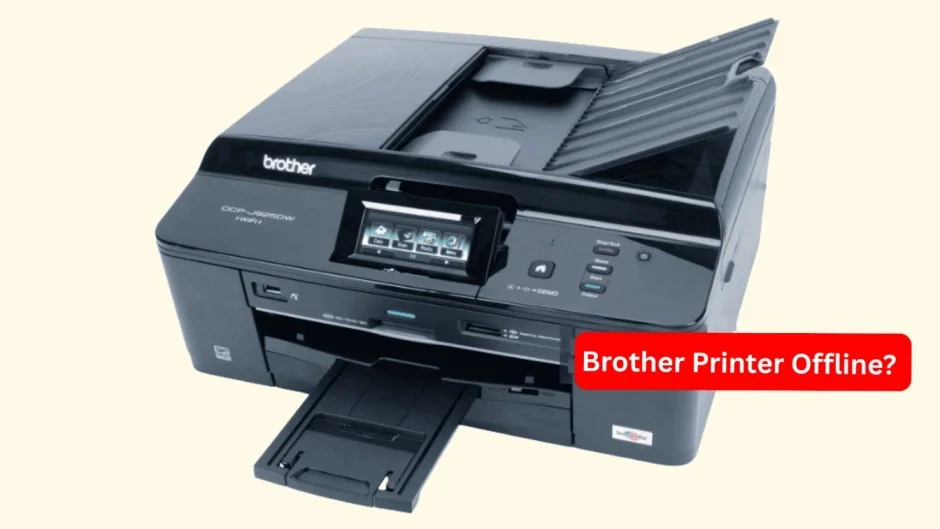
Brother Printer Offline? Start Here
If your brother printer suddenly shows Offline, do not reset everything or reinstall Windows. Start with the connection and then work down the list. The seven fixes below cover the problems that most often stop a computer from communicating with a networked or USB-connected printer.
1. Restart the printer, router, and computer.
2. Confirm the printer and computer are connected to the same Wi-Fi network.
3. Clear the print queue and make sure Windows has not put the printer into offline mode.
4. Restart the Windows Print Spooler.
5. Remove the old printer entry and add it again.
6. Repair the printer driver or correct an outdated network address.
7. Reconnect the printer to Wi-Fi or reset its network settings if the connection remains unreliable.
Quick Diagnosis: Find the Problem Before You Start
| What you are experiencing | Most likely cause | Try this first |
| The printer suddenly went offline | Temporary connection or Windows communication issue | Restart the printer, router, and computer |
| It is connected to Wi-Fi, but Windows says Offline | Computer and printer aren’t communicating correctly | Check that both are on the same Wi-Fi |
| A document is stuck and nothing prints | Blocked print queue | Clear the print queue and disable Offline mode |
| The printer won’t respond even though it’s connected | Windows Print Spooler may be stuck | Restart Print Spooler |
| Windows shows multiple copies of the printer | Duplicate or outdated printer installation | Remove and add the printer again |
| It worked before but suddenly stays offline | Driver or printer IP address may have changed | Repair the driver or network address |
| It keeps disconnecting from Wi-Fi | Saved wireless configuration or network problem | Reconnect or reset network settings |
| The problem started after changing the router/Wi-Fi password | Printer is still using old network information | Reconnect it to the new Wi-Fi |
| The printer is connected through USB | Cable, USB port, driver, or Windows connection issue | Check the USB connection |
| It goes offline repeatedly after working normally | Recurring network/IP/driver problem | Check the network address and driver |
Fix 1: Restart Everything That Handles the Connection
A temporary communication failure can make a perfectly healthy printer look unavailable. The printer, router, and computer all keep network information and print-service processes running in the background. Restarting them in the right order gives those components a clean start.
Do this in order
1. Turn off the printer.
2. Unplug it from the electrical outlet and wait about 30 seconds.
3. Restart the Wi-Fi router and wait until the wireless network is fully available.
4. Turn the printer back on and give it time to finish starting.
5. Restart the Windows computer.
6. Try printing a one-page document or a Windows test page.
If the printer comes back online after this, you do not need to change drivers or reset the network.
Fix 2: Check the Wi-Fi Connection Before Changing Windows Settings
This is the fix to try when you have a Brother printer offline but connected to Wi-Fi. A wireless icon or a connected message on the printer does not necessarily mean that your computer can reach it. The computer and printer need to be on the same local network.
If your HP printer is not connecting to WiFi, read our HP printer WiFi guide for 9 proven fixes to restore the connection and get your printer back online.
Check the network name
i. Look at the Wi-Fi/Network information on the printer and note the network name (SSID).
ii. On Windows, open Settings > Network & internet and check the Wi-Fi network connected to the PC.
iii. Make sure the two network names match.
iv. If you use a Wi-Fi extender, mesh system, guest network, or multiple routers, check that the printer and computer are not isolated on separate networks.
v. If the router’s Wi-Fi password was recently changed, reconnect the printer using the new password.
vi. If the printer cannot connect to the network at all, fix that connection first. Windows troubleshooting cannot make an unreachable network printer come online.
Important: Menu names vary by model. Use the network/WLAN instructions for your exact machine if the printer does not have the same menu layout described here.
If your Epson printer is printing blank pages, read our Epson printer guide for 9 proven ways to identify and fix the problem.
Fix 3: Clear the Queue and Turn Off Offline Mode
Sometimes the printer is available, but Windows is holding a failed print job or has been told to work offline. That can leave you staring at an Offline status even after the connection has returned.
Windows 11
1. Open Settings > Bluetooth & devices > Printers & scanners.
2. Select your printer.
3. Open the print queue.
4. Cancel documents that are stuck in the queue.
5. Check the queue’s Printer menu and make sure an offline or paused option is not enabled.
6. Send a small test document.
Windows 10
Open Settings > Devices > Printers & scanners, select the printer, and open its queue. In the classic queue window, check the Printer menu and make sure ‘Use Printer Offline’ and ‘Pause Printing’ are not selected.
If you see more than one entry for the same model, do not randomly select one. A duplicate entry can point to a different port or driver. Keep the entry that you know is connected to the working printer and remove obsolete duplicates later.
Brother’s own offline/paused guidance includes checking the device for errors and removing the offline or paused state where applicable.
Fix 4: Restart the Windows Print Spooler
The Print Spooler is the Windows service that manages print jobs. If it becomes stuck, a printer can stop responding even when its Wi-Fi connection is fine. This is especially useful when the queue refuses to clear or the printer keeps changing between Ready and Offline.
Restart the service
1. Press Windows + R.
2. Type services.msc and press Enter.
3. Find Print Spooler in the list.
4. Right-click it and select Restart.
5. Open the printer queue again and remove any remaining failed jobs.
6. Try a test print.
If Restarting is Not Enough
Microsoft also documents a deeper spooler reset: stop the Print Spooler, clear the files in the Windows spool\PRINTERS folder, and start the service again. Only remove the files inside that spool folder, not the folder itself.
Use this carefully: Clearing spool files removes pending print jobs. If several people share the computer or printer, make sure no important job is waiting to print.
Official guidance: Microsoft lists restarting the Print Spooler and clearing stuck spool files among its Windows printer troubleshooting steps.
Fix 5: Remove the Old Printer Entry and Add It Again
If Windows has an outdated printer entry, reinstalling that entry can solve an offline problem without touching the rest of your system. This is particularly useful after changing a router, reinstalling Windows, changing USB ports, or installing printer software more than once.
Remove the existing entry
1. Open Settings > Bluetooth & devices > Printers & scanners.
2. Select the affected printer.
3. Choose Remove.
4. Restart the computer.
Add it again
1. Turn the printer on and make sure it is connected to the correct network.
2. Return to Settings > Bluetooth & devices > Printers & scanners.
3. Select Add device.
4. Wait for Windows to discover the printer.
5. Select the correct device and complete the setup.
6. Print a test page.
If Windows cannot find it automatically, use the manual-add option and follow the instructions for a network or local printer. Microsoft recommends removing and reinstalling a printer when ordinary connection troubleshooting does not solve the problem.
If your printer is printing blank pages, read our printer guide for 10 practical ways to find the cause and fix the problem.
Fix 6: Repair the Driver or the Printer’s Network Address
This is one of the most important fixes when the printer worked yesterday but is offline today. Network printers communicate using an IP address. If the router assigns the printer a different address, an older Windows printer entry can continue looking for the device at the old address.
First, identify whether the problem is the driver or the network address
i. If Windows no longer recognizes the printer correctly, suspect the driver or printer installation.
ii. if the printer is connected to Wi-Fi but the computer cannot reach it, suspect the network path or IP address.
iii. If the problem began immediately after a Windows or driver update, check driver compatibility.
iv. If the problem began after replacing or resetting the router, check the printer’s network configuration.
Reinstall the correct driver
1. Find the exact model number printed on the machine.
2. Go to Brother’s official support site and locate the downloads for that model.
3. Select the driver/software package that matches your Windows version.
4. Install it using the recommended setup method.
5. Restart Windows if the installer requests it.
6. Print a test page.
Use Brother’s Network Connection Repair Tool when supported
For supported Windows models, Brother provides a Network Connection Repair Tool that can correct network settings by assigning the appropriate IP address and subnet mask. Brother says the machine and computer should be on the same network before running the tool.
Do not use it blindly: If your network administrator intentionally assigned a static IP address, automatically changing the address may be inappropriate. Brother specifically warns about this scenario.
Driver warning: Microsoft notes that printer driver compatibility problems can occur after Windows upgrades or updates and recommends using a compatible current driver.
Fix 7: Reconnect the Printer to Wi-Fi or Reset Its Network Settings
If the first six fixes work only temporarily, the saved wireless configuration may be the underlying problem. This often happens after a router replacement, Wi-Fi password change, mesh-system change, or repeated network dropouts.
Reconnect instead of resetting first
1. Open the printer’s network or WLAN settings.
2. Select the option to choose a wireless network.
3. Select your current Wi-Fi network.
4. Enter the correct wireless password.
5. Wait for the printer to confirm the connection.
6. Confirm the computer is on the same network.
7. Print a test page.
When to perform a network reset
Use a network reset when the saved configuration is clearly wrong or the printer refuses to reconnect normally. The exact menu and reset procedure depend on the model, so check the manual for your machine before confirming the reset.
A network reset is not the same as a factory reset of every printer setting. The goal here is to clear the saved network configuration so you can establish a fresh connection.
If your HP printer is not printing, read our HP printer guide for 9 easy fixes to identify the problem and get it working again.
Why Is My Brother Printer Offline When It Was Working Before?
If you are wondering, ‘why is my brother printer offline?’ after it worked normally for days or weeks, the most likely explanation is a communication problem rather than a dead printer. The computer may have lost the printer’s network path, Windows may have a stuck print job, or the printer may now have a different IP address.
1. The printer lost its wireless connection.
2. The computer and printer are on different Wi-Fi networks.
3· A router or extender changed the network path.
4· Windows has an old or duplicate printer entry.
5· The print queue or Print Spooler is stuck.
6· The printer’s IP address changed.
7· A driver update or Windows change affected compatibility.
Brother Printer Offline but Connected to Wi-Fi? Here is the Difference
A wireless connection and a working print connection are not exactly the same thing. The printer can successfully join your Wi-Fi network while Windows still has the wrong printer entry, wrong IP address, or an incompatible driver.
If the printer’s display shows a healthy wireless connection, do not immediately reset the Wi-Fi. Check the computer’s network first, then clear the queue and verify the printer installation. If that fails, investigate the IP address and driver.
Why Does My Brother Printer Keep Going Offline?
When the device keeps dropping offline, repeatedly restarting it only treats the symptom. The better question is what changes between the moment it works and the moment it stops.
1. Does the printer lose its Wi-Fi connection at the same time?
2. Does the router restart or switch networks?
3. Does Windows show a different printer entry?
4. Does the printer receive a new IP address?
5. Does the problem happen after the computer wakes from sleep?
6. Did the issue begin after a Windows or driver update?
The Printer Is Offline in Windows 11
Windows 11 provides printer controls under Settings > Bluetooth & devices > Printers & scanners. Start by checking the queue and connection, then remove and add the printer again if necessary. Microsoft also recommends using its printer troubleshooting tools and keeping compatible drivers installed.
What About Windows 10?
The same basic troubleshooting principles apply: verify the connection, clear the queue, restart Print Spooler, remove and reinstall the printer, and update the driver. One important current detail is that Microsoft ended support for Windows 10 on October 14, 2025, so systems still running it should be evaluated for an upgrade to a supported Windows version.
If the Connection Is USB Instead of Wi-Fi
Not every offline message is a wireless problem. If the printer is connected by USB, check the cable and port before changing network settings.
1. Disconnect the USB cable from the computer and reconnect it firmly.
2. Try another USB port on the computer.
3. Connect the printer directly to the computer rather than through a USB hub.
4. Remove duplicate printer entries if several copies exist.
5. Restart the Print Spooler.
6. Remove and reinstall the printer if Windows still does not recognize it.
Brother’s guidance: For USB connections, Brother recommends checking the cable and trying a direct connection rather than using a hub.
Things You Should Not Do First
i. Do not factory-reset the entire printer before checking the connection.
ii. Do not install random drivers from third-party driver websites.
iii· Do not delete Windows system folders to fix a simple offline status.
iv· Do not keep reinstalling the same printer entry without checking whether its network address has changed.
v· Do not assume the printer is broken just because Windows says Offline.
A structured diagnosis is faster and safer: connection first, Windows queue second, installation and driver third, and network reset only when the earlier checks point to a network configuration problem.
If your HP printer is showing as offline, read our HP printer guide for simple steps to get it back online and printing again.
Final Takeaway
When your Brother printer is offline, the quickest solution is usually not the most dramatic one. Check the connection, remove anything stuck in the print queue, restart the Windows printing service, and only then move toward reinstalling the printer or repairing its network configuration.
If the problem returns after a successful fix, treat that as a clue. A recurring offline status points toward an underlying network, IP-address, driver, or installation issue. Finding and correcting that cause is what turns a temporary fix into a lasting one.
Frequently Asked Questions:
Start by restarting the printer, router, and computer. Then confirm both devices are on the same Wi-Fi, clear the print queue, restart Print Spooler, reinstall the printer if needed, and check the driver or network address if the problem remains.
The printer may be connected to Wi-Fi while Windows is still using an old printer entry, old IP address, or incorrect driver. Verify the network, then check the printer installation and network address.
Open the printer queue and make sure offline or paused mode is not enabled. Clear stuck jobs, restart Print Spooler, and test the connection. If it still says offline, remove and add the printer again.
The printer may still have the previous network credentials or Windows may still be pointing to the old network address. Reconnect the printer to the new Wi-Fi and reinstall the printer entry if necessary.
Repeated offline status usually deserves a network or installation check rather than another restart. Look for Wi-Fi dropouts, changing IP addresses, duplicate printer entries, or driver problems.
Check the USB cable and port, connect directly to the computer, clear the print queue, restart Print Spooler, and remove duplicate or damaged printer entries.
Check the printer’s own network status and SSID first. If it is connected, compare its network with the computer’s network and then investigate the printer entry or IP address in Windows.
The software and Windows may be using different printer entries or network information. Confirm the exact model entry, check the printer’s current IP address, and reinstall the correct driver/software package if necessary.
Wake the printer fully, wait for its network connection to return, and then try a test page. If the problem happens repeatedly after sleep, check the wireless connection, printer installation, and driver rather than restarting every time.
Use a network reset when the saved Wi-Fi configuration is wrong or the machine repeatedly refuses to reconnect. Because reset menus differ by model, check the instructions for your exact printer first.