

Introduction to Laptop Blue Screen
A laptop blue screen can be one of the most unsettling things a Windows user encounters, the system halts, a stop code appears, and the machine restarts without warning. Here is the reassuring part: in most cases, a blue screen on a laptop is a protective response, not proof that the hardware is permanently damaged. Windows deliberately stops the system whenever it detects a serious hardware, driver, or software fault that could otherwise cause data loss.
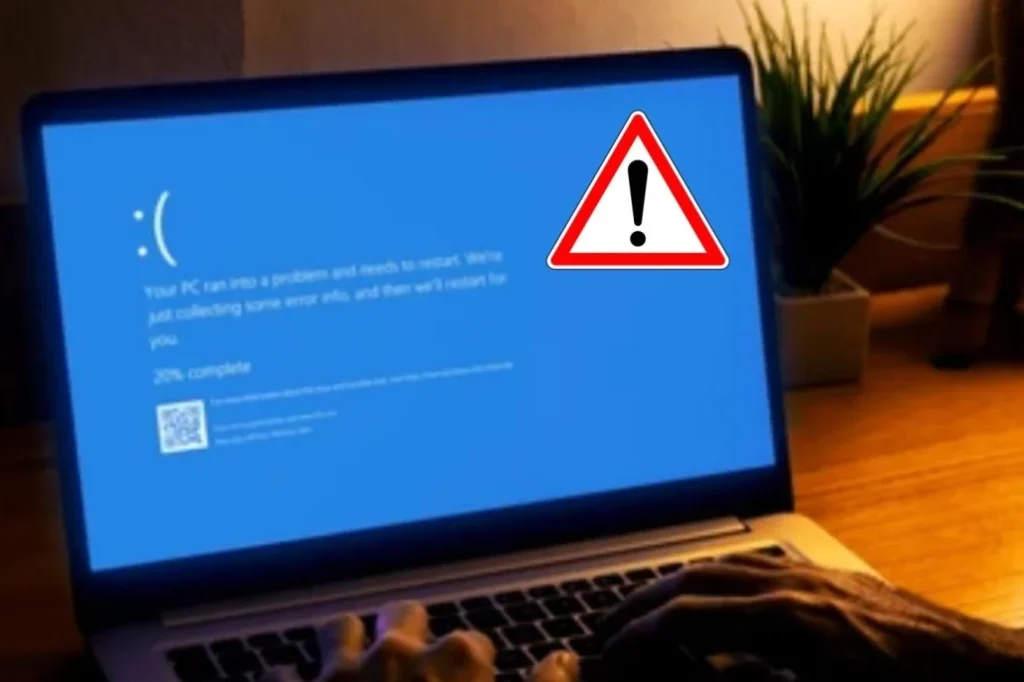
If you are staring at a blue screen on my laptop right now, the single most useful first step is to record the exact STOP code shown on screen. That code narrows the problem down to a specific area, a failing driver, unstable memory, a struggling drive, or a corrupted system file. On newer Windows 11 builds, some stop errors display as a black screen instead of blue, but the diagnostic approach is identical.
Why This Problem Happens
In simple terms, a blue screen laptop event means Windows encountered a problem serious enough that it could not recover safely, so it stopped everything to protect your data and hardware. The trigger can sit almost anywhere in the system:
- A faulty or incompatible device driver can crash Windows outright.
- Damaged Windows system files can prevent core services from starting or running correctly.
- Failing RAM can produce memory-related stop codes and repeated, unpredictable crashes.
- A struggling SSD or hard drive can trigger boot- and storage-related errors.
- Overheating can destabilize the processor, GPU, or other internal components.
- A recent Windows update, application install, or hardware change can introduce a compatibility conflict.
- Incorrect BIOS or UEFI settings can occasionally contribute to startup instability.
Because blue screen in laptop hardware can originate from RAM, storage, the GPU, or firmware alike, isolating the exact component, rather than guessing, is what actually shortens the repair process.
Why My Laptop Blue Screen Keeps Happening: Common Stop Codes
Why my laptop blue screen is the question most people type into a search bar mid-crisis, and the honest answer is. It depends on the stop code. The screen color rarely matters; what Windows reports at the moment of the crash is the real clue.
- DRIVER_IRQL_NOT_LESS_OR_EQUAL usually points to a problematic driver.
- PAGE_FAULT_IN_NONPAGED_AREA is often associated with faulty memory or an invalid memory reference.
- MEMORY_MANAGEMENT can indicate a memory-related problem, though software can also trigger it.
- VIDEO_TDR_FAILURE commonly involves graphics drivers or graphics hardware.
- INACCESSIBLE_BOOT_DEVICE typically means Windows cannot access the system drive.
- SYSTEM_SERVICE_EXCEPTION can stem from faulty drivers, corrupted system components, or other software and hardware issues.
Do not assume one stop code proves a single component is defective, use it as a lead, then confirm the cause with the troubleshooting steps below.
11 Practical Troubleshooting Fixes
Fix 1: Record the STOP Code
- When the blue screen appears, note the STOP code near the bottom of the screen.
- Write down the full code, such as MEMORY_MANAGEMENT or DRIVER_IRQL_NOT_LESS_OR_EQUAL.
- Note any file name shown beside a “What failed” message.
- Search that exact code on Microsoft’s official support site before replacing any hardware.
If the laptop restarts too quickly to read, photograph the screen with your phone. This single step turns a vague blue screen of laptop complaint into a specific, solvable case.
Fix 2: Disconnect Recently Added Devices
- Shut down the laptop completely.
- Disconnect USB drives, docks, printers, external storage, webcams, and any newly connected devices.
- Leave only essential input devices connected.
- Start Windows and use the laptop normally for a while.
- If the crashes stop, reconnect devices one at a time to isolate the trigger.
Both Microsoft and Dell recommend removing recently added hardware first when troubleshooting repeated stop errors. Never disconnect an internal component unless the manufacturer specifically instructs you to. This single step resolves a surprising share of laptop blue screen cases caused by a conflicting external device.
Fix 3: Start Windows in Safe Mode
- Open the Windows Recovery Environment if normal Windows won’t stay running.
- Choose Troubleshoot → Advanced options → Startup Settings → Restart.
- After restart, select Safe Mode or Safe Mode with Networking.
- Use Safe Mode to remove a recently installed driver, app, or update.
- Restart normally and check whether the blue screen returns.
Safe Mode loads Windows with a minimal set of drivers and services, making it one of the most reliable ways to confirm whether a blue screen on a laptop is being caused by third-party software rather than Windows itself. If the crashes stop there, a standard-startup driver or program becomes the leading suspect.
Fix 4: Update or Roll Back the Problem Driver
- Right-click Start and open Device Manager.
- Look for devices flagged with a warning icon, especially Display adapters, Network adapters, and Storage controllers.
- Right-click the suspected device and select Properties.
- Open the Driver tab and choose Roll Back Driver if the issue began after an update.
- If rollback isn’t available, install the correct driver from the manufacturer’s official support page for your exact model.
- Restart Windows and retest.
Avoid third-party driver updater utilities. Manufacturer and Microsoft sources match drivers precisely to your supported hardware and Windows build. Outdated or corrupted drivers remain the single most common trigger behind a blue screen in laptop hardware, regardless of brand.
Fix 5: Install Windows Updates
- Open Settings → Windows Update.
- Select Check for updates.
- Install available updates and restart when prompted.
- Use the laptop normally and monitor for recurring stop errors.
If the blue screen began immediately after a specific update, see Fix 9 rather than repeatedly reinstalling the same update. Skipping updates for too long is itself a common contributor to a blue screen laptop problem, since Microsoft regularly patches driver-compatibility issues.
Fix 6: Repair Corrupted Windows System Files
- Open Command Prompt as administrator.
- Run sfc /scannow and wait until it reaches 100%.
- Restart the laptop.
- If the problem persists, reopen Command Prompt as administrator.
- Run DISM /Online /Cleanup-Image /RestoreHealth.
- Run sfc /scannow again, then restart Windows.
Do not close the Command Prompt window while SFC or DISM is still running. System file corruption is a frequent, overlooked cause behind a laptop with blue screen symptoms that otherwise seem random.
Fix 7: Test the RAM of a Blue Screen Laptop
- Search for Windows Memory Diagnostic and open it.
- Choose Restart now and check for problems.
- Allow the laptop to restart and complete the test.
- After Windows loads, check the result or search Event Viewer for MemoryDiagnostics-Results.
- If errors are reported, arrange hardware testing or service rather than relying on further software fixes.
This step alone answers why my laptop blue screen keeps happening for a large share of users, since memory faults tend to produce some of the most repetitive stop codes.
Fix 8: Check Free Storage Space
- Open Settings → System → Storage.
- Check available free space on the Windows drive.
- Remove unnecessary temporary files and unused applications if space is low.
Microsoft recommends keeping roughly 10–15% of the drive free. This is not a universal BSOD cure, but a nearly full system drive is a small, easy-to-overlook contributor to laptop blue screen instability.
Fix 9: Remove a Recently Installed Windows Update
- Open Settings → Windows Update → Update history.
- Select Uninstall updates, when available.
- Identify the update installed around when crashes began.
- Uninstall only that update and restart.
- Check whether the stop error returns.
If a blue screen on my laptop began right after a specific patch, this fix addresses the cause directly instead of masking it.
Fix 10: Check for Overheating
- Place the laptop on a hard, flat surface with clear air vents.
- Check whether the fan runs constantly at high speed or exhaust air feels unusually hot.
- Power off and carefully clean accessible vents with compressed air.
- Avoid using the laptop on beds, blankets, or cushions that block airflow.
- Note whether crashes cluster around gaming, video editing, or other heavy workloads.
Persistent overheating is one of the more physical causes of a blue screen on a laptop, since thermal throttling can destabilize the CPU or GPU mid-task.
Fix 11: Use System Restore or Windows Recovery
- Open the Windows Recovery Environment if Windows can’t start normally.
- Choose Troubleshoot → Advanced options.
- Try Startup Repair if Windows won’t boot.
- If the issue began after a software or driver change, try System Restore from a suitable restore point.
- Back up important files before using recovery options that may remove applications or settings.
- Treat Reset or a full reinstall as a last resort, after less destructive methods have failed.
System Restore is especially effective when a laptop blue screen appeared right after installing new software or a driver update.
Brand-Specific Troubleshooting for Laptop Blue Screen
This is the section most generic guides skip, and it is usually where the fastest resolution lives. Each manufacturer ships its own diagnostic suite, and using it before you assume the worst can save hours of guesswork.
Acer Laptops
Blue Screen Acer Laptop: What to Check First
An acer laptop blue screen of death is rarely unique to the brand, the same Windows stop codes apply, but Acer ships utilities worth using before assuming hardware failure. Start with Acer Care Center, which includes built-in checks for the battery, storage, memory, and display.
If you are dealing with a laptop acer blue screen that keeps recurring:
- Confirm your exact model and serial number on Acer’s support site before downloading any driver or BIOS file.
- Update chipset, graphics, and storage drivers directly from Acer’s official support page, never a third-party driver aggregator.
- Run Acer Care Center’s PQC (Product Quality Check) diagnostics to test RAM and the SSD/HDD directly.
- If diagnostics flag a hardware fault, note the error code and contact an authorized Acer service center rather than continuing to use the machine.
Avoid installing BIOS firmware built for a different Acer model. Even within the same product line, a mismatch can cause boot failures far more serious than the blue screen acer laptop issue you started with.
Lenovo Laptops
Laptop Lenovo Blue Screen: Fixes That Actually Work
For a laptop lenovo blue screen issue, Lenovo Vantage should be your first stop, it bundles driver updates, hardware scans, and a full system health check in one place.
- Open Lenovo Vantage and run Hardware Scan under the Support section to test memory, storage, and battery.
- Prioritize chipset, graphics, and power-management driver updates, common triggers for Lenovo-specific stop codes.
- If a ThinkPad or IdeaPad won’t boot reliably, use the Novo button (or your model’s recovery key combination) to enter the recovery environment.
- Back up files immediately if Hardware Scan reports a failing drive or memory module.
Lenovo‘s diagnostics are model-specific, so confirm your exact machine type (on the bottom label or via Lenovo Vantage) before downloading firmware or drivers.
Dell Laptops
Dell Laptop Blue Screen of Death: Diagnostics and Fixes
A dell laptop blue screen of death can usually be narrowed down quickly using Dell’s built-in tools. SupportAssist and the pre-boot diagnostics test memory, storage, and thermal performance without needing Windows to load.
- Disconnect external devices and docks first, then restart to rule out a peripheral conflict.
- Run Dell’s pre-boot hardware diagnostics and record the specific validation code if a test fails.
- Use SupportAssist to install Dell-validated driver and BIOS updates only.
- If a blue screen of death dell laptop situation survives a driver rollback and a Safe Mode test, treat the diagnostic code as decisive and contact Dell support with it in hand.
Whether you search it as dell laptop blue screen of death or blue screen of death dell laptop, the model number and diagnostic result matter far more than word order.
HP Laptops
Blue Screen on HP Laptop: Model-Specific Steps
If you are seeing a blue screen on hp laptop hardware, HP PC Hardware Diagnostics (press Esc, then F2, at startup) is the fastest way to separate a Windows problem from a genuine component failure.
- Record the Windows STOP code before doing anything else.
- Run HP PC Hardware Diagnostics UEFI to test memory, storage, and the system board.
- For a laptop hp blue screen that started right after an update, use HP Support Assistant to check for a corrected driver or BIOS version.
- Install drivers and firmware only from HP’s official support site, matched to your exact model number.
If HP’s diagnostics report a component failure, save the failure ID it generates, HP support will ask for it directly, which removes most of the guesswork from your case.
When to Seek Professional Help
A recurring laptop blue screen is worth escalating, especially once it interferes with normal work. Professional service becomes appropriate when software troubleshooting can’t isolate the cause:
- The laptop crashes repeatedly even in Safe Mode.
- Windows Memory Diagnostic (or a brand-specific tool) reports RAM errors.
- Storage diagnostics report drive health or read/write errors.
- The laptop overheats or shuts down under light use, or the fan is damaged.
- The laptop was dropped, exposed to liquid, or suffered another physical incident.
- The blue screen appears before Windows can load, and recovery tools can’t repair startup.
- Important data is at risk and the drive may be failing.
If the laptop holds important files, prioritize backup, or professional data recovery, before repeated repair attempts. Avoid forcing repeated restarts when a failing drive may be involved.
Prevention Tips
- Keep Windows and manufacturer-supported drivers reasonably current.
- Install drivers only from Microsoft or your laptop manufacturer’s official support site.
- Maintain adequate free storage space on the Windows drive.
- Keep ventilation openings clear and use the laptop on a hard surface.
- Avoid unofficial BIOS firmware and driver packages.
- Create regular backups of important documents and photos.
- Track repeated stop codes instead of treating each crash as an isolated event.
Myth to Avoid: A Blue Screen Means the Laptop Is Dead
A blue screen of laptop event does not automatically mean the machine has failed permanently. Windows stops the system because of a bad driver, damaged system files, an update conflict, or a hardware fault, not because the laptop is beyond repair.
Another risky habit is installing random driver packs or registry cleaners in a rush to fix things. These tools frequently introduce new compatibility problems. Stick to built-in Windows repair tools and official manufacturer drivers instead.
Bottom Line
A laptop blue screen is a warning that Windows encountered a serious problem, not a diagnosis in itself. The fastest path to a lasting fix is to record the STOP code, identify what changed recently, and work through safe troubleshooting steps in a logical order.
Whether you are dealing with a blue screen laptop from Acer, Lenovo, Dell, or HP, the same principle holds: diagnose before you replace parts. Use official Windows and manufacturer tools, protect your data with regular backups, and bring in professional help once diagnostics point to a genuine hardware failure.
MacBook Troubleshooting Guides:
Why Your MacBook Screen Suddenly Looks Orange: How to Fix It
Black Spots on MacBook Screen? Try These Fixes First
MacBook Won’t Turn On: 10 Fixes That Actually Work
Frequently Asked Questions:
Why my laptop blue screen keeps recurring usually points to an unresolved driver, Windows, memory, storage, or overheating issue. Record the STOP code and troubleshoot the likely cause instead of treating each restart as a separate, unrelated event.
Record the STOP code, disconnect recently added hardware, restart, and watch for a repeat. If it recurs, boot into Safe Mode and continue through the driver, Windows, memory, and hardware checks in order.
Yes. Faulty or unstable RAM can cause memory-related stop errors. Run Windows Memory Diagnostic (or your manufacturer’s hardware scan) and seek service if it reports errors.
Usually not as a first step. A reinstall is disruptive and can erase data. Try Safe Mode, driver checks, Windows repair tools, memory/storage diagnostics, and System Restore before considering a reset.
Gaming places heavier demand on the GPU, CPU, memory, cooling, and power delivery all at once. Check graphics drivers, temperatures, pending Windows updates, and hardware diagnostics before assuming the graphics card itself has failed.