

Why a Vertical Black Line Appears on a Laptop Screen
A laptop display is made up of thousands of tiny columns of pixels, each controlled by a thin electrical connection running from the top of the screen to the bottom. When one of those columns stops receiving the correct signal, every pixel in that column can appear dark or discolored. This is often what causes a vertical black line on laptop screen.
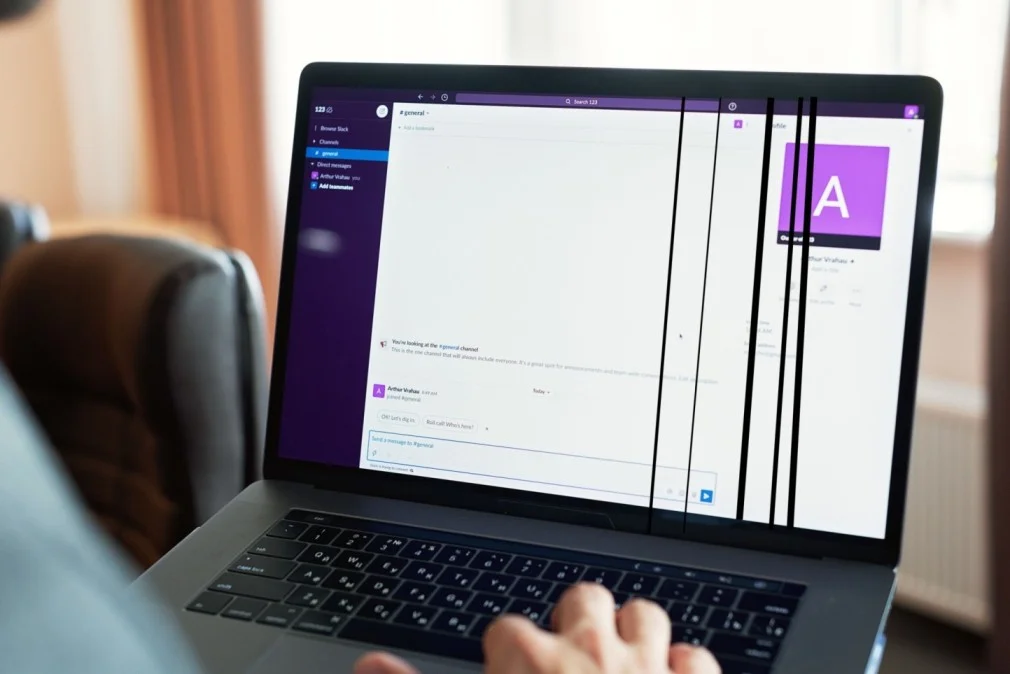
This can happen because of a physical problem inside the screen, a loose connection between the display and the motherboard, or something simpler like an outdated graphics driver. Figuring out which one you are dealing with is the key to fixing it.
Common Causes of a Vertical Black Line on Laptop Screen
Before you start troubleshooting, it helps to understand what usually causes this issue. Here are the most common culprits behind a black vertical line on laptop screen:
- Loose or damaged display cable, the ribbon cable connecting the screen to the motherboard flexes every time you open and close the lid, and over months or years it can wear out or come loose.
- Outdated or corrupted graphics driver, a driver that is out of date or glitching can cause rendering errors, including vertical lines.
- Physical impact or pressure, a drop, a bump, or even a heavy object placed on a closed laptop can damage the screen panel.
- Overheating, excessive heat can affect how the display panel processes signals, sometimes causing temporary lines.
- Faulty T-con board, the timing controller board manages signals to each pixel column, if it is failing, it can create one or more vertical lines.
- A failing LCD panel, with age, the panel itself can develop faults, especially on laptops that are several years old.
Software vs. Hardware: How to Tell the Difference
This is one of the most useful things to check early on, because it tells you whether you are looking at a quick fix or a repair. Connect your laptop to an external monitor (using HDMI or USB-C) and see what happens:
- If the vertical black line on laptop screen disappears on the external monitor, the problem is with your laptop’s screen or its cable, a hardware issue.
- If the line also shows up on the external monitor, the problem is likely your graphics card or driver, a software or GPU issue.
Warning Signs That Point to a Bigger Problem
Not every vertical line is the same. Pay attention to these signs, since they can indicate the issue is getting worse or is more serious than a simple glitch:
- The line changes position, gets thicker, or multiplies over a few days.
- The line appears or disappears when you gently press or flex the laptop lid.
- You notice flickering, color distortion, or patches of the screen going dark along with the line.
- The laptop screen was recently dropped, bumped, or had something heavy placed on it.
How to Fix a Vertical Black Line on Laptop Screen
Work through these fixes in order. They are arranged from the easiest and safest to the more advanced, so you do not need to open up your laptop unless the simpler steps do not work.
Fix 1: Restart Your Laptop
It sounds basic, but a restart clears temporary software glitches that can cause display errors, including a black line down laptop screen.
- Save your work and close open programs.
- Click Start (Windows) or the Apple menu (Mac), then select Restart.
- Once it boots back up, check if the line is still there.
Fix 2: Gently Check the Screen for the Cause
This step helps you figure out if the issue is connection-related without opening anything.
- With the laptop powered on, very gently flex the top and bottom corners of the screen bezel, the frame around the display.
- Watch whether the vertical black line on laptop screen changes, moves, or disappears as you do this.
- If it does, this points to a loose internal cable rather than a dead panel, note this for later steps.
- Stop if you feel any resistance or hear any cracking; do not force the screen.
Fix 3: Test With an External Monitor
This is the most reliable way to separate a screen problem from a graphics card problem.
- Connect your laptop to an external monitor or TV using an HDMI or USB-C/DisplayPort cable.
- Press Windows key + P (Windows) or use Display preferences (Mac) to switch the display output to the external screen.
- If the vertical line only appears on the laptop’s built-in screen, the panel or its cable is the likely cause.
- If the line also shows up on the external monitor, move on to the driver-related fixes below.
Fix 4: Update Your Graphics Driver
Outdated or corrupted drivers are a well-documented cause of display glitches, including lines on screen.
- Right-click the Start button and select Device Manager.
- Expand Display Adapters.
- Right-click your graphics card and choose Update driver.
- Select Search automatically for drivers and let Windows install any available update.
- Restart your laptop and check the screen again.
Fix 5: Roll Back the Graphics Driver After an Update
If the vertical black line on laptop screen started right after a driver update, rolling it back can undo the problem.
- Open Device Manager and expand Display Adapters.
- Right-click your graphics card and select Properties.
- Go to the Driver tab.
- If the Roll Back Driver option is available, click it and follow the prompts.
- Restart your laptop.
Fix 6: Adjust Your Screen Resolution and Refresh Rate
An incorrect resolution or refresh rate can sometimes create display artifacts that look like lines.
- Right-click on your desktop and select Display Settings.
- Under Resolution, choose the option marked (Recommended).
- Click Advanced display settings and confirm the refresh rate matches your screen’s default (usually 60Hz for most laptops).
- Apply the changes and check if the line is gone.
Fix 7: Update Your BIOS/UEFI Firmware to recover Vertical Black Line on Laptop Screen
Outdated firmware can occasionally cause display issues. Only do this if you are comfortable following manufacturer instructions closely, since an interrupted update can cause serious problems.
- Find your laptop’s exact model number (usually on the bottom of the laptop or in System Information).
- Go to your laptop manufacturer’s official support website (Dell, HP, Lenovo, ASUS, etc.).
- Search for the latest BIOS/UEFI update for your specific model.
- Make sure your laptop is plugged into power before starting, never update on battery alone.
- Follow the manufacturer’s installation instructions exactly, and do not turn off the laptop mid-update.
Fix 8: Check and Reset the Internal Display Cable
This fix involves opening the laptop, so only attempt it if you are comfortable with basic hardware work, or skip to professional help below.
- Power off the laptop, unplug it, and remove the battery if it’s removable.
- Refer to your laptop model’s official disassembly instructions, since the process varies by brand and model.
- Carefully remove the bezel around the screen to access the display cable connector.
- Check the cable for visible fraying, kinks, or a loose connector.
- Unplug and firmly reseat the connector, then reassemble the laptop and test.
Fix 9: Replace the Display Cable or Panel
If the line persists after everything above, and it moves or changes when you flex the screen, the display cable or panel itself likely needs replacing.
- Confirm your exact laptop model and search for a compatible replacement cable or panel.
- Consider whether you want to install it yourself using an official or reputable repair guide for your model, or have a technician do it.
- If self-installing, ensure you are using proper anti-static precautions to avoid damaging other components.
A Common Myth: Should You Press or Tap the Screen to Fix a Vertical Line?
Some online forums suggest pressing on the area where the line appears, or tapping the screen, as a way to fix it. This is not a real fix, at best it might temporarily reposition a loose cable, and at worst, applying pressure to an LCD panel can crack it or create permanent dead pixels.
A safer alternative is the gentle flex test, which checks the cable connection without pressing directly on the screen surface.
When to Seek Professional Help
Some situations call for a technician rather than a DIY approach. Consider professional repair if:
- The line appeared after a physical drop or impact.
- The line is joined by flickering, discoloration, or spreading dark patches.
- You have tried the software fixes and the external monitor test confirms it is a hardware issue.
- You are not comfortable opening the laptop yourself.
- Your laptop is still under warranty, in this case, contact the manufacturer first, since opening it yourself could void coverage.
How to Prevent a Vertical Black Line on Laptop Screen
A few habits can reduce the chances of this happening again, or at least delay it:
- Always hold the base of the laptop when opening or closing the lid, not the screen itself.
- Avoid placing heavy objects like books or bags on top of a closed laptop.
- Keep your graphics drivers updated through Windows Update or your laptop manufacturer’s utility.
- Use a padded sleeve or bag when carrying your laptop.
- Keep vents clear and clean to avoid overheating, which stresses internal components over time.
- Avoid opening the lid past its designed angle, since this puts extra strain on the display cable.
Conclusion
A vertical black line on laptop screen is unsettling to see, but it is rarely a reason to panic. Start with the simple, safe steps, a restart, a driver update, and the external monitor test, before assuming the worst. If those do not clear it up and the line seems to be tied to a loose or damaged cable, a professional repair or a cable replacement will usually solve it.
Related Posts:
ASUS Laptop Black Screen? 9 Proven Ways To Get Your Display Back
Black Spots On MacBook Screen? Try These Fixes First
MacBook Pro Battery Not Charging? How To Fix It
MacBook Won’t Turn On: 10 Fixes That Actually Work
HP Laptop Overheating? Why It’s Heating Up And How To Fix It
Laptop Won’t Turn On? Try This Before You Panic
Frequently Asked Questions:
Sometimes, if it is caused by a temporary software glitch, a restart or driver update can resolve it. If it is caused by a damaged cable or panel, it won’t fix itself and usually gets worse over time.
It depends on the cause and your warranty terms. Manufacturing defects are typically covered, while accidental damage usually is not unless you have accidental damage protection. Check with your manufacturer directly.
This usually points to a loose or damaged display cable that is making intermittent contact.
Yes, in most cases it is safe to keep using the laptop, though the line may spread or multiply over time if it is a hardware issue. It won’t damage other components.
Not usually. Most cases are fixed by replacing the display cable or, in some instances, the screen panel, both of which are far cheaper than a new laptop.
No, connecting an external monitor is completely safe and is actually one of the best ways to diagnose whether the problem is your screen or your graphics card.