

What Is Google Password Manager?
Google Password Manager is a free password management service built into your Google Account that helps you securely save, organize, and auto-fill usernames and passwords across your devices. Whether you are signing in on your Android phone or using Chrome on your computer, the password manager by Google automatically fills your saved login credentials, so you don’t have to remember every password.
Google Password Manager is one of several useful tools built into Android. If you want to get even more out of your phone, check out our guide on Google Lens to learn how to search by image, copy text, translate languages, and identify objects using your camera.
Key Features of Google Password Manager
Google Password Manager is more than just a place to store passwords. It includes several built-in security and convenience features that help protect your online accounts while making sign-ins faster across Android and Chrome.
Save Passwords Securely
Whenever you create a new account or log in to a website, Google asks whether you’d like to save your password.
Once approved, your login details are securely encrypted and stored in your Google Account instead of being saved as plain text. This allows you to access your saved credentials whenever you sign in using the same Google Account.
Autofill Passwords Across Websites and Apps
Typing usernames and passwords repeatedly can be time-consuming. Google Password Manager automatically fills your saved login credentials on supported websites and Android apps.
Whether you are using Chrome passwords on your laptop or signing in on your Android phone, auto-fill makes logging in quick and effortless.
Sync Passwords Across All Your Devices
One of the biggest advantages of using Google’s password manager is cloud synchronization. Your saved passwords automatically stay updated across:
- Android phones
- Android tablets
- Chrome browser
- Windows PCs
- Mac computers
- Chromebooks
As long as you are signed in with the same Google Account, your passwords saved in Google are always available.
View and Manage Saved Passwords
Google provides a central dashboard where you can manage every saved login. From there, you can
- View Google saved passwords
- Edit usernames or passwords
- Delete outdated logins
- Search for specific accounts
- Review all Google stored passwords
Instead of searching through multiple browsers or devices, everything is organized in one secure location.
Built-in Password Security Check
Google Password Manager continuously checks your saved passwords for security risks. It can detect
- Weak passwords
- Reused passwords
- Passwords exposed in known data breaches
If an issue is found, Google recommends changing the affected password immediately to keep your accounts protected.
Generate Strong Passwords Automatically
Creating unique passwords for every website improves your online security. When you sign up for a new account, Google Password Manager can automatically generate a strong password containing random letters, numbers, and symbols. This reduces the chances of using weak or predictable passwords.
Store Passwords in a Secure Password Vault
Google Password Manager works like a secure password vault Google provides for every Google Account. Instead of remembering dozens of passwords or storing them in notes, all your login credentials remain protected behind your Google Account’s security. For most Android and Chrome users, it also serves as a reliable Google password keeper, eliminating the need for separate password management apps.
How to Set Up Google Password Manager
The good news is that Google Password Manager is already available on most Android phones and in the Chrome browser. You don’t need to download a separate app or create another account. If you re signed in with your Google Account, you are only a few steps away from using it.
On Android
If you are using an Android phone, follow these steps to set up Google Password Manager.
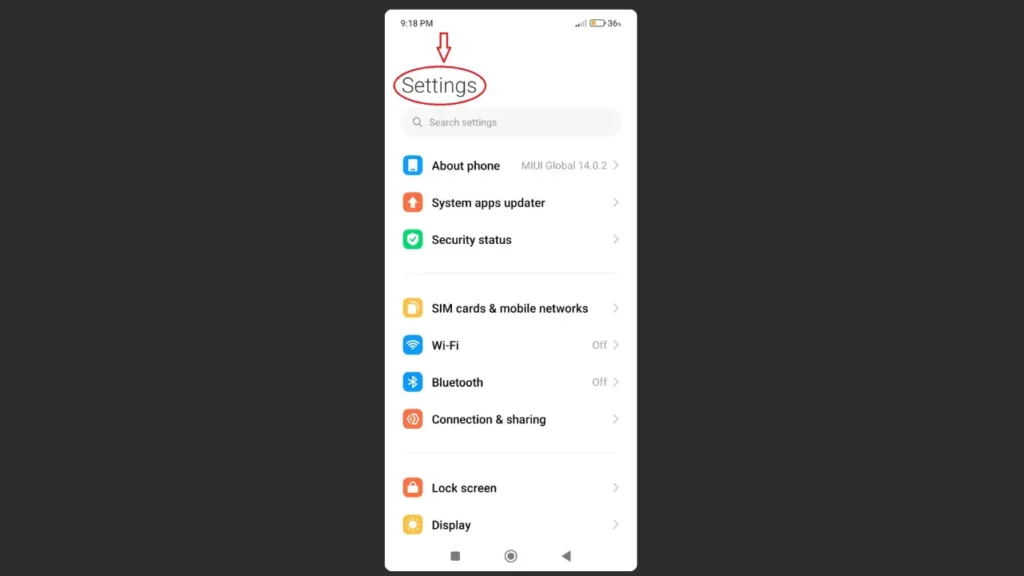
Open Setting in your android phone.
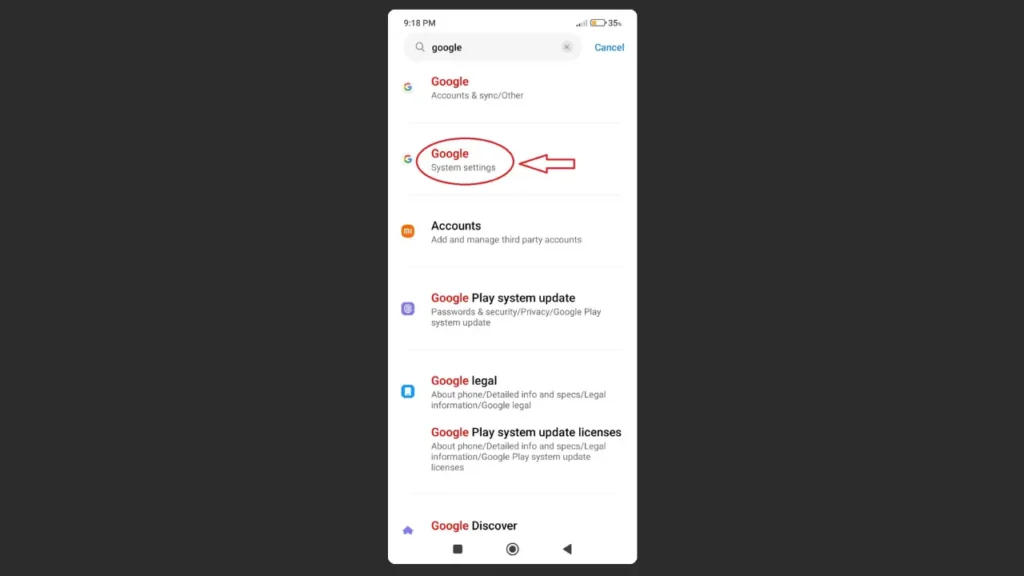
Tap google or Search google in search bar.
Sign in to your Google Account if prompted.
Select Password Manager.
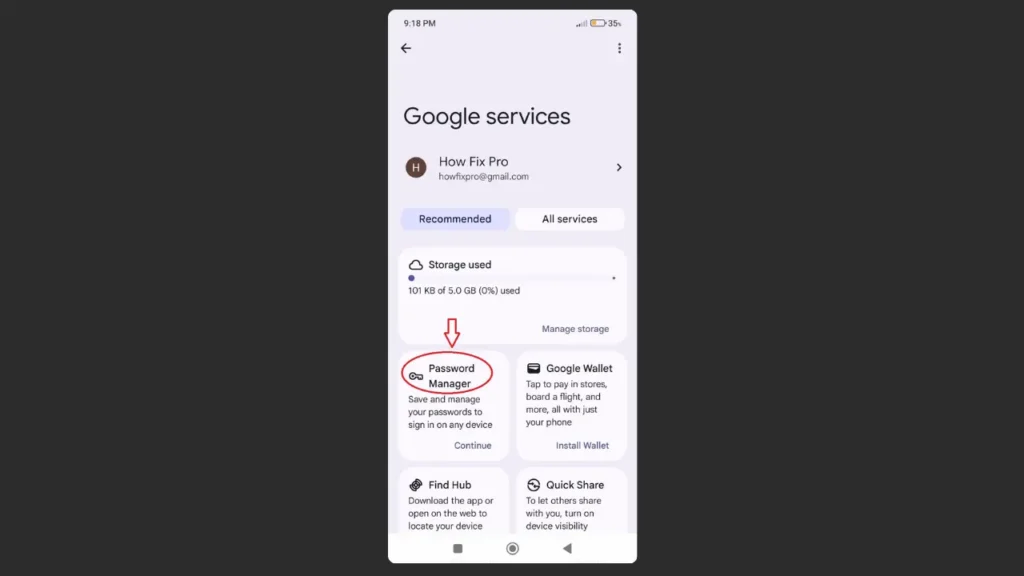
Turn “ON” Offer to Save Passwords under settings.
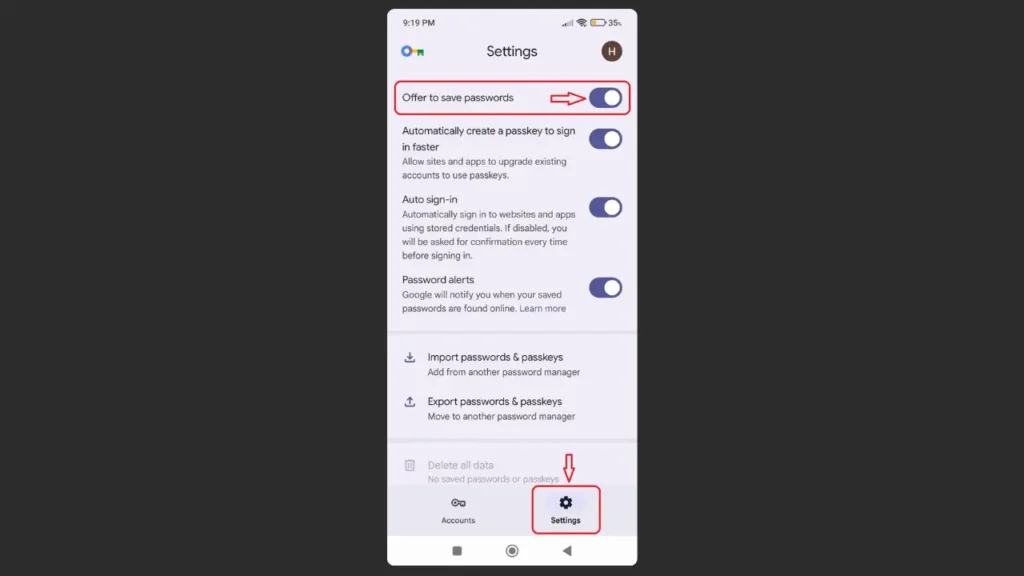
Once enabled, Google will begin offering to save passwords whenever you sign in to supported apps or websites.
On Google Chrome
If you mainly browse on a computer, you can also set up Google Password Manager directly in Chrome.
- Open the Chrome browser.
- Click the three-dot menu in the upper-right corner.
- Select Settings.
- Click Password Manager.
- Turn on:
- Offer to save passwords
- Auto Sign-in
Now Chrome will automatically save and fill passwords whenever you visit supported websites.
How to Access Google Password Manager
There are several ways to open Google Password Manager.
Android Settings
- Open Settings
- Tap Google
- Select Password Manager
Chrome Browser
- Open Chrome.
- Go to Settings.
- Click Password Manager.
Google Password Manager Website
You can also manage your passwords from Google’s secure dashboard:
Here, you will find all your Google saved passwords, allowing you to search, edit, or remove stored login credentials from any device.
Enable Password Sync
To keep your passwords available everywhere, make sure password synchronization is turned on.
Open Chrome and:
- Go to Settings.
- Click You and Google.
- Select Sync and Google services.
- Ensure Passwords is enabled.
This keeps your password manager in Google synchronized across Android phones, tablets, laptops, and desktop computers.
Verify That It’s Working
After setup, test the feature by signing in to a website or app.
If everything is configured correctly, Google should:
- Ask whether you want to save the password.
- Automatically fill your saved credentials the next time you visit the same website.
- Store the login securely with your other Google stored passwords.
How to Auto-fill Passwords Using Google Password Manager
Saving passwords is only half the job. The real convenience comes from autofill, which automatically enters your usernames and passwords whenever you visit a saved website or app.
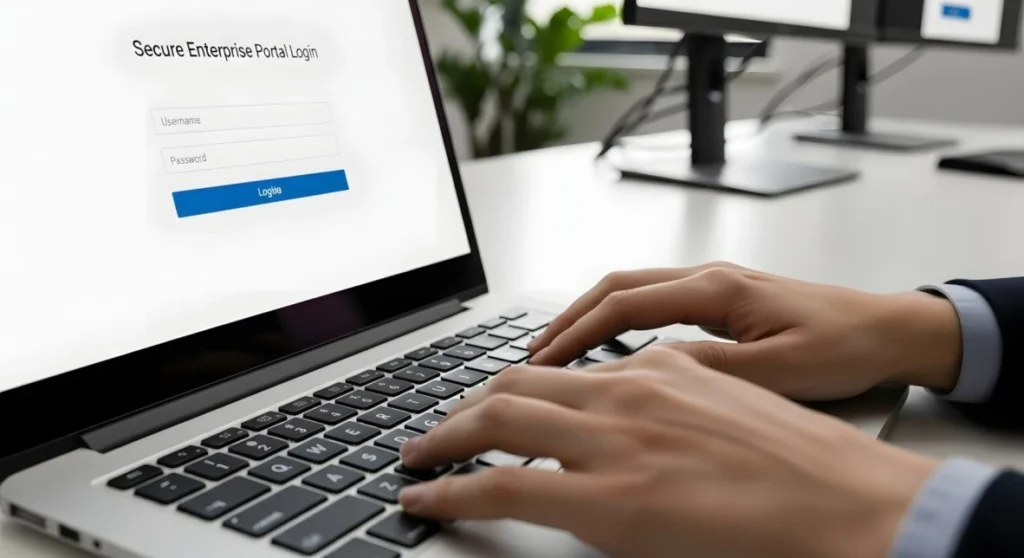
Once enabled, Google Password Manager can securely fill your login details in seconds, eliminating the need to remember or manually type every password.
How Password Autofill Works
When you visit a website or open an app you’ve previously saved, Google Password Manager checks whether matching login credentials are available.
If a match is found, it automatically suggests your saved account. With a single tap or click, your username and password are filled instantly.
This works with:
- Websites in Google Chrome
- Android apps
- Supported browsers on Android
Enable Autofill on Android
If password auto-fill is not working, make sure it is enabled.
Follow these steps:
- Open Settings.
- Tap Google.
- Select Password Manager.
- Tap Settings.
- Turn on:
- Offer to save passwords
- Auto Sign-in
Google will now automatically fill your saved login credentials whenever possible.
Enable Auto-fill in Chrome
Chrome also includes built-in password autofill.
To enable it:
- Open Chrome.
- Click the three-dot menu.
- Select Settings.
- Open Password Manager.
- Enable:
- Offer to save passwords
- Sign in automatically
Once enabled, your Chrome passwords will automatically appear whenever you visit saved websites.
How to Choose Between Multiple Saved Accounts
If you have more than one account for the same website, Google Password Manager lets you choose which one to use.
For example: If you have
- Personal Gmail
- Work Gmail
Google will display both accounts and allow you to select the correct one before signing in. This makes managing multiple accounts much easier without remembering separate passwords.
When Autofill Doesn’t Work
Sometimes passwords aren’t filled automatically. Common reasons include:
- Password was not saved.
- Autofill is disabled.
- You are signed in to a different Google Account.
- The website does not support automatic password filling.
- Chrome or the Google app needs updating.
Is Autofill Safe?
Yes, when used correctly.
Google Password Manager protects your saved passwords using your device’s security features. Before revealing or filling sensitive passwords, Android may ask you to verify your identity using:
- Fingerprint
- Face Unlock
- Screen PIN
- Device password
This extra layer of protection prevents unauthorized access if someone else is using your device.
Best Practices for Autofill
To keep your accounts secure:
- Enable screen lock on your phone.
- Use a strong Google Account password.
- Turn on two-factor authentication.
- Review your saved passwords regularly.
- Remove passwords you no longer use.
These simple habits make Google Password Manager even more secure while keeping sign-ins fast and convenient.
How to Check if Your Passwords Are Safe
Saving passwords is convenient, but keeping them secure is even more important. That’s why Google Password Manager includes a built-in Password Checkup feature that scans your saved passwords for security risks.
It automatically looks for passwords that are:
- Compromised in known data breaches
- Weak and easy to guess
- Reused across multiple websites
If Google detects a problem, it recommends changing the affected password immediately to reduce the risk of unauthorized access.
Run a Password Security Check
Checking your password security only takes a few minutes.
On Android
- Open Settings.
- Tap Google.
- Select Password Manager.
- Tap Password Checkup.
Google will begin scanning your saved passwords.
On Chrome
- Open Chrome.
- Go to Settings.
- Open Password Manager.
- Click Check passwords.
Chrome will analyze your saved credentials and display any security warnings.
Understanding Password Checkup Results
After the scan, Google groups your passwords into different categories.
Compromised Passwords
These passwords have appeared in public data breaches. If you see one listed
- Change the password immediately.
- Don’t continue using it on any website.
Weak Passwords
Weak passwords are easy for attackers to guess.
Examples include:
- 123456
- password
- qwerty
- abc123
Replace them with strong, unique passwords.
Reused Passwords
Using the same password for multiple accounts is risky. If one website is hacked, attackers often try the same password on
- Email accounts
- Banking websites
- Shopping sites
- Social media
Google Password Manager identifies reused passwords so you can replace them with unique ones.
Generate Strong Passwords Automatically
Instead of creating passwords yourself, let Google generate one. When signing up for a new website
- Tap the password field.
- Select Use Suggested Password.
- Save it using Google Password Manager.
Google creates a long, random password that’s much harder to crack than passwords people usually invent.
Change a Compromised Password
If Google flags one of your passwords:
- Open the affected website.
- Sign in.
- Go to Account Settings.
- Select Change Password.
- Create a new strong password.
- Save the updated password when Google asks.
Your Google stored passwords will automatically update after you confirm the new login.
Tips to Keep Your Passwords Secure
Follow these best practices to protect your online accounts:
- Use a different password for every website.
- Let Google generate strong passwords.
- Review your passwords every few months.
- Remove accounts you no longer use.
- Enable two-factor authentication whenever available.
- Protect your Google Account with a strong password and screen lock.
- If your phone is ever lost or stolen, you can also use Google Find My Device to locate it, lock it remotely, or erase your personal data.
How to Export Your Saved Passwords from Google Password Manager
Exporting passwords creates a backup of all your saved login credentials.
On Google Chrome
- Open Chrome.
- Click the three-dot menu.
- Go to Settings → Password Manager.
- Click Settings inside Password Manager.
- Select Export passwords.
- Verify your identity using your device password.
- Save the CSV file to a secure location.
The exported file includes:
- Website names
- Usernames
- Passwords
This makes it easy to move your credentials to another password manager if needed.
Why Export Passwords?
You may want to export your passwords if you:
- Switch to another password manager.
- Create a backup before resetting your computer.
- Transfer passwords to another browser.
- Organize your login credentials.
How to Import Passwords into Chrome
If you have been using another password manager, Chrome allows you to import supported password files.
Steps
- Open Chrome.
- Go to Settings.
- Open Password Manager.
- Click Settings.
- Choose Import passwords.
- Select the CSV file exported from your previous password manager.
- Confirm the import.
Your imported passwords will now become part of your Google Password Manager and will sync with your Google Account if password sync is enabled.
Keep Your Exported Password File Safe
Remember that exported password files are not encrypted. To protect your accounts
- Store the file only on your personal computer.
- Never email it.
- Don’t upload it to public cloud storage.
- Delete the file after importing it successfully.
Keeping unnecessary password files on your computer increases security risks.
When Should You Export Passwords?
Exporting is not something most users need regularly. It is useful when
- You are changing password managers.
- You are replacing your computer.
- You want an emergency backup.
- You are migrating browsers.
For everyday use, keeping your passwords synced through your Google Account is usually the safer and more convenient option.
Google Password Manager Not Working? Try These Fixes
Although Google Password Manager works reliably for most users, you may occasionally run into problems. For example, passwords may stop syncing, autofill may stop working, or the password manager may not open at all.
The good news is that most issues can be fixed in just a few minutes. Let’s go through the most common problems and their solutions.
Google Password Manager Is Not Opening?
Possible Causes
- Temporary software glitch
- Outdated Google app
- Corrupted app cache
- Google Play Services issue
How to Fix It
Restart Your Phone
A simple restart often fixes temporary system bugs.
- Press and hold the Power button.
- Tap Restart.
- Wait for your phone to reboot.
- Try opening Google Password Manager again.
Update the Google App
Google Password Manager depends on the Google app.
To update it:
- Open the Google Play Store.
- Search for Google.
- Tap Update if available.
After updating, check whether the problem is resolved.
Update Google Play Services
Google Play Services is required for many Google features.
- Open Settings.
- Tap Apps.
- Find Google Play Services.
- Update it through the Play Store if an update is available.
Password Auto-fill Is Not Working?
If your saved passwords aren’t appearing when you sign in, the autofill service may be disabled.
Enable Password Auto-fill
- Open Settings.
- Tap Google.
- Select Password Manager.
- Open Settings.
- Make sure these options are enabled:
- Offer to save passwords
- Auto Sign-in
Check Your Google Account
If you are signed into a different Google Account, your saved passwords won’t appear.
Verify that youare using the same Google Account where your passwords were originally saved.
Verify the Password Exists
Sometimes users assume a password was saved when it was not.
Open Google Password Manager and search for the website.
If the account is not listed, you’ll need to sign in manually and save it again.
Passwords Are Not Syncing
Your passwords should automatically sync between Android and Chrome. If they don’t,
Enable Sync
- Open Chrome.
- Go to Settings.
- Select You and Google.
- Tap Sync.
- Ensure Passwords is enabled.
It may take a few minutes for new passwords to synchronize across devices.
Google Saved Passwords Are Missing?
If your Google saved passwords suddenly disappear, don’t panic.
Check These Things First
- Are you signed into the correct Google Account?
- Is password sync enabled?
- Do the passwords appear at passwords.google.com?
In many cases, the passwords have not been deleted, they are simply associated with another Google Account.
Google Password Manager Keeps Crashing
App crashes are usually caused by corrupted cache files.
Clear the Google App Cache
- Open Settings.
- Tap Apps.
- Select Google.
- Tap Storage & Cache.
- Tap Clear Cache.
Restart your phone and try again. If your phone feels unusually hot while using Chrome or other Google apps, it could be affecting overall performance. Follow our guide on Android phone overheating to identify the cause and prevent your device from slowing down or crashing.
Passwords Won’t Save
If Google never asks whether you’d like to save a password:
Check Password Saving Settings
Open Google Password Manager and verify that:
- Offer to save passwords is enabled.
- Auto Sign-in is enabled.
If both settings are already turned on, update the Google app and Chrome to the latest versions.
Password Checkup Isn’t Working
Sometimes the Password Checkup feature fails to load.
Try these fixes:
- Connect to a stable internet connection.
- Update the Google app.
- Restart your phone.
- Sign out and back into your Google Account.
- Update Google Play Services.
Frequently Asked Questions:
Yes. Google Password Manager is completely free to use. If you have a Google Account, you can save, manage, and sync your passwords across Android devices and the Chrome browser without paying for a subscription.
Yes. Google Password Manager uses encryption to protect your saved login credentials. It also includes Password Checkup to warn you about weak, reused, or compromised passwords.
Yes. Whenever you create a new online account, Google can automatically suggest a strong password containing random letters, numbers, and symbols.
Absolutely. When you are signed in with the same Google Account and password sync is enabled, your passwords automatically sync across:
For most Android users, Google Password Manager provides everything needed for everyday password management, including secure storage, password synchronization, auto-fill, and Password Checkup.
Opening Google Password Manager on Android.
Going to Chrome → Settings → Password Manager.
Visiting https://passwords.google.com.