

What Is Google Lens?
Google Lens is an AI-powered visual search feature developed by Google that uses your phone’s camera and image recognition technology to understand what you are looking at. Instead of searching with words, you can simply point your camera at an object, and it will analyze the image and provide relevant results.
Think of it as a search engine for the real world. Whether you are looking at a product, a plant, a historical building, a handwritten note, or a QR code,it can recognize it and help you take action.
Unlike a traditional camera app, Google Lens Android combines artificial intelligence (AI), optical character recognition (OCR), and Google Search to understand images and return useful information in seconds.
What Can Google Lens Do?
Google Lens can help you:
- Search for products online using your camera.
- Copy text from books, documents, and images.
- Translate text in real time.
- Identify plants, flowers, animals, and landmarks.
- Scan QR codes and barcodes.
- Solve math and homework questions.
- Search similar images on Google.
- Save contact information from business cards.
- Open websites directly from QR codes.
Because these features are built into many Android devices, you don’t usually need to install a separate application. If your phone already has the Google app installed, you likely already have access to this feature.
Is Google Lens Free?
Yes.
Google Lens is completely free to use. There are no subscriptions or hidden charges.
You will only need:
- An Android phone or tablet.
- The latest Google app or Google Photos.
- An internet connection for most searches.
Some basic functions, such as scanning QR codes or copying text from saved photos, may still work even if your connection is temporarily unavailable, but online searches require internet access.
Which Android Phones Support Google Lens?
Most modern Android phones support Google Lens, including devices from:
- Samsung Galaxy
- Google Pixel
- Motorola
- OnePlus
- Xiaomi
- Oppo
- Vivo
- Nokia
- Sony
If your phone runs a recent version of Android and has the Google app installed, there is a good chance this feature is already available.
Google Lens: How to Use It to Search, Translate, Copy Text & Find Products
Google Lens combines your phone’s camera with Google’s artificial intelligence (AI) and image recognition technology to understand what you are looking at. Instead of typing a search query, you simply point your camera at an object, document, plant, product, or QR code, and it can analyzes the image to provide useful information.
Unlike a regular camera app that only captures photos, the Google Lens camera recognizes text, objects, landmarks, products, and even handwriting. It then compares what it sees with Google’s vast database to deliver accurate search results within seconds.
This makes Google Lens search much faster and more convenient than typing keywords manually, especially when you don’t know the name of what you’re looking at.
What Technology Powers Google Lens?
Google Lens uses several advanced technologies working together:
- Artificial Intelligence (AI) to recognize objects and patterns.
- Image Recognition to identify products, plants, animals, and landmarks.
- Optical Character Recognition (OCR) to detect printed and handwritten text.
- Google Search to find matching information online.
- Machine Learning to improve search accuracy over time.
These technologies allow the tool to understand images rather than simply displaying them.
How Google Lens Processes an Image
Whenever you search with Google Lens, the process happens almost instantly.
Step 1: Open Google Lens
Launch the Google Lens feature from the Google app, Camera app, or Google Photos.
Step 2: Point the Camera
Aim your phone at:
- A product
- A flower
- A document
- A QR code
- A building
- A handwritten note
Google Lens automatically scans the image.
Step 3: Analyze the Image
Google’s AI examines the photo and identifies important details, such as:
- Text
- Objects
- Shapes
- Colors
- Logos
- Products
- Landmarks
Step 4: Search Google’s Database
Google compares the detected information with its search index and returns the most relevant results.
Depending on what you are scanning, you may see:
- Website results
- Shopping links
- Image matches
- Translation options
- Contact information
- Product prices
- Similar images
What Can Google Lens Recognize?
The feature can recognize many different types of content, including:
Text
- Printed documents
- Business cards
- Books
- Signs
- Handwritten notes
Objects
- Electronics
- Furniture
- Clothing
- Household items
- Tools
Nature
- Plants
- Flowers
- Trees
- Animals
- Insects
Places
- Famous landmarks
- Buildings
- Restaurants
- Museums
- Tourist attractions
Products
Google Lens can identify products and help you:
- Compare prices
- Read reviews
- Find similar products online
- Locate stores selling the item
Is Google Lens Accurate?
In most situations, YES.
Google Lens works best when:
- The object is clearly visible.
- Lighting is good.
- The image isn’t blurry.
- The camera lens is clean.
- You have a stable internet connection.
However, results may be less accurate when:
- The object is partially hidden.
- The photo is very dark.
- The item is uncommon or handmade.
- Internet connectivity is poor.
How to Open Google Lens on Android
Before you can start searching, translating, or identifying objects, you need to know where to find this feature on your phone. The good news is that most Android devices already include this feature, so you usually don’t need to download a separate app.
Depending on your phone’s brand and Android version, there are several ways to open the app.
Method 1: Open Google Lens from the Google App
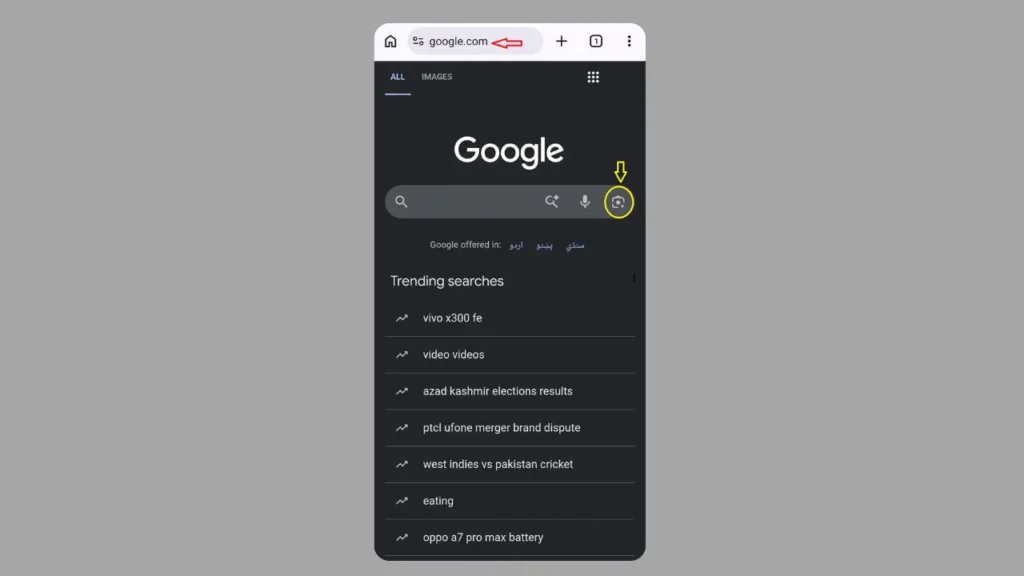
This is the easiest and most reliable method.
Steps
- Open the Google app on your Android phone.
- Tap the Google Lens icon (camera-shaped icon) inside the search bar.
- Allow camera permission if prompted.
- Point your camera at the object or text you want to scan.
You can now start using this feature to search, translate, copy text, or identify objects.
Method 2: Open Google Lens from Your Camera App
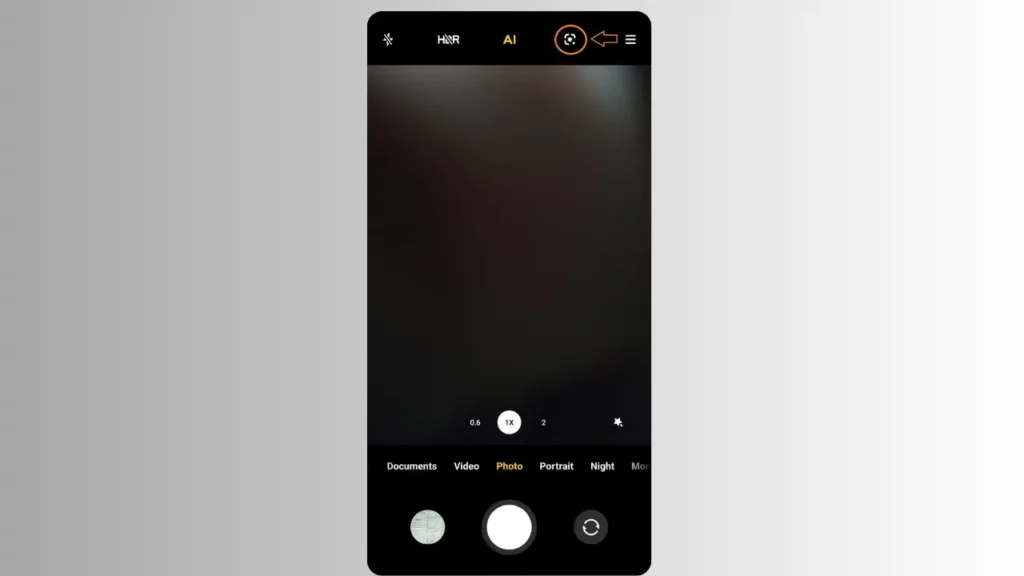
Many Android manufacturers have this built directly into the mobile camera.
Steps
- Open your phone’s Camera app.
- Look for the Lens icon.
- Tap the icon.
- Point your camera toward the object.
- Wait for this tool to analyze the image.
This method works on many devices, including:
- Google Pixel
- Samsung Galaxy
- Motorola
- OnePlus
- Xiaomi
- Oppo
- Vivo
If you don’t see the Lens icon, use one of the other methods below.
Method 3: Open Google Lens from Google Photos
If you have already taken a picture, you don’t need to photograph it again.
Steps
- Open Google Photos.
- Select the photo you want to scan.
- Tap the this tool icon at the bottom of the screen.
- Wait while Google analyzes the image.
This is especially useful when you want to:
- Copy text from a screenshot.
- Translate signs in a saved photo.
- Identify a plant from an older picture.
- Search for products you’ve photographed.
Method 4: Open Google Lens in Chrome
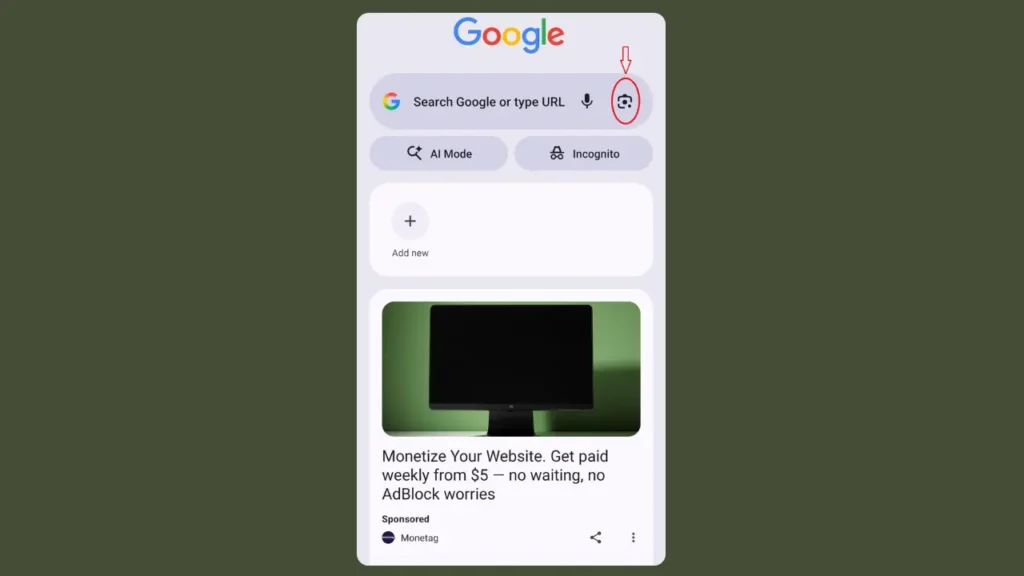
If you are browsing the web, Chrome also supports this app.
Steps
- Open Google Chrome.
- Visit any webpage.
- Long-press an image.
- Tap Search Image with Google Lens.
Chrome will perform a Google Lens image search and display visually similar images, products, or related information.
Method 5: Use Google Assistant
Some Android phones also let you launch it using Google Assistant.
Steps
- Activate Google Assistant by saying:
“Hey Google.”
- Say:
“Open Google Lens.”
- Google Assistant launches Lens automatically.
This method is convenient when your hands are busy or you prefer voice commands.
Can’t Find Google Lens?
If you can’t find this feature anywhere on your phone, check the following:
Update the Google App
- Open the Google Play Store.
- Search for Google.
- Tap Update if available.
Check Android Version
Google Lens works best on modern Android devices. If your phone is running an outdated version of Android, some features may not be available.
Install Google Lens (If Needed)
On some older devices, this feature may not come pre-installed.
Search for Google Lens in the Google Play Store and install it if available.
Common Mistakes
Avoid these common problems when opening the app:
Trying to use Lens without granting camera permission.
Using an outdated version of the Google app.
Looking for this tool as a separate app when it is already built into the Camera or Google app.
Expecting every Android phone to have the Lens icon in the same location.
How to Use Google Lens to Search Anything
One of the biggest advantages of Google Lens is that you don’t need to know the name of an object before searching for it. Instead of typing keywords into Google Search, you can simply point your camera at almost anything and let it do the work.
Whether you are looking at a product in a store, a famous landmark, a painting, a gadget, or an unfamiliar object, the tool helps you find information in seconds.
When Should You Use Google Lens Search?
This tool is useful whenever you want to identify or learn more about something you can see.
Some common situations include:
- Identifying an unknown object.
- Finding information about a landmark.
- Searching for similar products.
- Looking up artwork.
- Identifying logos or brands.
- Finding recipes from food photos.
- Learning about books or magazines.
How to Search with Google Lens
Step 1: Open Google Lens
Launch Google Lens using one of these methods:
- Google app
- Camera app
- Google Photos
- Chrome
Step 2: Point Your Camera
Aim your camera directly at the object you want to search.
For the best results:
- Make sure the object is well lit.
- Keep your phone steady.
- Fill most of the screen with the object.
Step 3: Let Google Analyze the Image
Within a few seconds, it scans the image using AI image recognition.
It identifies important details such as:
- Shape
- Color
- Text
- Logos
- Patterns
- Visual features
Step 4: View the Search Results
After the scan finishes, Google displays information related to the object.
Depending on what you are searching for, you may see:
- Google Search results
- Similar images
- Product listings
- Reviews
- Shopping links
- Website information
- Videos
- Related questions
You can then tap any result to learn more.
Search by Image Using Google Lens
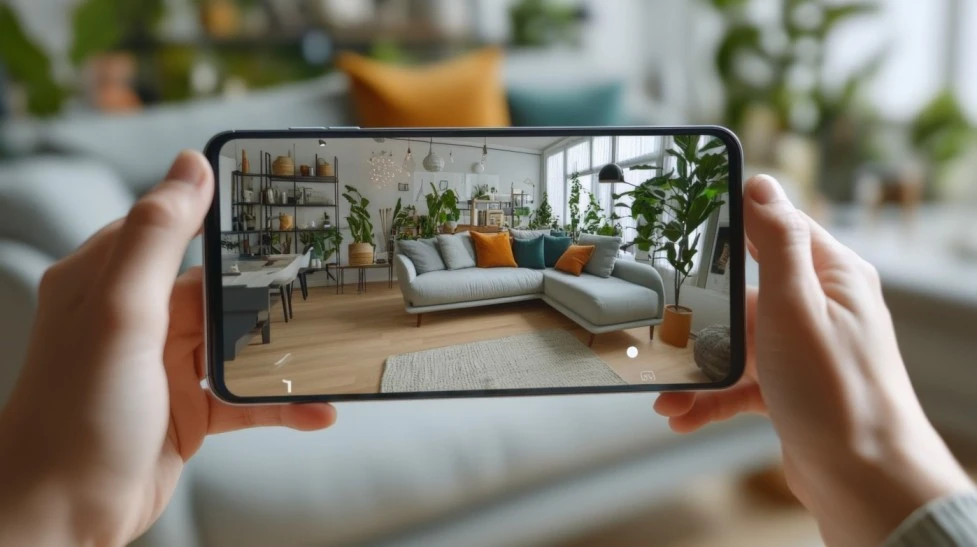
Another useful feature is Search by Image, which lets you search using an existing photo instead of taking a new one.
Steps
- Open Google Photos.
- Select the image.
- Tap the Google Lens icon.
- Wait for the image to be analyzed.
- Browse the matching search results.
This feature is ideal for:
- Screenshots
- Photos you have already taken
- Images received in messaging apps
- Pictures downloaded from the internet
What Can You Search For?
Products
Want to know where to buy something?
Point Google Lens at:
- Shoes
- Watches
- Furniture
- Electronics
- Clothing
- Home décor
Google may show:
- Online stores
- Prices
- Reviews
- Similar products
Buildings and Landmarks
Traveling somewhere new?
Point Google Lens at:
- Museums
- Monuments
- Churches
- Historic buildings
- Tourist attractions
Google often displays:
- Name of the location
- History
- Opening hours
- Reviews
- Directions
Books
Scan a book cover to quickly find:
- Author
- Ratings
- Summary
- Reviews
- Places to buy it
Food
Point your camera at a meal to discover:
- Dish name
- Ingredients
- Recipes
- Restaurants serving it
Helpful Tip
If Google Lens returns too many unrelated results, move closer to the object and remove distracting items from the background. A cleaner image usually produces a more accurate image search.
How to Copy Text from Images Using Google Lens
One of the most useful features of this tool is its ability to copy text from images. Instead of typing long paragraphs, phone numbers, email addresses, or website links manually, you can simply scan them with your camera and copy them instantly.
This feature uses Optical Character Recognition (OCR) technology to detect printed and handwritten text, making it a valuable tool for students, professionals, and anyone who works with documents.
When Should You Use This Feature?
You can use the feature copy text whenever you need information from a printed or digital image.
Common examples include:
- Copying notes from a notebook.
- Saving phone numbers from business cards.
- Extracting text from books or magazines.
- Copying Wi-Fi passwords from printed labels.
- Saving addresses from posters or flyers.
- Copying website URLs without typing them.
How to Copy Text from an Image
Step 1: Open Google Lens
Launch Google Lens from:
- Google app
- Camera app
- Google Photos
Step 2: Point the Camera at the Text
Aim your camera directly at the document or object containing the text.
For the best accuracy:
- Hold your phone steady.
- Make sure the text is clearly visible.
- Use good lighting.
- Avoid shadows covering the page.
Step 3: Wait for Google Lens to Detect the Text
It automatically analyzes the image and highlights the detected text.
If multiple paragraphs are found, they will all become selectable.
Step 4: Select the Text
Drag the selection handles to highlight exactly what you want to copy.
You can select:
- A single word.
- One sentence.
- Several paragraphs.
- The entire page.
Step 5: Tap Copy Text
Once you have selected the text, tap Copy.
You can now paste it into:
- Notes
- Messages
- Emails
- Word documents
- Google Docs
- Search bar
How to Extract Text from an Existing Photo
You don’t need to photograph the document again if it is already saved on your phone.
Steps
- Open Google Photos.
- Select the image.
- Tap the Google Lens icon.
- Highlight the detected text.
- Tap Copy Text.
This is one of the fastest ways to extract text from an image you have already taken.
What Types of Text Can This Feature Read?
It can recognize many different types of text, including:
- Printed documents
- Books
- Newspapers
- Magazines
- Business cards
- Receipts
- Restaurant menus
- Product labels
- Handwritten notes (when handwriting is clear)
- Street signs
Additional Actions Available
After scanning text with the tool, you can also:
- Search the selected text on Google.
- Translate the text into another language.
- Listen to the text being read aloud.
- Copy the text directly to your computer if you’re signed in with the same Google account.
- Share the text with other apps.
These options save time and reduce manual typing.
How to Translate Text with Google Lens
Traveling to another country or reading a document in a language you don’t understand can be challenging. Fortunately, its translate makes it easy to translate text instantly using your phone’s camera.
Instead of typing words into a translator, you can simply point your camera at signs, menus, books, documents, or labels. The feature performs camera translation in real time, allowing you to understand foreign languages within seconds.
Whether you are on vacation, studying a new language, or reading imported products, this feature can save you time and eliminate language barriers.
When Should You Use Google Lens Translate?
This feature is useful whenever you need to translate printed text quickly.
Common situations include:
- Reading restaurant menus while traveling.
- Understanding road signs.
- Translating books or magazines.
- Reading product labels.
- Understanding instruction manuals.
- Translating classroom notes.
- Reading posters or brochures.
How to Translate Text with This Feature
Step 1: Open Google Lens
Launch Google Lens using:
- Google app
- Camera app
- Google Photos
Step 2: Select the Translate Mode
At the bottom of the screen, tap Translate.
It automatically detects the language displayed in front of your camera.
If needed, you can manually select:
- Source language
- Target language
Step 3: Point Your Camera at the Text
Aim your camera toward the text you want to translate.
For best results:
- Hold your phone steady.
- Make sure the entire sentence is visible.
- Use good lighting.
- Keep the text in focus.
Step 4: View the Translation
Within a few seconds, it overlays the translated text directly on top of the original image.
This makes it feel as though the document has already been translated.
You can also switch between:
- Original text
- Translated text
at any time.
How to Translate an Existing Photo
You don’t always need a live camera.
If you have already taken a picture, you can still translate an image using Google Lens.
Steps
- Open Google Photos.
- Select the image.
- Tap the Google Lens icon.
- Choose Translate.
- Wait for the tool to process the image.
The translated text will appear on your screen almost instantly.
Supported Languages
This feature supports dozens of languages, including:
- English
- Spanish
- French
- German
- Italian
- Japanese
- Korean
- Chinese
- Arabic
- Hindi
Google continues adding support for additional languages through updates.
Helpful Ways to Use Camera Translation
Many Android users rely on camera translation for everyday tasks, including:
- Reading travel guides.
- Translating classroom materials.
- Understanding appliance instructions.
- Reading medicine labels.
- Translating restaurant menus.
- Shopping for imported products.
Because the translation happens directly on your screen, you don’t have to type anything manually.
How to Solve Homework Using Google Lens
This tool can be a valuable study companion when you are stuck on a homework question. Instead of spending time searching manually, you can use Google Lens homework features to scan questions, recognize text, and find explanations, related resources, or step-by-step solutions for many subjects.
While it can help you understand difficult concepts, it’s best used as a learning tool rather than simply copying answers.
When Should You Use Google Lens for Homework?
This feature is helpful when you need assistance with:
- Math equations
- Science questions
- History assignments
- Geography topics
- English vocabulary
- Foreign language exercises
- Textbook definitions
- Printed worksheets
How to Solve Homework with this Feature
Step 1: Open Google Lens
Launch Google Lens from:
- Google app
- Camera app
- Google Photos
Step 2: Select the Homework Mode (If Available)
Some Android devices include a dedicated Homework mode within this feature.
If your device doesn’t have it, simply use the standard search mode. It will still recognize most homework questions and provide relevant search results.
Step 3: Scan the Question
Point your camera at the homework problem.
For best results:
- Keep the page flat.
- Make sure the text is clear.
- Avoid shadows.
- Capture the entire question.
Step 4: Wait for Google Lens to Analyze
This feature scans the text and searches Google’s knowledge base for matching information.
Depending on the subject, you may see:
- Step-by-step explanations
- Educational websites
- Related articles
- Videos
- Definitions
- Practice examples
Step 5: Review the Results
Instead of copying the first answer you see, take time to understand the explanation.
Learning why an answer is correct helps you solve similar questions independently in the future.
Can Google Lens Solve Math Problems?
Yes. Google Lens math features can recognize many printed mathematical expressions.
Examples include:
- Addition
- Subtraction
- Multiplication
- Division
- Fractions
- Percentages
- Algebra
- Basic geometry
For more advanced calculations, it may redirect you to educational resources or Google Search results instead of providing a direct solution.
Best Practices for Students
To get the most from this tool:
- Read the explanation before writing the answer.
- Compare multiple sources if available.
- Double-check calculations manually.
- Use Lens to understand concepts, not replace learning.
- Practice solving similar questions yourself.
This approach helps improve your understanding and builds stronger problem-solving skills.
How to Shop Using Google Lens
Have you ever seen a pair of shoes, a piece of furniture, or a gadget and wondered where you could buy it? Instead of describing the item in a search engine, you can simply use Google Lens shopping to identify the product and find stores that sell it.
The tool compares the object you’re scanning with millions of products available online. Within seconds, it can show similar items, pricing, reviews, and shopping links, making it much easier to compare products before making a purchase.
Whether you’re shopping in a store or browsing online, it can help you find a product without knowing its name or brand.
When Should You Use Google Lens for Shopping?
Google Lens is especially useful when you want to:
- Find a product you saw in a store.
- Compare prices before buying.
- Identify clothing or accessories.
- Search for furniture and home décor.
- Discover similar products online.
- Read customer reviews.
- Find replacement parts or accessories.
How to Search Products with Google Lens
Step 1: Open Google Lens
Launch the tool from:
- Google app
- Camera app
- Google Photos
Step 2: Point Your Camera at the Product
Aim your phone at the item you want to identify.
Examples include:
- Shoes
- Watches
- Headphones
- Furniture
- Kitchen appliances
- Electronics
- Clothing
- Handbags
- Home décor
For the best results:
- Place the product in good lighting.
- Keep the object centered.
- Avoid scanning multiple products at the same time.
Step 3: Let Google Lens Analyze the Product
The tool scans the image and compares it with products available across Google’s shopping database.
Within a few seconds, you’ll see visually similar products along with additional information.
Step 4: Browse Shopping Results
Google may display:
- Product name
- Online stores
- Current prices
- Customer reviews
- Product specifications
- Similar alternatives
You can tap any result to learn more or visit the retailer’s website.
Compare Prices Before You Buy
One of the biggest advantages of Google Lens shopping is price comparison.
Instead of purchasing the first item you see, it lets you compare offers from different retailers.
This can help you:
- Save money.
- Find discounts.
- Compare colors and models.
- Check product availability.
- Read customer ratings before buying.
Helpful Ways to Use Google Lens Shopping
Many Android users use it to:
- Find matching furniture.
- Identify fashion accessories.
- Compare electronics prices.
- Locate replacement parts.
- Shop for books.
- Find kitchen appliances.
- Discover similar decorative items.
Because the search is based on the object’s appearance rather than keywords, it is much easier to find products whose names you don’t know.
How to Scan QR Codes with Google Lens
QR codes have become a part of everyday life. You will find them in restaurants, stores, product packaging, event tickets, Wi-Fi routers, and payment systems. Instead of downloading a separate QR scanner app, you can use Google Lens QR scanner to scan codes quickly and safely.
It automatically recognizes QR codes through your phone’s camera and opens the linked content instantly.
When Should You Use Google Lens to Scan QR Codes?
You can use Google Lens whenever you need to:
- Open a website.
- View a restaurant menu.
- Connect to a Wi-Fi network.
- Save contact information.
- Access event tickets.
- Download an app.
- Make digital payments.
- View product information.
Since it is already available on most Android phones, there’s usually no need for another QR scanner.
How to Scan a QR Code with Google Lens
Step 1: Open Google Lens
Launch this featue from:
- Google app
- Camera app
- Google Photos
Step 2: Point the Camera at the QR Code
Hold your phone about 6–12 inches (15–30 cm) away from the QR code.
Make sure:
- The entire QR code is visible.
- The camera is steady.
- The code is in focus.
- There’s enough lighting.
Google Lens usually detects the code automatically.
Step 3: Wait for Google Lens to Recognize the Code
Within a second or two, it reads the QR code and displays its content.
Depending on the code, you may see:
- Website link
- Contact information
- Wi-Fi credentials
- Event details
- App download page
- Product information
Step 4: Tap the Result
Tap the notification or preview to open the content.
For example:
- A website opens in Chrome.
- A phone number can be saved to Contacts.
- A Wi-Fi network connects automatically.
- A calendar event can be added.
Common Types of QR Codes
This feature can recognize many different QR code formats, including:
- Website URLs
- Wi-Fi login details
- Business cards
- Email addresses
- Phone numbers
- Google Maps locations
- Event tickets
- Restaurant menus
- App download links
Stay Safe When Scanning QR Codes
Although QR codes are convenient, not every code is trustworthy.
Before opening any link:
- Check that the website address looks legitimate.
- Avoid scanning codes from unknown sources.
- Don’t enter passwords or banking information on suspicious websites.
- Be cautious if a QR code immediately asks you to download an unfamiliar app.
Taking a few seconds to verify the destination can help protect your personal information.
Google Lens Not Working? Try These Fixes
If Google Lens is not working, don’t panic. Most problems can be fixed in just a few minutes without resetting your phone.
Common issues include:
- It is not opening
- It keeps crashing
- Camera won’t start
- It won’t recognize images
- Search results don’t appear
- Lens icon missing
Below are the most effective fixes that Android technicians recommend.
Google Lens Not Opening
Possible Causes
- Outdated Google app
- Corrupted app cache
- Temporary Android software glitch
- Disabled permissions
Fix 1: Restart Your Phone
A simple restart often fixes temporary software problems.
Steps
- Press and hold the Power button.
- Tap Restart.
- Wait for your phone to reboot.
- Open the feature again.
Google Lens Keeps Crashing
Possible Causes
- Corrupted cache
- Outdated Google app
- Low available memory
- Google Play Services issue
Fix 2: Clear Google App Cache
Steps
- Open Settings.
- Tap Apps.
- Select Google.
- Tap Storage & Cache.
- Tap Clear Cache.
- Restart the Google app.
Do not tap Clear Storage unless absolutely necessary, as it may reset your app preferences. If your phone becomes unusually hot while using the camera or Google Lens, follow our guide on how to fix an overheating Android phone before continuing.
Camera Permission Denied
This feature cannot function without camera access.
Fix 3: Allow Camera Permission
Steps
- Open Settings.
- Tap Apps.
- Select Google.
- Tap Permissions.
- Tap Camera.
- Choose Allow only while using the app.
Google Lens Cannot Search Images
Sometimes Google Lens opens correctly but refuses to search.
Possible Causes
- Poor internet connection
- Google’s servers temporarily unavailable
- VPN interference
Fix 4: Check Your Internet Connection
Try these steps:
- Switch from Wi-Fi to mobile data.
- Switch from mobile data to Wi-Fi.
- Turn Airplane Mode on for 10 seconds, then off again.
- Restart your router if using Wi-Fi.
Google App Is Outdated
The tool is built into the Google app. An outdated version may cause missing features or crashes.
Fix 5: Update the Google App
Steps
- Open the Google Play Store.
- Search for Google.
- Tap Update if available.
- Wait for installation to finish.
- Restart your phone.
Google Play Services Is Outdated
Google Play Services powers many Android features, including Google Lens.
Fix 6: Update Google Play Services
Steps
- Open Settings.
- Tap Apps.
- Search for Google Play Services.
- Scroll to the bottom.
- Tap App Details.
- Update if available.
Alternatively:
- Open the Play Store.
- Search Google Play Services.
- Install any available update.
Lens Icon Is Missing
Some users can’t find the its icon after updating Android.
Fix 7: Check Where Google Lens Is Located
Depending on your device, the feature may appear in:
- Google app
- Camera app
- Google Photos
- Chrome browser
If it is missing everywhere:
- Update the Google app.
- Restart your phone.
- Check that your Google account is signed in.
Still Not Working?
If none of the fixes solve the problem:
- Check for an Android system update.
- Try using it on another Google account.
- Reinstall updates for the Google app.
- Wait a few hours in case Google is experiencing a temporary service outage.
Conclusion
Google Lens is much more than a simple camera feature—it’s a powerful visual search tool that can make everyday tasks faster and easier. Whether you want to search by image, translate foreign text, copy information from printed documents, identify plants and landmarks, solve homework questions, compare product prices, or scan QR codes, it brings all these features together in one convenient tool.
If you ever experience issues such as Google Lens not opening, not working, or keeps crashing, the troubleshooting steps covered in this guide can help you get it working again in just a few minutes.
Take some time to explore each feature and practice using it in different situations. The more you use the feature, the more you will discover how useful it can be for work, study, shopping, travel, and everyday life.
If you are exploring useful Android tools, you may also want to learn how to use Google Find My Device to locate, lock, or erase a lost Android phone.
Frequently Asked Questions:
Yes. This feature is completely free. If you have an Android phone with the Google app installed, you can use it without paying any subscription fees.
Not necessarily.
On most modern Android phones, the feature is already built into:
Google app
Camera app
Google Photos
Some basic features, like scanning QR codes or selecting text from saved images, may work offline. However, features such as Google Lens search, product identification, and image recognition require an active internet connection because Google processes the search online.
The feature can perform camera translation, allowing you to point your phone at signs, menus, books, or documents and instantly view the translated text on your screen.
Yes, provided the handwriting is neat and clearly visible.
It uses OCR (Optical Character Recognition) to recognize many handwritten notes, although printed text usually delivers more accurate results.