

Before You Start
If your wireless keyboard is not working, start with the simple fixes first: replace the batteries, check the power switch, reconnect the USB receiver or Bluetooth connection, and restart your computer. These steps solve many wireless keyboard problems without needing drivers or complicated settings.
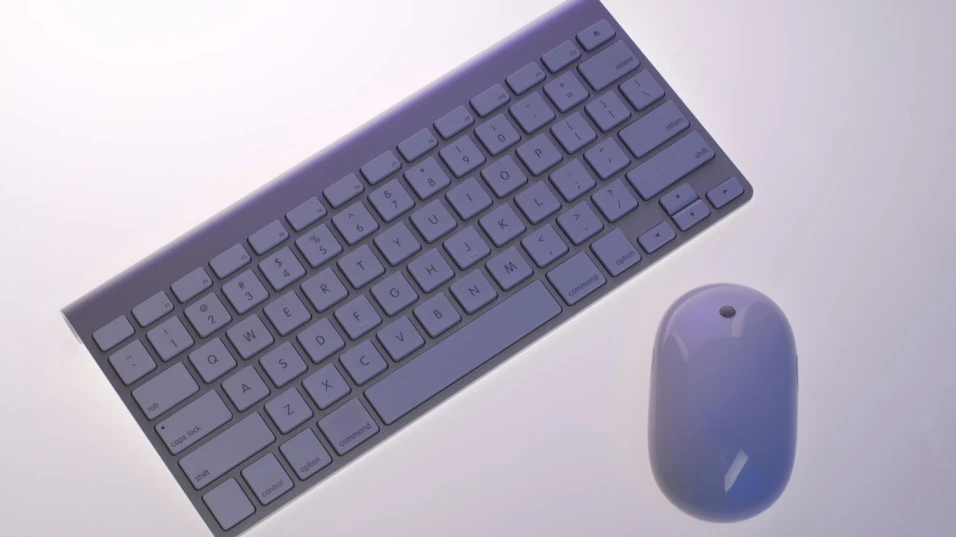
If the keyboard still does not respond, the problem could be a lost wireless connection, a USB receiver issue, Bluetooth settings, interference, outdated drivers, or a hardware fault. The guide below walks you through each possibility so you can find the cause and get back to typing.
Quick Diagnosis: Wireless Keyboard Not Working
| What you notice | Most likely cause | Quick fix |
|---|---|---|
| Keyboard does nothing | Dead batteries or power switch off | Replace batteries and check the switch |
| Keyboard worked before but suddenly stopped | Wireless connection lost | Reconnect the receiver or Bluetooth |
| Some keys work, others do not | Dirt, damaged keys, or hardware issue | Clean the keyboard and test individual keys |
| Keyboard works in BIOS but not Windows | Windows or driver problem | Restart Windows and update/reinstall the keyboard driver |
| USB receiver is not detected | USB port or receiver problem | Try another USB port |
| Bluetooth keyboard will not connect | Bluetooth connection issue | Remove the keyboard and pair it again |
| Keyboard connects but types slowly | Interference or low battery | Replace batteries and move nearby wireless devices |
| Logitech keyboard stopped working | Receiver, Bluetooth, or Logi connection issue | Reconnect the keyboard and check the receiver |
| Dell or HP keyboard stopped responding | Battery, receiver, or pairing issue | Replace batteries and reconnect the keyboard |
Replace the Keyboard Batteries First
The most common reason a wireless keyboard suddenly stops responding is simple: the batteries are weak or dead.
Even if the keyboard’s power light comes on, low batteries can sometimes prevent reliable wireless communication.
What to do
1. Turn the keyboard off.
2. Remove the batteries.
3. Insert a fresh set of the correct type.
4. Make sure the positive and negative ends match the markings inside the battery compartment.
5. Turn the keyboard back on and test it.
If the keyboard starts working immediately, the problem was the power supply. If it still does not respond, continue to the next step.
Check the Keyboard’s Power Switch
Some wireless keyboards have a small power switch on the underside or along the edge. It is easy to move accidentally while cleaning, transporting, or storing the keyboard.
- Turn the keyboard off for about 10 seconds.
- Turn it back on.
- Look for a power or status light if your model has one.
- Press a few keys and check whether the computer responds.
If there is no light and fresh batteries do not help, the keyboard itself may have a power or hardware problem.
Reconnect the USB Wireless Receiver
If your keyboard uses a small USB receiver instead of Bluetooth, the receiver may have lost its connection with the keyboard.
Try these steps
1. Remove the wireless receiver from the computer.
2. Wait about 10 seconds.
3. Plug it into a different USB port.
4. Turn the keyboard off and back on.
5. Test the keyboard again.
On a desktop PC, try a USB port directly on the computer instead of a hub or front-panel extension. A USB hub can sometimes introduce connection problems.
Also check that the receiver is actually present. Small USB receivers can be easy to lose, especially if the keyboard has been moved between computers.
Restart Your Computer
A restart can clear a temporary USB, Bluetooth, or Windows input problem. If the keyboard stopped working after your computer woke from sleep, restarted, or installed an update, this is worth trying before changing system settings.
1. Save your work.
2. Restart the computer using the mouse or trackpad.
3. Wait for Windows or macOS to fully load.
4. Test the keyboard again.
Reconnect a Bluetooth Keyboard
If your keyboard connects through Bluetooth, the issue may be with the Bluetooth pairing rather than the keyboard itself.
On Windows 11
1. Open Settings.
2. Select Bluetooth & devices.
3. Make sure Bluetooth is turned on.
4. Find the keyboard in the device list.
5. Remove the keyboard if it is listed but will not connect.
6. Put the keyboard into pairing mode.
7. Select Add device and pair the keyboard again.
The exact menu wording can vary slightly between Windows versions and manufacturers.
Move the Keyboard and Receiver Closer Together
Wireless devices can become unreliable when the keyboard is too far from its receiver or when nearby devices create interference.
- Move the keyboard closer to the USB receiver.
- Avoid placing the receiver behind a metal computer case if possible.
- Move large wireless devices away temporarily.
- If you use a USB 3.x device next to the receiver, try another USB port.
This is especially useful when the keyboard works intermittently rather than failing completely.
Check Windows for a Keyboard or Driver Problem
If the keyboard works in another computer but not your Windows PC, the problem may be related to Windows, the USB connection, Bluetooth, or the keyboard device driver.
Try Device Manager
1. Right-click the Start button and open Device Manager.
2. Expand Keyboards.
3. Look for your keyboard or a device with a warning icon.
4. Right-click the relevant device and choose Update driver.
5. Restart the computer after making changes.
If updating does not help, Windows may reinstall the device after you uninstall it and restart the computer. Avoid removing unrelated devices if you are not sure what they are.
Test the Keyboard on Another Computer
This is one of the most useful ways to determine whether the problem is the keyboard or your computer.
1. Connect the keyboard or its receiver to another compatible computer.
2. If it works there, the original computer is more likely to have a settings, USB, Bluetooth, or driver problem.
3. If it does not work on another computer either, check the batteries, receiver, pairing procedure, and physical condition of the keyboard.
If another keyboard works normally on your original computer, that is another strong clue that the wireless keyboard itself needs attention.
Clean the Keyboard and Check for Physical Damage
If only certain keys fail, the wireless connection may not be the real problem. Dust, debris, liquid damage, or worn switches can cause individual keys to stop registering.
Safe cleaning steps
1. Turn the keyboard off and disconnect its receiver or Bluetooth connection.
2. Turn it upside down and gently shake out loose debris.
3. Use compressed air in short bursts if appropriate for the keyboard.
4. Wipe the exterior with a lightly damp microfiber cloth.
5. Let the keyboard dry completely before testing it.
Do not pour liquid directly onto the keyboard. If the keyboard has suffered a significant liquid spill, continuing to power it on can cause additional damage.
Logitech Wireless Keyboard Not Working? Try These Checks
If you have a Logitech keyboard, several connection methods are possible, including a USB receiver and Bluetooth. That means the best fix depends on how your particular model connects.
If the Logitech receiver is involved
1. Make sure the receiver is plugged in securely.
2. Try another USB port.
3. Replace the keyboard batteries.
4. Restart the computer.
5. If your model supports Logitech’s pairing software, follow the manufacturer’s pairing instructions for that model.
Dell Wireless Keyboard Not Working? Check the Connection
For a Dell wireless keyboard, start with the same basic checks: batteries, power switch, receiver, USB port, and computer restart.
Try this order
1. Replace the batteries.
2. Turn the keyboard off and on.
3. Reconnect the Dell USB receiver.
4. Try another USB port.
5. Restart the computer.
6. Test the keyboard on another computer if possible.
HP Wireless Keyboard Not Working? Start With the Receiver
If your HP keyboard uses a USB wireless receiver, make sure the receiver is connected directly to the computer and that the keyboard has fresh batteries.
1. Replace the batteries.
2. Check the power switch.
3. Reconnect the wireless receiver.
4. Try another USB port.
5. Restart Windows.
6. Test the keyboard on another computer.
If you are dealing with a wireless HP keyboard not working problem, also check whether the keyboard and receiver are intended to work together. A replacement receiver is not necessarily interchangeable with every keyboard.
What If My Wireless Keyboard Is Not Working After Changing Batteries?
If fresh batteries did not solve the problem, the keyboard may not be communicating with the computer. Check the connection type next.
1. USB receiver: reconnect the receiver and try another USB port.
2. Bluetooth: remove the keyboard from Bluetooth settings and pair it again.
3. Multi-device keyboard: make sure you have selected the correct device or channel.
4. Older wireless keyboard: check whether the receiver is still present and compatible.
Why Is My Wireless Keyboard Not Working but the Mouse Is?
A wireless mouse working normally does not necessarily mean the keyboard connection is fine. The two devices may use separate connections, batteries, pairing channels, or receivers.
Replace the keyboard batteries first. Then reconnect the keyboard or select the correct Bluetooth device. If both devices share one receiver, check that the receiver is recognized by the computer and that the keyboard is properly paired with it.
Wireless Keyboard Works but Types the Wrong Characters
If the keyboard responds but produces unexpected characters, the wireless connection may not be the problem. Check your keyboard layout and language settings in Windows.
1. Check the Windows keyboard language or layout.
2. Make sure Caps Lock and Num Lock are in the expected state.
3. Test the same key in another application.
4. If only a few keys behave incorrectly, inspect the keyboard for debris or physical damage.
Wireless Keyboard Keeps Disconnecting
Frequent disconnects usually point to power, range, interference, Bluetooth, or receiver issues.
Try these fixes
- Install fresh batteries.
- Move the keyboard closer to the computer.
- Move the receiver to a different USB port.
- Remove unnecessary wireless devices temporarily.
- Turn Bluetooth off and back on if the keyboard uses Bluetooth.
- Restart the computer.
If the problem continues on multiple computers, the keyboard or its receiver may be developing a hardware fault.
When the Wireless Keyboard Still Does Not Work
If you have tried the fixes above and the keyboard remains completely unresponsive, narrow the problem down with three tests:
1. Test the keyboard with fresh batteries.
2. Test it on another compatible computer.
3. Test another keyboard on the original computer.
The results usually point toward one of two areas: the keyboard and its receiver, or the original computer’s USB, Bluetooth, Windows, or hardware configuration.
If the keyboard has been dropped, exposed to liquid, or has a damaged battery compartment, hardware failure becomes more likely. At that point, repair or replacement may be more practical than continued software troubleshooting.
Frequently Asked Questions:
Start by replacing the batteries and checking the power switch. Then reconnect the USB receiver or Bluetooth connection, restart the computer, and try another USB port. If possible, test the keyboard on another computer to determine whether the keyboard or the computer is causing the problem.
The keyboard may have low batteries, lost its pairing, or have a receiver or Bluetooth connection problem. Replace the batteries, reconnect the receiver, or remove and re-pair the keyboard through Bluetooth settings.
Check the batteries, power switch, USB receiver, USB port, and pairing. If the keyboard uses Bluetooth, remove it from Bluetooth settings and pair it again. If it uses a receiver, make sure the receiver is securely connected and compatible with the keyboard.
Yes. Weak batteries can cause a keyboard to stop responding completely or disconnect intermittently. Installing a fresh set of the correct batteries is one of the first troubleshooting steps to try.
It depends on the keyboard. A Bluetooth keyboard can connect directly to a computer that supports Bluetooth, while a keyboard designed specifically for a USB receiver may require its compatible receiver. A replacement receiver is not automatically compatible with every wireless keyboard.
Related Posts:
AirPods Keep Disconnecting? Quick Fixes For All Causes
Apple Pencil Not Working? The 2-Minute Fix Nobody Mentions