

Before Troubleshooting
If your Wi-Fi keeps disconnecting every few minutes, you already know how disruptive it is — a video call freezes, a download restarts from zero, or a game kicks you out right at the worst moment. The good news is that a Wi-Fi connection that randomly disconnects is almost always caused by one of a handful of common issues, and most of them you can fix yourself in a few minutes, without calling your internet provider.
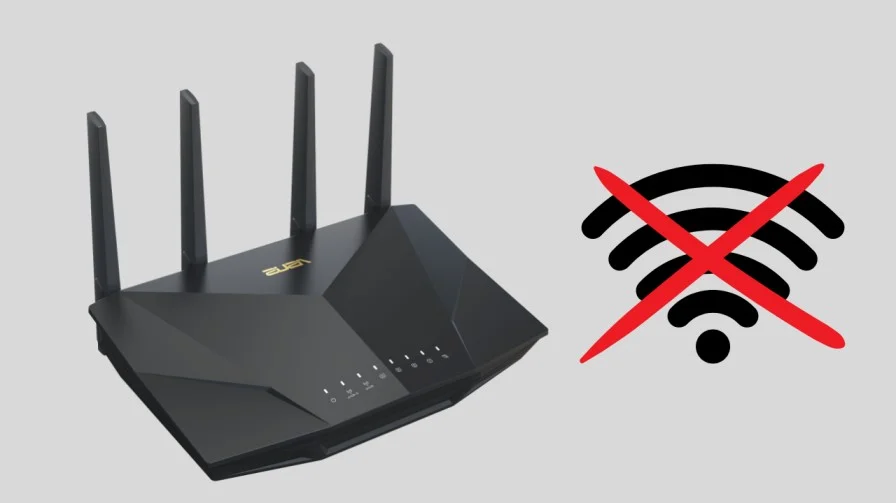
This guide walks through why your internet keeps disconnecting and reconnecting, and the exact steps to stop it — whether the problem is on your laptop, your phone, or your router itself.
Why Does My Wi-Fi Keep Disconnecting?
Before jumping into fixes, it helps to understand what’s actually happening. In most cases, one of these is the culprit:
- Your router or modem is overloaded, outdated, or overheating
- A power-saving setting on your device is putting the Wi-Fi adapter to sleep
- Interference from other electronics, thick walls, or too many devices on the same network
- Outdated network drivers or router firmware
- An issue on your internet provider’s end (this is common with Spectrum, Comcast, and other providers during outages or line issues)
The fix depends on where the problem is actually coming from, so let’s go through each one.
Fix 1: Restart Your Router and Modem the Right Way
This sounds obvious, but most people do it wrong. A quick unplug-and-replug often doesn’t clear the router’s memory properly.
- Unplug both your modem and router from power
- Wait a full 60 seconds (not 5 seconds — the internal memory needs time to fully clear)
- Plug the modem back in first, wait for its lights to stabilize
- Then plug the router back in
- Give it 2-3 minutes to fully reconnect before testing
If your internet keeps disconnecting immediately after this, move on to the next steps.
Fix 2: Stop Your Device From Disconnecting Wi-Fi to Save Power
This is one of the most overlooked causes — especially on laptops, where “wifi keeps disconnecting on laptop” is one of the most common versions of this problem
On Windows 10 (and Windows 11)
Windows has a setting that lets it turn off your Wi-Fi adapter to save battery, which causes it to drop and reconnect randomly:
- Right-click the Start button → Device Manager
- Expand Network Adapters
- Right-click your Wi-Fi adapter → Properties
- Go to the Power Management tab
- Uncheck “Allow the computer to turn off this device to save power”
- Click OK
This single fix resolves a large share of cases where wifi keeps disconnecting on Windows 10 specifically, since it’s turned on by default on most laptops.
On Android Phones
If your Android phone keeps disconnecting from Wi-Fi, check your Wi-Fi power-saving settings:
- Go to Settings → Wi-Fi
- Tap the gear icon next to your network, or go to Wi-Fi Preferences
- Turn off any setting labeled “Turn on Wi-Fi automatically” conflicts, or “Smart network switch” — this feature sometimes force-switches you to mobile data, which feels like Wi-Fi randomly disconnecting
- Also check Settings → Battery → Adaptive Battery, and make sure Wi-Fi isn’t restricted for background apps
On Apple TV or Other Streaming Devices
If your Apple TV keeps disconnecting from Wi-Fi specifically (rather than every device in your home), it’s usually a signal strength or interference issue rather than a settings problem — see Fix 4 below on positioning and interference.
Fix 3: Update Your Network Drivers and Router Firmware
Outdated drivers are a frequent, invisible cause of a Wi-Fi connection that drops and reconnects on its own.
On your computer:
- Right-click Start → Device Manager → Network Adapters
- Right-click your Wi-Fi adapter → Update driver
- Choose Search automatically for updated driver software
On your router:
- Open your router’s admin page (usually by typing 192.168.1.1 or 192.168.0.1 into your browser)
- Log in (check the sticker on your router if you don’t remember the password)
- Look for Firmware Update or Router Update in the settings menu
- Install any available update, then restart the router
Fix 4: Reduce Interference and Improve Positioning
If your Wi-Fi keeps disconnecting only in certain rooms, or gets worse the farther you are from the router, interference or distance is likely the cause — not a setting or driver issue at all.
- Move your router to a central, elevated location — avoid closets, cabinets, or corners
- Keep it away from microwaves, cordless phones, and baby monitors, which can interfere with the same frequency
- If you have a lot of devices, try switching some to the 5GHz band instead of 2.4GHz (5GHz has less interference, though shorter range)
- Consider a Wi-Fi extender or mesh system if your home is large or has thick walls
Fix 5: Contact Your Internet Provider If the Problem Is on Their End
If you’ve tried everything above and your internet still keeps disconnecting and reconnecting, especially at seemingly random times, the issue might be outside your home entirely.
This is especially common with certain providers — if you’re specifically dealing with Spectrum Wi-Fi disconnecting or Comcast Wi-Fi randomly disconnecting, it’s worth checking a couple of things first:
- Check your provider’s outage map or app (Spectrum and Comcast/Xfinity both have apps that show local outages in real time)
- Look at your modem’s signal lights — a blinking or red light on the “Internet” or “Downstream” indicator often means a line issue on the provider’s side
If everything on your end checks out but the problem persists, call your provider and ask them to run a line quality check — this can catch issues an average user has no way to diagnose themselves.
Quick Checklist Before You Give Up
If your Wi-Fi is still dropping after trying the above, run through this short list:
- Restarted modem and router (60-second full power cycle)
- Disabled power-saving on your device’s Wi-Fi adapter
- Updated network drivers and router firmware
- Moved router away from interference sources
- Checked provider outage map / signal lights
Most Wi-Fi disconnection problems are solved somewhere in this list — the key is going through it in order rather than guessing randomly, since the fixes above are ranked from “most common cause” to “least common.”
Frequently Asked Questions:
This is almost always caused by a power-saving setting turning your Wi-Fi adapter off, an overloaded/outdated router, or interference from nearby electronics. Start with Fix 1 and Fix 2 above.
If only one phone, laptop, or streaming device is affected while everything else stays connected, the problem is on that specific device — check its power-saving and Wi-Fi settings rather than your router.
Very frequent, short disconnections (every few minutes) usually point to interference or an overloaded router rather than a settings issue — try repositioning your router and reducing the number of connected devices.
Still having trouble after trying these fixes? Contact us and let us know what you’ve already tried — we’re happy to help you dig deeper into your specific setup.