

Introduction:
You hit Send, and a half-second later you know it was a mistake. Wrong recipient, missing attachment, or a number you never meant to share. Here’s the fastest way to recall an email in Outlook: open the message from Sent Items (double-click so it opens in its own window), choose Recall Message (new Outlook, Outlook on the web, Mac) or Actions > Recall This Message (classic Outlook), and confirm. It only works when you and the recipient are on Microsoft 365 work or school accounts in the same organization, and it works best before the message gets opened. So move fast. If the recipient is outside your company, skip ahead to the backup plan below.
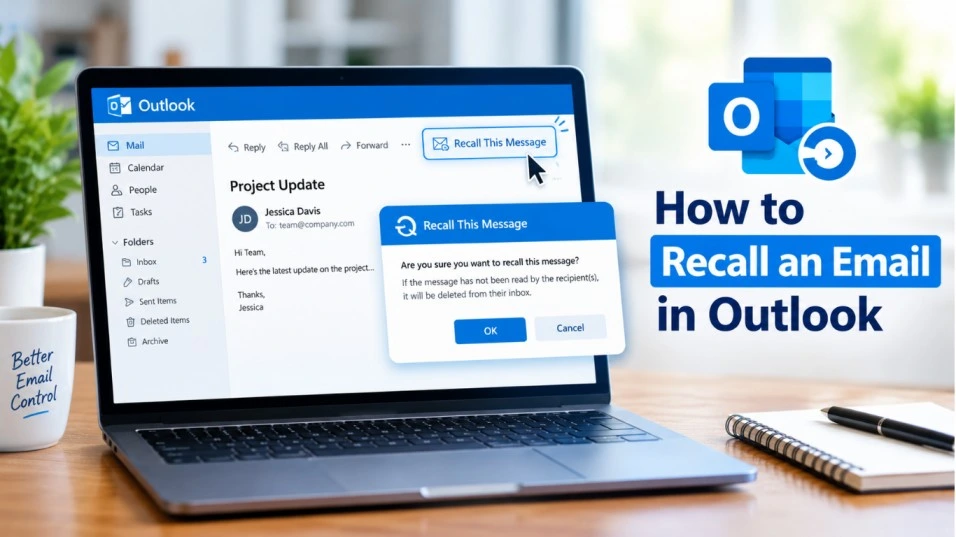
Quick Troubleshooting Guide: Recall Email in Outlook
| Problem / Symptom | Best Fix | Difficulty / Time |
| Wrong email just sent to a coworker at your company | Open it from Sent Items, then select Recall Message right now | Easy / 1 min |
| Recipient uses Gmail, Yahoo, Hotmail, or another company | Recall won’t work. Call them and send a short correction | Easy / 5 min |
| Recall button missing in classic Outlook | Check your account type, or recall from new Outlook or the web | Moderate / 10 min |
| Recall greyed out after sending from a shared mailbox | Recall from your own Sent Items, or open the shared mailbox in its own profile | Moderate / 10 min |
| Recall report says pending or failed | Wait (Microsoft retries for up to 24 hours), then send a correction | Easy / 5 min |
| Recipient already opened the message | Depends on an admin setting. Follow up directly | Easy / 5 min |
| Recipient forwarded it manually | Can’t be recalled. Contact the recipient | Easy / 5 min |
| Want to stop this from happening again | Turn on Undo Send or add a short delay rule | Easy / 5 min |
Below you’ll find the exact steps for every version of Outlook, how to confirm whether the recall worked, and what to do when it can’t.
Can You Recall an Email in Outlook? What Has to Be True
Recall isn’t an unsend button. It’s a request that asks Microsoft 365 to delete your message from recipients’ mailboxes. That request only succeeds under certain conditions:
- Same organization. Both you and the recipient need Microsoft 365 work or school accounts in the same organization. Microsoft says messages sent to or from Hotmail, Gmail, or Outlook.com addresses can’t be recalled.
- Cross-company recalls are limited. Microsoft supports recalls between two Microsoft 365 organizations only when the receiving organization’s admin has allow-listed the sender’s organization. Most companies haven’t.
- Unread is the safe assumption. Microsoft’s support page says recall retrieves the message from recipients who haven’t opened it yet. Admins have a separate setting that controls whether already-read messages can be recalled.
- Age limits. Admins can restrict how old a message can be recalled. Microsoft’s documented default is 365 days.
- Some things can’t be recalled. That includes messages a recipient forwarded manually, messages forwarded by an inbox rule, messages auto-forwarded outside the organization, and messages sent to mail-enabled public folders.
- Hybrid setups. Microsoft says you can’t recall a message sent from a cloud mailbox to a recipient on an on-premises Exchange server.
Example: Dana in accounting emails a payroll spreadsheet to “Chris Lee” at her company, but autocomplete picked Chris Lee at a vendor. Recall can’t help, because that vendor is outside her organization. If it had gone to the right Chris, a recall within a minute would have a good shot.
Warning: Think of recall as a best-effort request, never a guarantee. If a message contains sensitive data, tell the recipient and your IT team too. Don’t rely on the recall alone.
How to Recall an Email in Outlook (Step by Step)
Not sure which version you have? In classic Outlook for Windows you’ll see a File tab, while the new Outlook doesn’t have one. Pick the section that matches your app.
How to Recall an Email in New Outlook for Windows
- Select Sent Items in the left folder pane.
- Double-click the message so it opens in a separate window.
- On the ribbon, select Recall Message, then select OK in the confirmation box.
- Watch your inbox for a Message Recall Report. Select the link inside it to see whether the recall succeeded, is pending, or failed.
How to Recall an Email in Classic Outlook for Windows
- Open the Sent Items folder.
- Double-click the message to open it. Selecting it so it shows in the reading pane won’t give you the recall option.
- With the Classic Ribbon, go to the Message tab and select Actions > Recall This Message. With the Simplified Ribbon, select More commands (…) on the Message tab, point to Actions, and select Recall This Message.
- Choose Delete unread copies of this message, or Delete unread copies and replace with a new message, then select OK.
- If you chose to replace it, write the corrected message and select Send.
Note: If you don’t see Recall This Message, Microsoft says you probably don’t have an Exchange account, or the feature isn’t available in your organization. Microsoft also says you can’t recall a message protected by Azure Information Protection.
How to Recall an Email in Outlook on the Web
- Open Sent Items in the left folder pane.
- Double-click the message to open it in a separate window.
- Select Recall Message on the ribbon and confirm with OK.
- Check your inbox for the Message Recall Report.
This applies to work or school accounts. For a personal Outlook.com, Hotmail, Live, or MSN address, recall isn’t available. See the Undo Send section below.
How to Recall Outlook Email on a Mac
Microsoft says recall in Outlook for Mac needs version 16.94 (Build 25010522) or later, and it isn’t supported in legacy Outlook for Mac.
- Select Sent in the folder pane and double-click the message to open it in a separate window.
- On the ribbon, select Recall, then select OK. You can also Control-click the message and choose Recall.
- If the Recall button isn’t on your toolbar, add it by customizing the toolbar in Outlook for Mac.
- Look for the Message Recall Report in your inbox.
Recall an Email in the Outlook Mobile App
Microsoft’s Exchange Online documentation says recall can be triggered from Outlook for Android and iOS. The pages I reviewed don’t spell out the exact taps, and menus vary by app version. If you can’t find a recall option on the sent message, use Outlook on the web or the desktop app from the same account, which is quicker anyway.
How to Check Whether Your Outlook Recall Worked
After you submit a recall, Microsoft sends a Message Recall Report to your inbox. In classic Outlook the subject reads “Message Recall Report for message [your original subject].” It usually arrives in under 30 seconds, though it can take a few minutes.
- Select the link in the report. If prompted, sign in with your mailbox credentials.
- The report shows each recipient as succeeded, pending, or failed.
- If a recall can’t run right away, Microsoft keeps retrying for up to 24 hours before marking it failed.
- For messages with many recipients, status updates can take longer. Microsoft says up to about 30 minutes for tens of thousands of recipients.
No report after 10 minutes or so? Check your Junk folder first. The reports come from Office365Reports@microsoft.com, and your IT team can check whether that sender is being blocked.
Outlook Recall Email Not Working? Fix It in This Order
Most recall failures come down to one of these: an outside recipient, the wrong way of opening the message, an account type that doesn’t support recall, a shared mailbox quirk, or the message having already been read.
Fix 1: Check Whether Every Recipient Is Inside Your Organization
This is the cause behind most failed attempts. Look at the To, Cc, and Bcc fields in the sent message. Any address outside your company, or any personal Gmail or Outlook.com address, won’t be recalled. Internal recipients in the same message can still succeed, so read the recall report line by line.
Fix 2: Open the Message From Sent Items in Its Own Window
In classic Outlook, recall isn’t offered when the message is only selected in the reading pane. Double-click it from Sent Items.
Fix 3: Confirm You Have an Exchange Account (Classic Outlook)
- Go to File > Account Settings > Account Settings.
- On the Email tab, look at the Type column for your account.
- You want to see Microsoft Exchange. If your account shows IMAP or POP, recall isn’t available for it.
If your account is Exchange and the command is still missing, your organization may not offer it. Try new Outlook or Outlook on the web, or ask your admin.
Fix 4: Recall Greyed Out for a Shared Mailbox Message
Microsoft documents a few quirks with shared and delegated mailboxes. Messages sent from a shared mailbox can be recalled, but the recall report isn’t viewable by the person connected to the shared mailbox, because it requires signing in as the owning mailbox.
- In Outlook for Windows, a message sent through a shared mailbox is stored in the Sent Items of the person who sent it. Try the recall from there.
- If the shared mailbox is open in your profile through automapping or additional mailboxes, Microsoft says the Recall option is greyed out in the shared mailbox’s Sent Items. The documented workaround is opening the shared mailbox in its own Outlook profile.
Fix 5: Rule Out Two Documented Outlook for Windows Limits
Possible cause: Microsoft’s Exchange Online documentation says message recall doesn’t work in Outlook for Windows when Outlook is in Online mode, or when multiple Exchange accounts are configured in the same profile. If either applies to you, recall from Outlook on the web instead.
Fix 6: Give It Time, Then Switch to the Backup Plan
A “pending” status is normal for a while. If it still says failed, or the recipient already opened the message, move to the next section.
What to Do When You Can’t Recall an Email in Outlook
When recall isn’t possible, speed and honesty beat clever tricks.
- Contact the recipient right away. A quick call, chat, or text asking them to delete it unread works better than any setting.
- Send a short correction. Keep it calm and clear.
- Tell IT or security if the email held sensitive data. Think passwords, customer records, financial details, or health information. Change any exposed passwords.
- Document what happened. Note who received it and when you sent it, in case your company asks.
Tip: Sample correction: “Hi Sam, I sent the wrong attachment a moment ago. Please delete that message without opening it. The right file is on its way. Thanks, and sorry for the mix-up.”
Admin Settings That Change Recall Results (For IT)
If you manage Microsoft 365 for your team, these Exchange Online settings from Microsoft’s documentation explain why recall behaves differently from one company to the next. Connect to Exchange Online PowerShell first.
- Turn recall on or off for the organization.
- Allow or block recalling messages that were already read.
- Notify recipients when a message is recalled (off by default).
- Limit how old a message can be recalled (default 365 days).
- Allow-list other Microsoft 365 organizations for cross-tenant recall. The receiving organization controls this.
Warning: These settings apply organization-wide. Letting senders recall read messages or turning on recipient notifications changes what everyone experiences, so confirm the policy with your leadership or compliance team first.
If a recall report never shows up, Microsoft suggests using message trace to see whether the report was blocked or quarantined, and making sure Office365Reports@microsoft.com isn’t blocked.
How to Avoid Needing to Recall an Email in Outlook
Turn On Undo Send (Outlook.com and New Outlook)
Undo Send delays delivery by a few seconds so you can cancel. Microsoft recommends it for personal accounts, where recall isn’t available. For Outlook.com:
- Select Settings at the top of the page, then Mail > Compose and reply.
- Under Undo send, choose 5 or 10 seconds.
- Select Save.
Afterward, an Undo send prompt appears for that length of time whenever you send a message. In new Outlook for Windows, check the same Compose and reply area in settings.
Delay Every Message With a Rule in Classic Outlook
- Go to File > Manage Rules & Alerts > New Rule.
- Under Start from a blank rule, choose Apply rule on messages I send, then select Next.
- Leave the conditions blank and confirm it applies to every message you send.
- Choose defer delivery by a number of minutes, set a short delay such as 2 to 5 minutes, then Finish.
Warning: A delay rule holds messages in your Outbox, so Outlook generally needs to stay open for them to go out. Don’t set the delay so long that urgent emails get stuck.
Small Habits That Prevent Most Mistakes
- Add recipients last, after the message and attachments are ready.
- Check autocomplete suggestions, especially when two people share a first name.
- Pause before Reply All, and double-check the Bcc field.
- Attach files before you write “see attached.”
When to Seek Professional Help
- The email contained sensitive customer, financial, or health data. Contact IT or security immediately, and don’t wait on the recall.
- Recall is missing for everyone in your company. That points to an admin setting.
- Recall reports never arrive.
- Your company routes email through a third-party filter or has a hybrid Exchange setup, which can complicate recall.
- You work in a regulated field where wrongly sent data may need to be reported. Ask your compliance team.
Conclusion
To recall an email in Outlook, act within seconds: open the message from Sent Items, hit Recall, and check the recall report. If the recipient is outside your company or has already read it, switch to a direct follow-up fast. And since recall is never guaranteed, the best fix is prevention. Turn on Undo Send, or set a two-minute delay rule, and you may never need to recall email in Outlook again.