

How to Reset Your Thermostat and Fix Common Problems
A Honeywell thermostat reset can clear certain settings, restore a thermostat to its factory defaults, or solve a Wi-Fi or schedule problem. However, there is no single reset method for every Honeywell Home thermostat. The correct steps depend on the model and on whether you need a factory, Wi-Fi, schedule, or other type of reset.
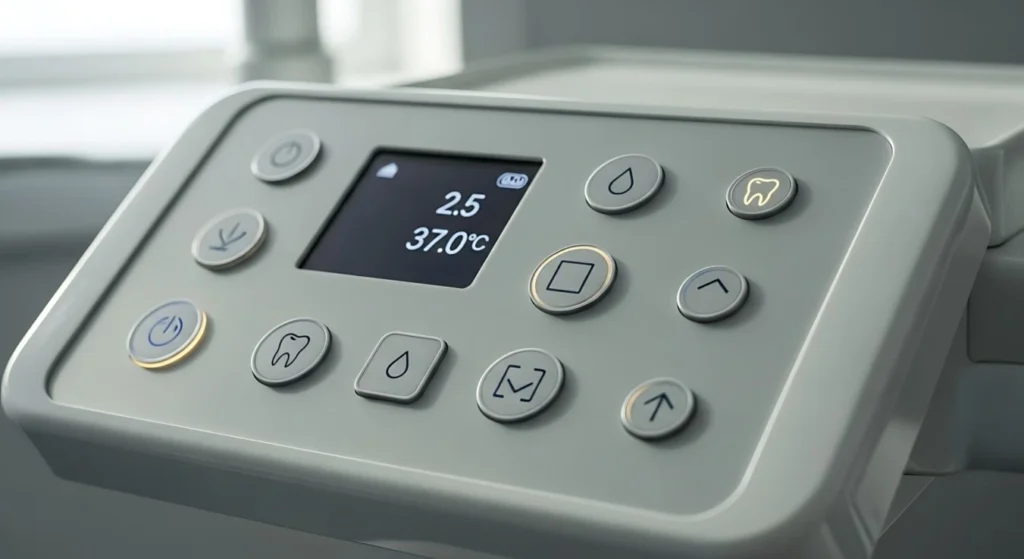
Before you reset anything, identify your thermostat model and decide what you are trying to fix. A factory reset can erase programmed settings, while a Wi-Fi reset may only remove the current network connection. Starting with the least disruptive option can save you from having to configure the thermostat again.
Why a Honeywell Thermostat Reset May Be Needed
A reset may help after a connection problem, an incorrect schedule, or a temporary software or communication glitch. Honeywell Home documents different reset options for several thermostat families, including factory, Wi-Fi, schedule, and HomeKit resets on supported models.
Common Reasons a Honeywell Thermostat Is Not Working
The thermostat display is blank or unresponsive.
Thermostat has lost its Wi-Fi connection.
The programmed schedule is behaving unexpectedly.
The thermostat was connected to a different Wi-Fi network.
Batteries are low or depleted on a battery-powered model.
The heating or cooling system has lost power.
Reset is required after a configuration or connection problem.
A reset will not repair every problem. If the thermostat has no power, the HVAC equipment has a fault, or there is a wiring problem, resetting the thermostat may not solve the underlying issue.
How to Reset Honeywell Thermostat: Start With the Safest Options
Fix 1: Identify Your Honeywell Thermostat Model
Look for the model number on the thermostat, its faceplate, packaging, or documentation. Honeywell Home publishes different reset procedures for different thermostat families, so do not assume that a reset sequence from another model will work on yours.
Fix 2: Try a Simple Power Cycle
If the thermostat is frozen or temporarily unresponsive, a power cycle may be enough. For supported Honeywell Home Wi-Fi models, official guidance may involve removing the thermostat from the wall for about 30 seconds and then reattaching the faceplate. Do not remove wiring or attempt electrical repairs. If your model’s manual gives a different reboot procedure, follow that instead.
Fix 3: Check the Batteries if Your Model Uses Them
A blank display can be caused by depleted batteries on battery-powered thermostats. Replace them with the battery type specified by the manufacturer. If the display remains blank, the problem may involve the thermostat’s power supply or the HVAC system rather than the batteries.
Fix 4: Perform a Wi-Fi Reset for Connection Problems
If the thermostat works normally but will not connect to your network, a Wi-Fi reset may be more appropriate than a factory reset. For supported models, Honeywell Home provides a Wi-Fi reset option that clears the current Wi-Fi connection and allows the thermostat to be paired again.
Fix 5: Reset the Schedule Instead of Factory-Resetting the Thermostat
If the thermostat is working but its programmed temperatures or times are wrong, look for a schedule reset rather than a factory reset. Supported Honeywell Home models can restore schedule settings without necessarily clearing every other thermostat configuration.
Fix 6: Perform a Factory Reset Only When Necessary
A factory reset returns supported thermostats to their factory-default state and can erase programming or configuration. Before using one, record important settings such as the current schedule and any installation or configuration information you may need later. Use the reset procedure listed for your exact model.
Fix 7: Reconnect Wi-Fi After the Reset
If you performed a Wi-Fi or factory reset, follow the setup instructions for your model and reconnect it to the correct home network. Make sure the router is operating normally and that your phone is connected to the intended Wi-Fi network during setup.
Fix 8: Check the HVAC Power if the Thermostat Is Still Not Working
If the thermostat remains blank or the heating and cooling equipment does not respond, check the relevant circuit breaker and HVAC power switch if you can do so safely. Some systems also have a furnace or air-handler door safety switch. Do not open electrical panels or work on wiring unless you are qualified to do so.
Fix 9: Contact Honeywell Home or an HVAC Professional
If model-specific resets, battery checks, and basic power checks do not solve the problem, contact Honeywell Home support or a qualified HVAC professional. A persistent blank display, wiring issue, repeated system shutdown, or equipment fault may require professional diagnosis.
Honeywell Thermostat Reset Methods by Model
Reset menus differ substantially between Honeywell Home thermostat families. Honeywell Home’s official support documentation lists different procedures for T5/T5+/T6, Smart Wi-Fi 9000, FocusPro 6000, VisionPRO 8000, and other families. Use the instructions for your exact model.
T5, T5+, and T6
Supported T5/T5+/T6 models provide separate Factory, Wi-Fi, Schedule, and, on some models, HomeKit reset choices. The menu path varies by model.
Smart Wi-Fi 9000
Supported Smart Wi-Fi 9000 models provide factory, Wi-Fi, and schedule reset options through their menus. The path differs from T5/T6 models.
FocusPro 6000 and VisionPRO 8000
These families use different button/menu sequences and configuration values. Do not use a sequence from another Honeywell model; follow the official manual for your exact thermostat.
When a Reset Is Not the Right Solution
If your Honeywell thermostat is not working because of a failed HVAC component, damaged wiring, a blown fuse, loss of equipment power, or another hardware problem, resetting the thermostat will not fix the underlying issue. A reset is also not a substitute for professional service when electrical work is required.
When to Seek Professional Help
The display stays blank after appropriate battery and power checks.
The HVAC system repeatedly trips a breaker or shuts down.
You suspect damaged, loose, or incorrectly connected wiring.
The thermostat repeatedly resets or loses settings.
Heating or cooling does not operate after the thermostat has been correctly configured.
You are unsure how to access electrical components safely.
Common Honeywell Thermostat Reset Mistakes to Avoid
Do not use a reset procedure written for a different Honeywell thermostat model.
Do not factory-reset the thermostat when a Wi-Fi or schedule reset would solve the problem.
Never change installer configuration settings just to troubleshoot a normal connection issue.
Do not disconnect thermostat wires unless you are qualified and the manufacturer’s instructions specifically require it.
Do not repeatedly reset the thermostat without identifying the underlying problem.
Prevention Tips
Keep your thermostat’s model number and user manual available.
Record important schedule or configuration settings before a factory reset.
Keep the thermostat connected to a stable home Wi-Fi network when using smart features.
Replace batteries according to the manufacturer’s recommendations on battery-powered models.
Keep the thermostat clean and avoid covering its sensor area.
Use the manufacturer’s support instructions rather than generic reset codes found online.
Conclusion
A Honeywell thermostat reset can be useful, but the right reset depends on the thermostat model and the problem you are trying to solve. Start with simple checks such as power, batteries, and a safe reboot, then use a Wi-Fi or schedule reset when appropriate. Reserve a factory reset for situations where returning the thermostat to its default configuration is actually necessary. When in doubt, use Honeywell Home’s official model-specific instructions or contact a qualified professional.
More Gadgets Related Posts:
Roku Remote Not Working? 9 Very Easy Fixes
How to Clean a Humidifier Properly: Complete Step-by-Step Guide
Apple Watch Not Charging: 8 Real Fixes
Frequently Asked Questions:
The exact process depends on the model and the type of reset you need. Honeywell Home lists different procedures for factory, Wi-Fi, schedule, and other resets. Identify your model first and follow its official instructions.
If the problem is Wi-Fi-related, use the Wi-Fi reset option when your model provides one. If the problem is your programmed schedule, a schedule reset may be more appropriate. A factory reset can erase programming, so it should not be the first choice for every problem.
Check whether the thermostat has power, whether batteries are required, whether the HVAC system has power, and whether the thermostat needs to be configured again. If it remains unresponsive, consult the model-specific manual or contact Honeywell Home support.
Supported models generally provide a Wi-Fi reset option in the thermostat’s menu. The exact menu path varies by model. After the reset, follow the manufacturer’s setup process to reconnect the thermostat to your home network.
Not necessarily. First check the mode, set temperature, power, batteries if applicable, and HVAC equipment. If the system still does not respond, a reset may not address the underlying equipment or wiring problem.