

Why Gemini Says Something Wrong?
You type a prompt, hit send, and Gemini answers with a flat, unhelpful line: Something went wrong. No explanation, no next step. If Gemini something went wrong is what you are staring at right now, start here: refresh the page, open a new chat, and check whether Gemini is down for everyone. These three moves take about a minute and rule out the most common issues.
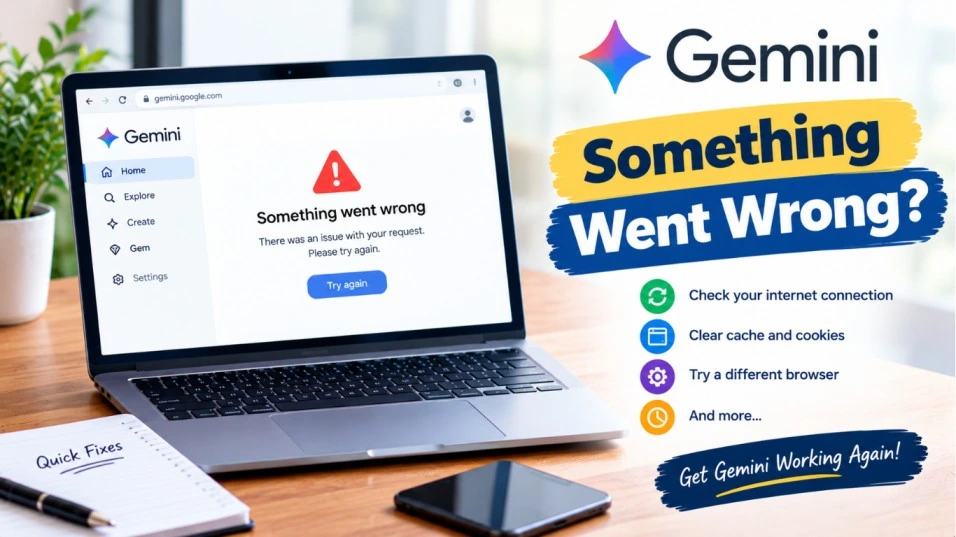
Quick Troubleshooting Guide
| What you see | Most likely cause | Try this first |
| Error appears on every device and account | Temporary Google-side problem | Check outage trackers, wait 15 to 30 minutes, retry |
| Error appears mid-conversation | Stuck or very long chat | Open a new chat and paste in only what you need |
| Works on phone, fails on computer | Browser cache, extension, or session issue | Try Incognito, then disable extensions |
| Works in Incognito, fails in normal window | Extension or corrupted site data | Disable extensions, clear Gemini site data |
| Fails on one Google account only | Account-specific session glitch | Test another account, then try the Gems workaround |
| Fails in the Android app only | App cache or outdated version | Force stop, clear cache, update the app |
| Fails only when uploading a file | Unsupported or problematic file | Check the format and retry with a smaller, simpler file |
| Fails on a work or school account | Admin settings or Workspace restrictions | Ask your IT admin to confirm Gemini access |
If Gemini keeps saying something went wrong after that, the problem is usually your browser, your app, your Google account session, or a long chat that has gone sideways. This guide walks through each fix from easiest to most advanced, and it covers the numbered versions of the error, including Gemini something went wrong 8 and Gemini something went wrong 3.
Fix Gemini Something Went Wrong: Start With the Quick Fixes
Work through these in order. Each takes a minute or two, and none of them touch your data.
Fix 1: Check Whether Gemini Is Down for Everyone
Before you spend 20 minutes clearing caches, make sure the problem is actually on your end. If Google is having a bad day, nothing you change locally will help.
- Open the Google Workspace Status Dashboard and look for any notices.
- Search a third-party outage tracker such as Downdetector for “Gemini” and see whether reports are spiking.
- Try Gemini on a different device or network (your phone on cellular data works well for this).
If other people are reporting the same thing, wait 15 to 30 minutes and try again. Gemini may not always be listed on an official status page, so treat the absence of a notice as “not confirmed,” not “not broken.”
Fix 2: Refresh, Then Start a New Chat
A single conversation can get stuck in an error loop while the rest of Gemini works fine. This is the most common reason people see Gemini keep saying something went wrong over and over in the same thread.
- Reload the page (Ctrl + R on Windows, Cmd + R on Mac) or fully close and reopen the app.
- Click or tap New chat.
- Send a short test prompt such as “Hello.” If that works, the old conversation was the problem.
- If you need the context, paste in a short summary rather than the whole old thread.
Pro tip: Very long conversations can trigger errors. One numbered variant, error 1076, has been linked by some guides to temporary server trouble or an overly long chat. Keeping chats focused on one task is a cheap way to avoid the whole headache.
Fix 3: Test a Different Browser or an Incognito Window
This is the fastest way to tell whether your browser is the culprit.
- Open an Incognito or Private window (Ctrl + Shift + N in Chrome, Ctrl + Shift + P in Firefox).
- Go to gemini.google.com and sign in.
- Send a test prompt.
- If it works, your normal browser profile is the issue. Jump to Fixes 6 and 7 below.
- If it fails there too, try a completely different browser such as Edge, Firefox, or Chrome.
Real-world example: A reader gets the error on a work laptop in Chrome, but Gemini loads fine on their phone. Incognito works too. That pattern points to an extension or stored site data, not a Gemini outage and not the Google account itself.
Fix 4: Check Your Connection and Turn Off Your VPN
A flaky connection can make a request fail halfway, and Gemini does not always tell you that is what happened.
- Switch from Wi-Fi to mobile data (or the reverse) and retry.
- Restart your router if multiple sites feel slow.
- Turn off any VPN or proxy temporarily. Some networks and VPN exit points interfere with Google services. This is a general networking fix rather than a confirmed Gemini-specific one, but it is quick to rule out.
- On a school or office network, try a personal connection to see whether the network is blocking something.
Fix 5: Update and Restart the Gemini App
On phones, an outdated or glitchy app is a common reason Gemini keeps saying something went wrong.
- Open the Google Play Store (Android) or App Store (iPhone) and check for a Gemini update.
- Force-close the app. On Android, go to Settings > Apps > Gemini > Force stop.
- Reopen Gemini and try again.
- If you use Gemini through the Google app, update that app too.
Gemini Something Went Wrong 8 and 3: What Do the Numbers Mean?
You may see the message with a number attached, like “Something went wrong (8).” Searches for something went wrong 8 Gemini and Gemini something went wrong 3 are common, so here is an honest answer: we could not find an official Google explanation for either code. Several numbered versions exist (13 and 1076 are among the ones people report), and the guides we found treat them as variations of the same generic failure.
Keep in mind: Anything claiming to know the exact meaning of error 8 or 3 is guessing. The fixes below are the same ones that help with the plain version of the error, and they are the right place to start.
Gemini Something Went Wrong 8
Treat this as a general failure and run through the list in this order:
- Start a new chat and resend a short prompt.
- Try Incognito or another browser.
- Disable browser extensions (Fix 6).
- Try another Google account to see whether it is account-specific (Fix 9).
- If it only happens in the phone app, clear the app cache and update (Fix 8).
If error 8 appears when you upload a file
Check that the file type is supported, then retry with a smaller or simpler file. One troubleshooting guide specifically lists unsupported file format as something to verify. If the same prompt works without the attachment, the file is your culprit.
Gemini Something Went Wrong 3
The same logic applies. A quick way to narrow it down is to ask one question: does it happen on every device, or just one?
- Every device, every account: likely a temporary service issue. Wait and retry.
- One device only: focus on the browser or app (Fixes 3, 5, 6, 7, 8).
- One account only: focus on the account session (Fixes 9, 10, 11).
If neither code goes away after the full list, skip ahead to the section on reporting the problem to Google.
Why Gemini Keeps Saying Something Went Wrong: Browser and Account Fixes
If the quick fixes did not work, the issue is probably stored locally or tied to your account. These steps go a little deeper.
Fix 6: Disable Browser Extensions
Ad blockers, privacy tools, and script blockers can interfere with web apps. In community troubleshooting threads, disabling all extensions and relaunching Gemini is a frequently suggested step.
- In Chrome, go to chrome://extensions (or use the three-dot menu > Extensions > Manage extensions).
- Toggle off every extension.
- Reload gemini.google.com and test.
- If it works, turn extensions back on one at a time until the problem returns. That one is your offender.
Fix 7: Clear Gemini Site Data
Corrupted cookies or stored data for the Gemini site can cause a stuck session even when Incognito works.
- Open gemini.google.com.
- Click the icon to the left of the web address (the lock or settings icon in Chrome).
- Open Site settings and choose Clear data for the site.
- Reload the page and sign in again.
Warning: Clearing site data signs you out of that site and can reset local preferences. It does not delete your Google account. Clearing your entire browser history and cookies is a bigger step, so stick with site-specific data unless you have a reason not to.
Fix 8: Force Stop and Clear the Cache on Android
- Go to Settings > Apps > Gemini.
- Tap Force stop.
- Tap Storage, then Clear cache.
- Reopen Gemini and try again.
Warning: Choose Clear cache, not Clear data, unless you are out of options. Clearing data resets the app and may sign you out.
On iPhone there is no clear-cache button for individual apps. Update the app, force-close it, and sign out and back in. Deleting and reinstalling is a last resort.
Fix 9: Try Another Google Account
This test tells you whether the problem lives in Gemini or in your account. In one reported case, a user’s main account threw the error in the browser while newly created accounts worked on both desktop and phone. That kind of result points to an account-specific session issue.
- Sign into Gemini with a different Google account in a fresh browser window.
- If the second account works, the first account’s session is the problem (continue with Fixes 10 and 11).
- If neither works, go back to the browser and network fixes.
Fix 10: Try the Gems Page Workaround
This one sounds odd, but multiple community-sourced guides describe it as helping people whose main Gemini page kept failing. The idea is that opening a different part of Gemini forces a fresh server session.
- In your browser, go directly to gemini.google.com/gems/create.
- Wait for the page to load and, if it does, try interacting with it.
- Return to gemini.google.com and send a test prompt.
Keep in mind: This is a community-reported workaround, not an official Google fix. It has worked for some people and will not work for everyone.
Fix 11: Reset Gemini Apps Activity and the Workspace Extension
Two more account-level steps show up in community threads. Both are low-risk, but read the warning first.
Toggle Gemini Apps Activity
- Visit myactivity.google.com/product/gemini while signed in.
- Note your current Gemini Apps Activity setting so you can restore it.
- Turn it off, wait a moment, then turn it back on if you want it enabled.
- Reload Gemini and test.
Warning: This changes a privacy and history setting on your Google account. Only turn it back on if you want your activity saved, and remember that it affects what Google keeps in your account history.
Toggle the Google Workspace extension inside Gemini
- Open Gemini and go to Settings > Extensions.
- Turn off the Google Workspace extension.
- Reload and test. Turn it back on afterward if you rely on it.
Advanced Fixes When Gemini Keeps Saying Something Went Wrong
Work or School Accounts
If you use Gemini through a Google Workspace account, the problem may not be on your device at all. Admin settings can limit access, and age restrictions or incomplete account information have also been reported as reasons Gemini access fails.
- Ask your IT admin to confirm Gemini is turned on for your account or organizational unit.
- Try Gemini with a personal Google account to see whether the error is tied to your work setup.
- Ask whether any recent policy or license change happened around the time the error began.
Uploads and Large Prompts
- Confirm the file format is supported before you upload.
- Retry with a smaller file or a shorter prompt.
- Remove attachments and test the same prompt as plain text to see whether the file is the trigger.
Report the Error to Google
If you have worked through everything above, the issue may sit on Google’s side, and feedback is the way to reach the Gemini team. You may not get a personal reply, but reports help them spot broader problems.
On the Gemini website
Open gemini.google.com, click the settings (cog) icon, choose Settings & help, then select Send feedback.
In the Gemini mobile app
Tap your profile picture or initial, then choose Feedback.
Include the exact error text, including any number, and a screenshot with personal information blurred out.
Common Causes and Symptoms of the Gemini Something Went Wrong Error
Google does not publish a cause-by-cause breakdown for this message, so these are patterns reported in community troubleshooting rather than confirmed diagnoses.
- Temporary service problems. The error shows up everywhere, on every account, and fixes itself later.
- A stuck conversation. Only one chat fails; new chats work.
- Browser trouble. Extensions, cache, or stored site data interfere. Incognito usually behaves differently.
- App glitches. The phone app fails while the website works.
- Account or session problems. One Google account fails while others work on the same device.
- Access restrictions. Workspace admin settings, age restrictions, or incomplete account details.
- File or prompt issues. The error appears only after attaching something.
How to Stop Gemini Something Went Wrong From Coming Back
- Start a fresh chat for each new task instead of stretching one thread for days.
- Keep the Gemini app and your browser updated.
- Audit your extensions now and then, especially ad and script blockers.
- Save important prompts and outputs somewhere else, because a stuck chat can strand your work.
- Check supported file formats before uploading.
- If you use a VPN, switch servers or turn it off when Google services act up.
When to Seek Professional Help
Most cases clear up with the steps above. Reach out for help when:
- You use a Workspace account. Your IT admin can check access settings and licensing, which you cannot see.
- The error follows your account everywhere on every device, browser, and network for several days.
- Other Google services fail too, such as sign-in loops or unusual account warnings. Use Google’s account support channels.
- It blocks work you depend on. Send feedback from within Gemini and contact your organization’s support if it is a paid or managed account.
Bottom Line
The Gemini something went wrong message is vague on purpose, but the fixes are not. Start with the three-minute checks: outage trackers, a refresh, and a new chat. Then work outward to Incognito, extensions, app cache, and account tests. The numbered versions, including Gemini something went wrong 8 and 3, respond to the same steps because they appear to be flavors of the same generic failure.
One habit worth keeping: when it fails, test on a second device or account first. That single comparison tells you whether to fix your browser, your app, your account, or simply wait.
Frequently Asked Questions:
It is a generic error, so there is no single cause. Temporary service issues, a stuck chat, browser extensions, app glitches, and account session problems are the usual suspects. Testing another device, browser, or account shows which one applies to you.
We could not find an official Google explanation for that number. It behaves like the generic error, so try a new chat, Incognito mode, disabling extensions, and testing a second account.
Use the same process as any other version of the error. Check if Gemini is down, open a new chat, switch browsers, and update the app. If it only fails on one account, try the Gems page workaround and the activity toggle described above.
Not always. If outage trackers show a spike and the error hits all your devices and accounts, a service problem is likely. If it works on another device or account, the cause is probably local to your browser, app, or account.
Clearing the Android app cache or a site’s browser data is not meant to delete your account, but it can sign you out or reset local preferences. Avoid clearing app data unless you must, and save anything important first.
Related Posts:
ChatGPT Error in Message Stream? 9 Fixes to Try First
OpenAI ChatGPT Not Working? 7 Easy Fixes For Common Error