

You sent an important email, requested a read receipt, and heard nothing back. Or maybe it’s the reverse: Outlook keeps asking whether you want to send receipts, and you’d rather it just stopped. Either way, the fix usually comes down to which version of Outlook you’re using.
Here’s the part most guides bury: read receipts in Outlook are a request, not a guarantee, because the recipient’s email app has to support them and the recipient (or their settings) has to agree to send one. The table below points you to the fastest fix, and the sections after it show how to turn on read receipts in Outlook, turn them off, and track down why yours never show up.
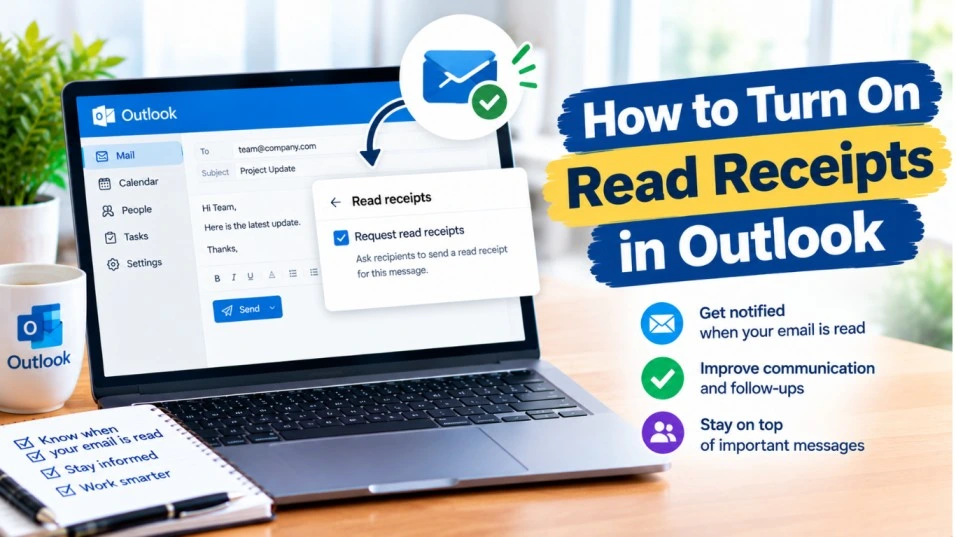
Quick Troubleshooting Guide
| Problem | Most Likely Cause | Fastest Fix |
| I want a read receipt on one email | Receipt isn’t switched on for that message | Classic Outlook: Options tab > Request a Read Receipt. New Outlook/web: three dots > More options > Request a read receipt. |
| I want receipts on every email I send | Per-message is the default | Classic Outlook only: File > Options > Mail > Tracking > read receipt under “For all messages sent.” |
| Receipts never come back | Recipient declined, set Outlook to “Never send,” or uses an app that ignores requests | Ask the recipient, then test with another Outlook user to isolate the problem. |
| Outlook keeps asking me to send receipts | Default is “Ask me each time” | Change the setting to Always or Never (steps below). |
| No option to request a receipt | Personal Outlook.com web, an outdated mobile app, or an unsupported account type | Use the Outlook desktop app, or update the mobile app. |
| Got a delivery receipt but no read receipt | They’re two different things | Delivery only means the message reached the recipient’s mail server. |
| Recipient says they opened it, but nothing arrived | Classic Outlook prompt can be delayed in the Preview pane | Ask them to open the email in its own window, or to click Send receipt if they see the gray bar. |
Does Outlook Have Read Receipts?
Yes. Outlook has two kinds of tracking, and mixing them up is the number one source of confusion:
- Delivery receipt: confirms your message reached the recipient’s mail server. The server generates it automatically, so the recipient doesn’t have to do anything. It doesn’t prove the email landed in their inbox, only that the server accepted it.
- Read receipt: confirms the message was opened. This one is sent by the recipient’s email program, and only if they allow it.
Even a successful read receipt has limits. It tells you the email was opened, not that anyone actually read it. Someone can click “Yes” to the prompt and get pulled into a meeting two seconds later.
If you are dealing with Outlook email send receive error, our quick guide can help you to solve it fast.
How Do You Turn On Read Receipts in Outlook? (By Version)
The steps depend on which Outlook you’re running. If you see a “New Outlook” toggle in the top-right corner of your window, you’re most likely on classic Outlook for Windows. If you’re not sure, try the steps for one version and switch to the next if the menus don’t match.
How to Turn On Read Receipts in Classic Outlook for Windows
Request a read receipt for a single email
- Click New Email, or open a reply to an existing message.
- Go to the Options tab and find the Tracking group.
- Check Request a Read Receipt. If you also want to know when the message reaches their mail server, check Request a Delivery Receipt.
- Write your message and click Send.
Replying from the Reading Pane? On the Message tab, click the small launcher arrow in the Tags group. In the Properties window, look under Voting and Tracking options and check the receipt you want.
How to set up read receipts in Outlook for every message you send
- Go to File > Options > Mail.
- Scroll down to the Tracking section.
- Under For all messages sent, check the read receipt option (and the delivery receipt option if you want it).
- Click OK.
Warning: Asking for a receipt on every email gets old fast. Recipients who are prompted constantly often switch Outlook to “Never send,” which means your important requests get ignored too. For most people, per-message requests work better.
How do I set up read receipts in Outlook for certain emails only?
If you only need receipts for specific messages (say, anything sent to your manager or with “Invoice” in the subject), build a rule. This works in classic Outlook only.
- On the Home tab, click Rules > Manage Rules & Alerts.
- On the E-mail Rules tab, click New Rule.
- Under Start from a blank rule, choose Apply rule on messages I send, then click Next.
- Pick your condition (for example, sent to people or public group or with specific words in the subject), then click Next.
- Select the action notify me when it is read (and/or notify me when it is delivered), then click Next.
- Add exceptions if you need them, name the rule, make sure Turn on this rule is checked, and click Finish.
How to Request Read Receipts in New Outlook and Outlook on the Web
- Start a new message or reply.
- On the Message tab, look for the tracking options in the ribbon. If you don’t see them, click the three dots (More options) on the right, then go to Options > More options.
- Check Request a read receipt and/or Request a delivery receipt, then click OK.
- Finish your message and send it.
Note: Menu placement shifts between builds of new Outlook and the web app, so labels may look slightly different on your screen. Also keep in mind: in new Outlook, these tracking options currently work only with Microsoft email accounts (not Gmail or Yahoo accounts added to the app), and there is no setting to auto-request receipts on every outgoing message.
If you want to recall an outlook email, checkout our guide for easily recalling outlook email.
How to Get Read Receipts in Outlook for Mac
- Compose your message.
- On the top toolbar, click Draft > Request Receipts > Request a Read Receipt.
- Optionally choose Request a Delivery Receipt too, then send.
If the option is missing or greyed out, your account type may be the culprit. Receipt support on Mac can depend on the kind of account you’re sending from.
How to Request Read Receipts in Outlook Mobile (iPhone and Android)
Outlook for iOS and Android now supports requesting receipts, but you need a reasonably current version of the app. Microsoft began rolling it out with Android version 4.2439.0 and iOS version 4.2437.0.
- Open a new or existing draft in the Outlook app.
- Tap the + button on the toolbar, then tap the Receipts icon.
- Choose a delivery receipt, a read receipt, or both, then send.
Can’t see the Receipts icon? Update the app from the App Store or Google Play first.
Read Receipts for Outlook.com (Personal Accounts)
On the Outlook.com website, you can’t request a read receipt. The workaround: add your Outlook.com account to Outlook for Windows and send from there. You can still choose how to respond when someone else requests a receipt from you.
How to Check Whether You Received a Read Receipt
When a recipient agrees to send a receipt, it arrives in your inbox as a message. It typically shows the recipient’s name, your original subject line, and the time your email was sent and opened.
In classic Outlook, you can also open the original message from Sent Items and look for the Tracking button on the Message tab. It usually appears only after at least one response has come back, so if it’s missing, that’s a clue that nothing has been returned yet.
How to Turn Off Read Receipts in Outlook
Turning off means one of two things, so figure out which one you need.
Sending Read Receipts in Outlook: How to Stop (or Automate) Your Replies
This controls what Outlook does when someone else asks you for a receipt.
Classic Outlook for Windows
- Go to File > Options > Mail.
- Scroll to Tracking and find the setting for messages you receive that include a read receipt request.
- Choose Never send a read receipt. (The other choices are Always send a read receipt and Ask each time whether to send a read receipt, which is the default.)
- Click OK.
Warning: If a receipt prompt appears and you tick “Do not ask me about sending receipts again,” Outlook switches your setting to “Never send.” That can surprise you weeks later when a coworker wonders why you never confirm anything. Also, Outlook doesn’t let you send a receipt retroactively after you click No.
How to turn off read receipts in new Outlook and Outlook on the web
- Click the Settings gear in the top-right corner.
- Go to Mail > Message handling.
- Under Read receipts, choose Never send a response. The other options are Ask me before sending a response and Always send a response.
- Click Save. If the change doesn’t seem to apply, restart Outlook.
With “Ask me” selected, you’ll see a gray bar at the top of the message with a Send receipt button. It stays there until you click it.
How to turn off read receipts on Outlook mobile
Open the app’s settings and go to Settings > Mail > Read Receipts, then pick the behavior you want. Outlook also asks you to choose a default the first time a receipt request arrives.
On Mac, the response preference is in Outlook’s settings too, but the exact path varies by version, so search the settings for “receipt.”
Stopping Outlook From Requesting Receipts on Your Own Emails
If you previously enabled receipts for all outgoing mail, go back to File > Options > Mail > Tracking in classic Outlook and uncheck the boxes under For all messages sent. For a single email, just uncheck the request before sending. If you built a rule earlier, turn it off in Manage Rules & Alerts.
Read Receipts Outlook Not Working: Fixes in Order of Likelihood
Common symptoms
- You requested a receipt, but nothing ever arrives.
- You get a delivery receipt but no read receipt.
- The Request a Read Receipt option is missing or greyed out.
- Receipts arrive for some people but never for others.
Fix 1: Confirm the request was actually attached
It sounds basic, but it’s the most common slip. The checkbox applies only to the message you’re writing, so it won’t carry over to the next email unless you set it for all messages. In classic Outlook, you can verify by opening the message Properties (the launcher arrow in the Tags group) and checking Voting and Tracking options.
If your outlook shared mailbox is missing, checkout our quick guide to fix it.
Fix 2: Check your account and Outlook version
- Personal Outlook.com website: can’t request receipts. Use Outlook for Windows instead.
- New Outlook with Gmail, Yahoo, or other third-party accounts: tracking options aren’t available there.
- Mobile app: update to a current version so the Receipts icon appears.
Fix 3: Remember the recipient is in control
This is the biggest reason receipts never arrive, and nothing you do on your end can override it. The recipient may have clicked No, set Outlook to “Never send,” or never clicked Send receipt on the gray bar. Their email app may also ignore receipt requests altogether. Microsoft itself notes that receipts won’t be sent if the recipient’s email program doesn’t support them.
Fix 4: Allow for the Preview pane delay
In classic Outlook, the receipt prompt pops up right away when a message opens in its own window. If the recipient reads it in the Preview pane, the prompt doesn’t appear until they move to another message. So a receipt can be delayed even when they read your email immediately.
Fix 5: Run a quick test
Send a receipt-requested email to a coworker or a second email address you control that uses Outlook. If that receipt arrives, your setup is fine and the problem is on the original recipient’s side. If it doesn’t, the cause is more likely on yours.
Fix 6: Don’t confuse delivery with read
A delivery receipt arriving without a read receipt is normal. It means the server accepted your email, and nothing more.
Advanced Fixes When Outlook Read Receipts Still Won’t Work
Check your Tracking options and rules
Open File > Options > Mail > Tracking and confirm nothing conflicts with what you’re trying to do. Then check Manage Rules & Alerts for old rules that might add, or interfere with, receipt behavior. It’s also worth checking your Junk and other folders in case the receipt arrived but got filed somewhere unexpected. That last one is a possibility rather than a confirmed cause, but it takes ten seconds to rule out.
Look at work-account restrictions
On Microsoft 365 or Exchange work accounts, an administrator can affect how receipts behave. Delivery reports in particular can be disabled by your organization, and the same may be true on the recipient’s side. If receipts work for personal accounts but never for a specific company, forward the details to IT.
If you want to delay outlook emails, our guide can help you to make it possible.
Switch to a different confirmation method
If receipts keep failing, stop fighting them. Try these instead:
- Add a line like “Please reply to confirm you received this.” It works across every email app.
- In classic Outlook, use Voting Buttons (Options tab) so recipients can reply with one click.
- For deadlines or approvals, send a calendar invite and track the response.
Prevention Tips
- Request receipts only for emails that truly need them. Overuse trains people to decline.
- Pick your own default on purpose. If you don’t want to be tracked, choose Never send, and if you don’t mind, choose Always send. “Ask each time” is the most annoying of the three.
- Keep Outlook updated, especially the mobile app, so options don’t disappear.
- Don’t treat a missing receipt as proof an email was ignored. For anything urgent, follow up by phone or message.
- Never tick “Do not ask me about sending receipts again” unless you’re sure you want “Never send” permanently.
When to Seek Professional Help
Most receipt problems come down to settings or the recipient’s email app, and you can sort those out on your own. Reach out to your IT department or Microsoft support if:
- The receipt options are missing or greyed out on a work device (that can point to an organizational policy).
- Receipts fail even in your own test between two Outlook accounts.
- Settings keep resetting themselves after you change them.
- Receipts work for everyone except one specific company, which may be a mail-server or admin policy issue.
Final Take
To use read receipts in Outlook effectively, match the steps to your version, request them only when they matter, and remember that the recipient always has the final say. If you want fewer prompts, set your response preference once under Tracking (classic) or Message handling (new Outlook and web). And if a receipt doesn’t show up, test with another Outlook user before assuming something’s broken. When the stakes are high, a short follow-up message beats any receipt.
Frequently Asked Questions:
Usually not. Outlook defaults to asking the recipient before sending one. The exception is when the recipient has chosen “Always send,” in which case the receipt goes out automatically. Delivery receipts are different: the mail server generates them in the background.
Because they measure different things. A delivery receipt confirms the server accepted your message. A read receipt requires the recipient’s app to report that it was opened, and the recipient has to allow it. Declined requests and unsupported email apps both leave you with only the delivery receipt.
Not reliably. Read and delivery receipts work best between Outlook and Exchange users. Some email programs don’t support receipt requests or block them for privacy reasons, so a missing receipt from a non-Outlook user doesn’t tell you much.
No. Outlook doesn’t offer a way to send one retroactively. The simplest workaround is a quick reply telling the sender you’ve seen their message.
Not right now. Auto-requesting receipts for all outgoing mail, plus rule-based receipt requests, are available only in classic Outlook for Windows. In new Outlook and Outlook on the web, you request receipts one message at a time.