

Why Your iPad Smart Keyboard Not Working?
Apple’s Smart Keyboard and Smart Keyboard Folio do not use Bluetooth. They connect through the Smart Connector, a small set of magnetic pins on the back or side of your iPad that transfer both power and data. Because this is a physical, contact-based connection, anything that interrupts that contact, even something as small as a speck of dust, can cause your iPad Smart Keyboard not working issue.
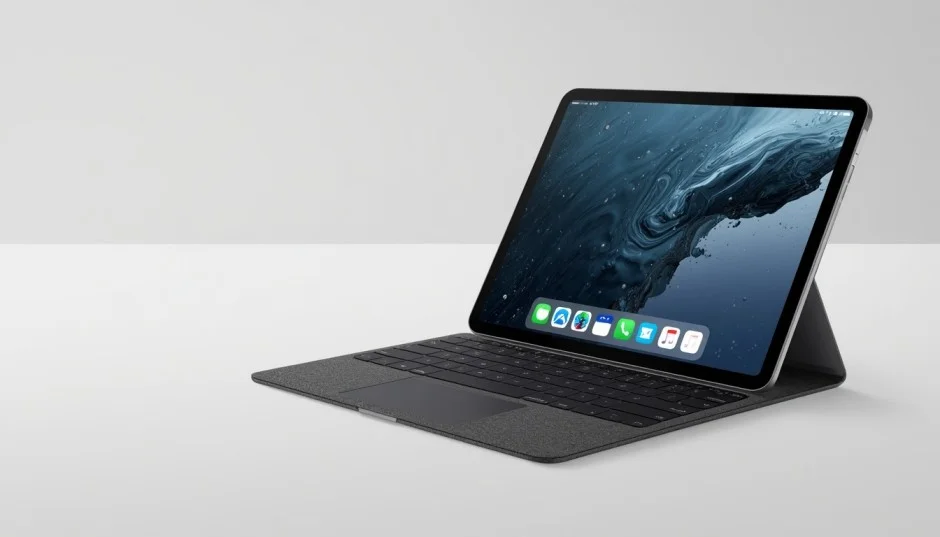
Additionally, iPadOS controls how connected accessories are detected and recognized. A software glitch, an interrupted update, or an outdated version of iPadOS can all cause the system to simply stop registering the keyboard, even though the physical connection is fine.
Common Causes of iPad Keyboard Not Working
- Dirty or dusty Smart Connector pins on the iPad or the keyboard.
- A case, screen protector, or debris blocking the connector from making full contact.
- Outdated iPadOS software that has not been updated in a while.
- A temporary software glitch that needs a restart to clear.
- Using an incompatible keyboard model with your specific iPad.
- Worn-out or physically damaged Smart Connector pins after years of use.
- A frayed or cracked hinge on the keyboard, which can break the internal wiring.
Warning Signs for iPad Smart Keyboard Not Working
A few clues can help you figure out whether you are dealing with a quick fix or something more serious:
- An accessory may not be supported or accessory not supported pop-up appears repeatedly.
- The keyboard works intermittently, cutting in and out while you type.
- Only certain keys respond, while others do nothing at all.
- The trackpad works but the keys do not.
- The keyboard only fails after you close the folio and reopen it, hinting at a wiring issue.
10 Fixes for an iPad Smart Keyboard Not Working
Start with the simplest troubleshooting steps and work through the solutions in order. In many cases, the iPad Pro keyboard not working issue can be resolved within the first few troubleshooting steps, without needing more advanced solutions.
Fix 1: Detach and Reconnect the Keyboard
This sounds almost too simple, but it resolves a surprising number of cases because it forces the iPad to re-read the Smart Connector.
- Gently lift your iPad away from the Smart Keyboard or Smart Keyboard Folio.
- Wait about 10 seconds before reconnecting.
- Line up the Smart Connector pins carefully and snap the iPad back into place.
- Put the iPad into typing position and test a few keys.
Fix 2: Clean the Smart Connector Pins
Dust and pocket lint on the connector are one of the single biggest causes of keyboard connection problems.
- Remove the iPad from the keyboard.
- Use a soft, dry, lint-free cloth to gently wipe the Smart Connector on the back or side of the iPad.
- Wipe the matching magnetic pins on the keyboard the same way.
- Avoid using liquids, alcohol, or compressed air directly into the connector, since moisture can cause more harm than the dust itself.
- Reconnect the iPad and check whether the keyboard responds.
Fix 3: Remove Any Case or Screen Protector Interference
If you are using a third-party case along with your Smart Keyboard, it can prevent the connector from sitting flush.
- Take off any additional case, skin, or cover you have added to the iPad.
- Check that nothing is wedged between the iPad and the keyboard’s connector area.
- Reattach just the Smart Keyboard on its own and test it.
- If it works without the extra case, look for a case specifically designed to work with your keyboard model.
Fix 4: Restart Your iPad if Smart Keyboard Not Working
A simple restart clears out temporary software glitches that can affect how iPadOS talks to connected accessories.
- Press and hold the top button (or top button and either volume button on Face ID models) until the power-off slider appears.
- Slide to turn the iPad off completely.
- Wait about 30 seconds, then press and hold the top button again to turn it back on.
- Reattach the Smart Keyboard once the iPad has fully restarted.
Fix 5: Update iPadOS
An outdated version of iPadOS is a common reason an iPad keyboard not working suddenly starts happening after you have used it fine for months.
- Open the Settings app and tap General.
- Tap Software Update.
- If an update is available, tap Download and Install.
- Keep the iPad connected to Wi-Fi and power until the update finishes.
- Restart the iPad after the update and reconnect the keyboard.
Fix 6: Check Keyboard and iPad Compatibility
Not every Smart Keyboard works with every iPad. Attaching the wrong generation is a common, easy-to-miss cause.
- Confirm your iPad model in Settings, then About.
- Check Apple’s official compatibility list for your specific keyboard, since Smart Keyboards and Magic Keyboards are model-specific.
- If you recently bought a used or secondhand keyboard, double-check it was designed for your iPad generation.
Fix 7: Reset All Settings if Ipad Smart Keyboard Not Working
This resets your system preferences, including how the iPad recognizes accessories, without deleting your photos, apps, or files.
- Go to Settings, then General, then Transfer or Reset iPad.
- Tap Reset, then choose Reset All Settings.
- Enter your passcode if prompted and confirm.
- Wait for the iPad to restart, then reconnect the Smart Keyboard.
- Note that you will need to re-enter Wi-Fi passwords and re-approve certain permissions afterward.
Fix 8: Test With a Different Keyboard or iPad
This step helps you narrow down whether the keyboard itself or the iPad is the actual problem.
- If you have access to another compatible iPad, try connecting your keyboard to it.
- If a friend or colleague has the same Smart Keyboard model, try connecting it to your iPad.
- If your keyboard works on another iPad, the issue likely lies with your iPad’s Smart Connector or software.
- If no keyboard works on your iPad, but your keyboard works elsewhere, the keyboard is likely the faulty part.
Fix 9: Inspect the Keyboard and Connector for Physical Damage
Years of folding, unfolding, and tossing the iPad in a bag can take a toll on the hardware itself.
- Look closely at the fabric hinge area of the Smart Keyboard Folio for cracks, fraying, or stretched fabric.
- Check the Smart Connector pins on both the iPad and keyboard for visible scratches, corrosion, or bent contacts.
- Gently flex the keyboard near the hinge while it is connected to see if the connection cuts in and out, which often points to internal wiring damage
- Avoid pressing hard on the pins or trying to bend them back into place, since this can cause permanent damage.
Fix 10: Contact Apple Support
If you have worked through the previous steps and your iPad Smart Keyboard not working issue persists, it is time to get an expert opinion.
- Use the Apple Support app or website to start a chat or phone session with a support advisor.
- Book a Genius Bar appointment at an Apple Store or Apple Authorized Service Provider.
- Bring both the iPad and the keyboard so a technician can test them together.
- Ask about warranty or AppleCare+ coverage before paying for a replacement, since many keyboard faults are covered.
A Common Myth to Avoid
Some online forums suggest rubbing a magnet directly on the Smart Connector pins to reset them. While a few people report this appearing to help, it is not an Apple-recommended fix, and pressing a magnet against sensitive electrical contacts risks damaging them further or affecting nearby components like the Apple Pencil’s magnetic attachment.
When to Seek Professional Help
Most keyboard problems clear up with the steps above, but a few signs mean it is time to bring in a professional rather than keep troubleshooting on your own.
- The keyboard shows visible cracks, corrosion, or liquid damage.
- The connection only works when you apply pressure or hold the iPad at an odd angle.
- The problem started right after dropping the iPad or keyboard.
- Nothing in this guide has worked after trying each fix in order.
In these cases, a technician can properly test the Smart Connector and tell you whether you need a repair or a replacement keyboard.
Prevention Tips
- Wipe the Smart Connector pins with a dry cloth every few weeks, especially if you carry your iPad in a bag.
- Keep your iPadOS software up to date so accessory drivers stay current.
- Avoid stacking heavy items on top of your iPad when it is connected to the keyboard.
- Store the iPad and keyboard somewhere dry, since moisture is one of the fastest ways to damage the connector.
- Handle the folio hinge gently when opening and closing it to avoid stressing the internal wiring.
Conclusion:
An iPad Smart Keyboard not working is usually fixable without any special tools or technical skill. Start with the simple steps, reconnecting the keyboard and cleaning the Smart Connector solve the majority of cases, and work your way toward software fixes and compatibility checks if needed. If you have been thorough and the keyboard still won’t cooperate, do hot hesitate to get Apple or a certified technician involved rather than risk further damage trying DIY hardware fixes.
A little regular maintenance, keeping the connector clean and your software updated, goes a long way toward making sure this doesn’t happen again.
Related Posts:
- How To Free Up Space On IPhone
- AirDrop Not Working? Fix It Fast With These 7 Proven Solutions
- IPhone Stuck On Apple Logo: Complete Troubleshooting Guide
- IPhone Won’t Charge: Here Are 7 Proven Fixes
- White Marks On IPhone Screen: Causes & Quick Fixes That Work
Frequently Asked Questions:
Software updates sometimes reset how iPadOS recognizes accessories. Restart the iPad, detach and reattach the keyboard, and confirm you’re on the latest iPadOS version.
Yes. The Smart Connector relies on direct metal-to-metal contact, so even a thin layer of dust or lint can block the signal entirely.
Yes, as long as you use a dry, soft, lint-free cloth. Avoid liquids, alcohol, or sharp objects near the pins.
Partial responsiveness, like a trackpad that works but keys that do not, usually points to a wiring issue inside the keyboard rather than a software problem.
Check your iPad model under Settings, then About, and compare it against Apple’s official compatibility list for that specific keyboard.
Check your purchase date and AppleCare+ status through the Apple Support app. Many connector and hinge faults are covered under the standard one-year limited warranty.