

Why Slow Internet Happens
Your internet speed depends on several factors working together, including your plan’s bandwidth, router condition, connected devices, and distance from the router. If you’re wondering how to fix slow internet speed, identifying which of these factors is causing the slowdown is the best place to start.
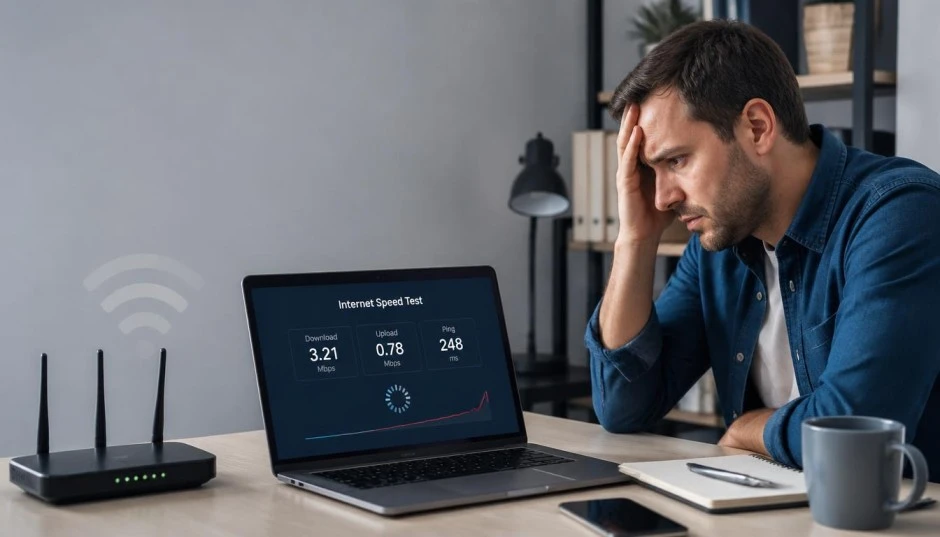
You can picture your internet connection as a pipe carrying data to your devices. Your ISP plan sets the size of the pipe, but a clogged filter can choke the flow down to a trickle even if the pipe itself is wide enough.
Common Causes of Slow Internet Connection
- Too many devices or apps using bandwidth at the same time
- An outdated or overheating router/modem
- Wi-Fi signal interference from walls, distance, or other electronics
- Background downloads, updates, or cloud backups running silently
- Your ISP plan simply is not fast enough for how you use the internet
- Temporary outages or congestion on your provider’s network
- Malware or browser extensions quietly eating up bandwidth
Warning Signs Your Internet Speed Needs Attention
- Videos frequently buffer even at standard quality
- Video calls freeze, lag, or drop unexpectedly
- Web pages take noticeably longer to load than they used to
- Your speed test results are far below what you are paying for
- Your Wi-Fi may perform well close to the router but become weak or unstable farther away
How to Fix Slow Internet Speed: Step-by-Step Fixes
Work through these in order. Start with the simplest, safest steps, they solve the problem most of the time, before moving on to the more advanced ones.
Fix 1: Restart Your Router and Modem
This is the single most effective fix for how to fix slow internet, and it costs nothing. Unplug both your modem and router, wait 30 seconds, then plug the modem in first and wait for it to fully reconnect before plugging in the router. This clears temporary memory glitches and forces your devices to grab a fresh connection from your ISP.
Fix 2: Run a Speed Test to Know Your Baseline
Before changing anything else, test your actual speed and compare it to what you are paying for. Use a wired connection for the most accurate reading, then test again over Wi-Fi. If the wired test is fast but Wi-Fi is slow, the problem is your wireless setup, not your internet plan.
Fix 3: Move Your Router to a Better Location
Walls, floors, mirrors, and appliances all block Wi-Fi signals. Place your router in an open, central, elevated spot, away from microwaves, baby monitors, and thick walls, for noticeably better coverage throughout your home.
Fix 4: Reduce the Number of Connected Devices
Every phone, laptop, smart TV, and smart-home gadget shares the same bandwidth. Disconnect devices you are not actively using, and check whether any device is running a large download or backup in the background.
Fix 5: Close Bandwidth-Hungry Background Apps
Cloud backup tools, auto-updating apps, and streaming tabs left open in the background can quietly consume most of your bandwidth. Close anything you are not actively using, especially large file syncs or game downloads.
Fix 6: Switch to the Correct Wi-Fi Band
Most modern routers broadcast two bands: 2.4GHz and 5GHz (shorter range, faster speed). If you’re near the router, switch to the 5GHz network for a meaningful speed boost. If you are far away, 2.4GHz will actually give a more stable connection.
Fix 7: Update Your Router’s Firmware
Outdated firmware can cause slowdowns and security gaps. Check your router manufacturer’s app or admin page for a firmware update, since this varies by brand and model, check your specific router’s support page for exact steps.
Fix 8: Scan for Malware and Remove Unused Browser Extensions
Malicious software and bloated browser extensions can run in the background and eat up your bandwidth without you noticing. Run a reputable antivirus scan and remove any browser extensions you don’t recognize or use.
Fix 9: Contact Your ISP or Upgrade Your Plan
If you have tried everything above and speeds are still consistently below what you are paying for, contact your internet service provider. They can check for outages, line issues on their end, or confirm whether it is time to upgrade to a faster plan for your household’s needs.
When to Seek Professional Help
If your speed test results are consistently far below your plan even on a wired connection, or if a technician-installed line seems to be at fault, it is time to call your ISP for a technician visit. Persistent slowdowns after trying every fix above usually point to a hardware or line issue that needs a professional look.
A Common Myth to Avoid
A popular myth is that constantly resetting your router to factory settings will permanently boost your speed. In reality, this wipes out your saved Wi-Fi name, password, and custom settings, and it rarely fixes speed issues caused by your plan or your ISP’s network. The safe alternative is a simple power-cycle restart Fix 1 or a firmware update Fix 7, both improve performance without erasing your setup.
How to Improve Internet Speed Tips
- Restart your router and modem every few weeks to keep them running smoothly
- Keep your router’s firmware updated as new versions are released
- Place your router in a central location and keep it away from devices or objects that may interfere with the signal.
- Periodically review which devices are connected and remove ones you no longer use
- Schedule large downloads and backups for times you’re not actively using the internet
Final Thoughts
Most of the time, learning how to fix slow internet speed comes down to a handful of simple checks. Restart your equipment, reposition your router, manage your connected devices, and confirm your plan actually matches your household’s needs. Work through the fixes above in order, and if the problem persists after that, your ISP is the next call. A little routine maintenance goes a long way toward keeping your connection fast and reliable.
More internet troubleshooting guides.
Frequently Asked Questions:
A sudden slowdown usually points to too many connected devices, a background download, or a temporary issue on your ISP’s network. Restarting your router is the fastest way to check.
Connect a device directly to the modem with an Ethernet cable and run a speed test to check your actual connection speed. If that is fast but Wi-Fi is slow, the issue is your wireless setup, not your plan.
Yes. Restarting clears temporary memory issues and forces a fresh connection, which resolves a large share of slow internet complaints.
Run a speed test every few weeks, or whenever you notice persistent slowdowns that a simple browser refresh doesn’t resolve.
If your wired speed test consistently matches your plan but that speed still is not enough for how many people and devices use your connection, an upgrade, not troubleshooting, is the real fix.
Yes. Every connected device shares your available bandwidth, so a household full of streaming devices, phones, and smart gadgets can add up quickly.