

Introduction
Acer laptop screen issues are more common than most owners realize, and they rarely mean your machine is beyond saving. Whether your screen is blinking on and off, stuck on a blue error message, or simply refusing to turn on, there is usually a clear, fixable reason behind it.
This guide explains why these problems happen, how to spot warning signs early, and which fixes genuinely help. No guesswork, no unnecessary repairs, just steps that work.
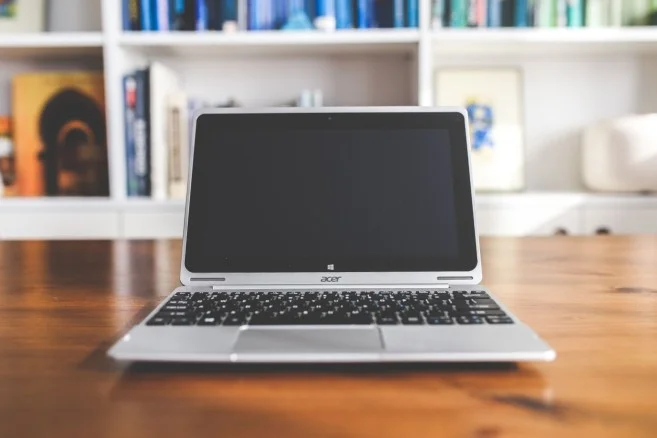
Why Acer Laptop Screen Issues Happen
Every Acer laptop screen relies on several parts working together. That includes the display panel, the video cable, the graphics driver, and Windows itself.
When any single part weakens, the result usually shows up as acer laptop screen problems on your display. Sometimes it is a temporary software glitch. Other times it points to aging hardware that needs attention.
Age plays a big role too. A laptop that is three or four years old has gone through hundreds of open-close cycles. That slowly stresses the internal display cable.
Heat is another factor. Thinner Acer models, like the Swift and Aspire lines, can run hot during long sessions. Overheating often triggers both display glitches and full system crashes.
Common Causes of Acer Laptop Screen Problems
Most screen issues fall into two broad categories: software-related and hardware-related. Knowing which one you are facing saves time and avoids paying for repairs you do not need.
Software and Driver-Related Causes
Outdated or corrupted graphics drivers are the single most common cause of the laptop screen flickering acer owners report. Windows updates can also conflict with existing drivers, especially right after a major feature update.
- Outdated GPU drivers (Intel, NVIDIA, or AMD)
- Recent Windows updates not yet matched with updated drivers
- Corrupted or missing system files
- Incompatible third-party software launching at startup
- Incorrect refresh rate or resolution settings
Hardware and Physical Causes
When updating drivers does not help, the cause is often physical. A damaged display cable, a worn-out backlight, or a failing GPU can all produce an acer laptop screen flashing, or a screen that stays completely dark.
- Loose or damaged LCD cable, common after drops or rough handling
- Failing backlight or display inverter
- Overheating components, especially the GPU
- Faulty RAM causing an acer laptop blue screen of death during startup or heavy use
- Physical damage from drops, spills, or pressure on the closed lid
Warning Signs You Should Not Ignore
Screen problems rarely appear out of nowhere. Watch for these early indicators before the issue gets worse.
- Brief flickers that last only a second or two
- Screen dimming randomly, even with brightness locked
- Colors shifting or thin lines appearing near the edges
- Random restarts followed by a blue screen acer laptop message
- An acer laptop blinking screen that worsens when you move or adjust the lid
Catching these signs early often means a five-minute software fix instead of a paid repair bill.
Acer Laptop Screen Not Working? Fixes That Actually Help
Below are the safest, most effective fixes, starting with the simplest. Try them in order. Most people solve the issue within the first four steps.
Fixes for a Flickering or Flashing Acer Screen
If you are dealing with acer laptop screen blinking that appears only under load, or an acer laptop flashing screen that comes and goes, start here.
Fix 1: Update Your Graphics Driver
- Press Windows key + X and select Device Manager.
- Expand the Display adapters section.
- Right-click your graphics card and select Update driver.
- Choose Search automatically for drivers.
- Restart your laptop once the update finishes.
Fix 2: Adjust the Screen Refresh Rate
- Right-click on the desktop and select Display settings.
- Scroll down and open Advanced display settings.
- Choose your Acer screen’s recommended refresh rate.
- Apply the change and check if the flickering stops.
Fix 3: Disconnect External Monitors and Peripherals
- Unplug any second monitor, docking station, or USB hub.
- Restart the laptop with only the essential parts connected.
- Reconnect devices one at a time to identify the culprit.
Fix 4: Run a Clean Boot to Rule Out Software Conflicts
- Type msconfig in the Windows search bar and open it.
- On the Services tab, check Hide all Microsoft services.
- Click Disable all, then restart your laptop.
- If flickering stops, re-enable services one by one to spot the cause.
Fixes for the Acer Laptop Blue Screen of Death
For a laptop acer blue screen or a repeated crash-and-restart loop, these steps address the most common causes.
Fix 1: Note the Stop Code Before Restarting
- When the blue screen appears, look for a code such as PAGE_FAULT_IN_NONPAGED_AREA.
- Write it down or photograph it with your phone.
- Search that exact code alongside your Acer model for targeted guidance.
Fix 2: Boot into Safe Mode and Remove Recent Changes
- Restart your laptop and hold Shift while selecting Restart.
- Go to Troubleshoot, then Advanced options, then Startup Settings, then Restart.
- Press 4 or F4 to enter Safe Mode.
- Uninstall any software or driver installed right before the crash started.
Fix 3: Check Device Manager for Driver Conflicts
- Open Device Manager.
- Look for a yellow warning icon next to any listed device.
- Right-click the flagged device and choose Update driver.
- Restart your laptop after the update completes.
Fix 4: Run the Windows Memory Diagnostic Tool
- Type Windows Memory Diagnostic in the search bar and open it.
- Select Restart now and check for problems.
- Review the results after restart to rule out faulty RAM.
Fix 5: Free Up Storage Space
- Open Settings, then System, then Storage.
- Delete temporary files and unused applications.
- Keep at least 15 percent of your drive free.
- Low storage space can trigger both crashes and a laptop acer blue screen.
A common myth worth avoiding: repeatedly pressing the power button during a blue screen loop does not “force” a fix. It can corrupt files further and worsen boot problems. The safer choice is letting Automatic Repair run, or booting into Safe Mode.
When to Seek Professional Help for Acer Laptop Screen Issues
Some screen not working on acer laptop situations go beyond safe do-it-yourself fixes. Contact Acer support or a certified technician if any of the following apply.
- The screen stays black even when connected to an external monitor
- You notice physical damage such as cracks, dark spots, or leaking liquid crystal
- Blue screens continue after trying every fix listed above
- Your laptop is still under warranty, since DIY repairs can void it
- You are not comfortable opening the laptop casing yourself
Trying to fix a cracked panel or a failing motherboard without experience often causes more damage. It is not worth risking a laptop you may still be able to repair affordably.
Prevention Tips to Avoid Acer Laptop Screen Issues in the Future
- Keep Windows and graphics drivers updated every month
- Use a cooling pad during long gaming or work sessions
- Avoid placing heavy objects on a closed laptop lid
- Carry your laptop in a padded sleeve or bag
- Run a full antivirus scan every month
- Check Acer’s official drivers and manuals page quarterly for BIOS updates
Small habits like these significantly reduce the chances of facing acer laptop screen problems again. If your Acer laptop is also struggling with power issues, check out our guide on Acer Laptop Battery Not Charging? for step-by-step solutions.
Bottom Line
Acer laptop screen issues can feel alarming, especially when a blue screen or flickering display interrupts your work. In most cases, though, the fix is simpler than expected.
Start with the software-based solutions above, note any stop codes you see, and reach out to Acer support if the problem continues. With a little patience, most acer laptop screen problems are fully solvable without an expensive repair bill.
Frequently Asked Questions:
Flickering usually comes from an outdated graphics driver or an incorrect refresh rate. Updating the driver, resolves most cases within minutes.
A blue screen typically points to a driver conflict, faulty RAM, or an overheating component. Noting the stop code helps identify the exact cause quickly.
Not always. A flashing screen is often software-related, but if it continues after driver updates, a loose display cable could be the cause.
Many software-related issues are safe to fix at home, such as driver updates and Safe Mode troubleshooting. Physical damage should go to a certified technician.
If the screen improves in Safe Mode or after a driver update, it is software-related. If flickering or blinking continues even in Safe Mode, it usually points to hardware.