

Before You Start
If your HP printer is not printing, don’t start by reinstalling the driver. First determine whether the printer itself can print a built-in test page. That one test can tell you whether the problem is with the printer or with Windows, macOS, the connection, or the print queue.
This guide covers the most common causes and practical solutions, starting with the simplest checks
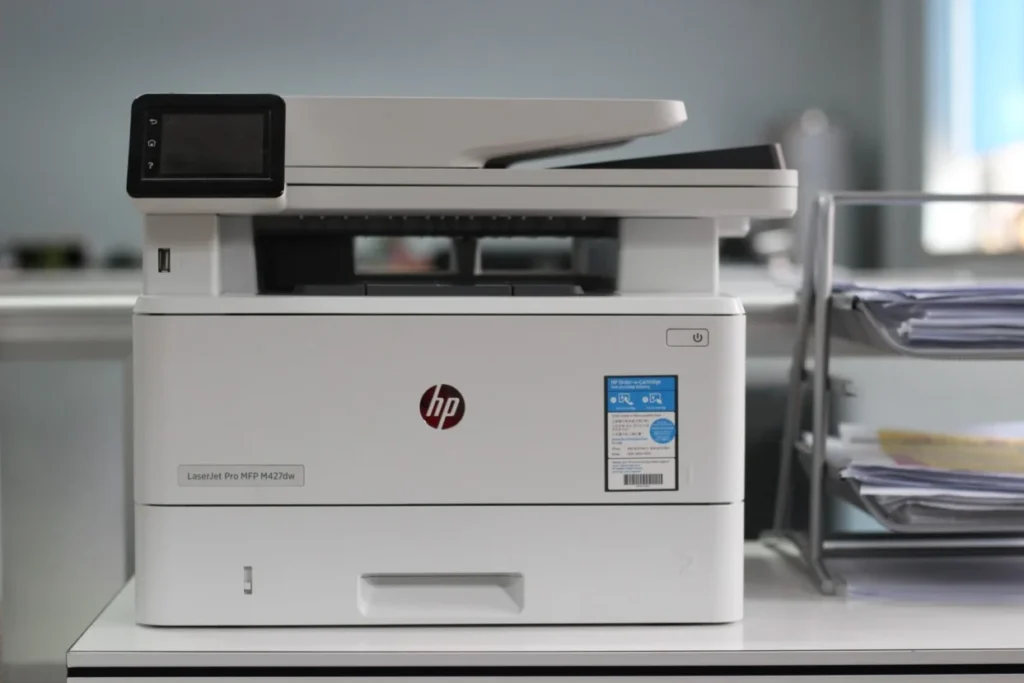
Quick Diagnosis: Where Is the Problem?
| What happens | Most likely problem |
| Printer won’t power on | Power, cable, outlet, or hardware |
| Printer prints its own test page but not from Windows | Windows, driver, port, or print queue |
| Printer prints from phone but not computer | Computer or printer configuration |
| Printer works over USB but not Wi-Fi | Wi-Fi or network configuration |
| Print job stays stuck in queue | Print Spooler or print queue |
| Printer says Offline | Connection, Windows status, or network issue |
| Blank pages come out | Ink/toner, printhead, cartridge, or print-quality issue |
| Pages are faded or streaky | Ink/toner, printhead, alignment, or print settings |
| Printer cannot be found | USB, Wi-Fi, discovery, or driver problem |
Why Is My HP Printer Not Printing?
An HP printer can stop printing for several different reasons. The most common are a stuck print queue, an offline or disconnected printer, a Wi-Fi or USB connection problem, an incorrect printer selected in Windows, or a driver/configuration problem.
If the printer produces a built-in test or diagnostic page, that is an especially useful clue: it shows that the printer can perform the printing operation itself, so the problem may be between the computer and printer rather than the printer’s basic printing hardware.
HP provides printer status and diagnostic reports on many models, although the exact method varies by model.
Common Causes of an HP Printer Not Printing
- Loose or faulty USB, Ethernet, or power cables.
- Wi-Fi connection dropped between the printer and router.
- Outdated, corrupted, or missing printer drivers.
- A stuck or jammed print job clogging the print queue.
- Low or empty ink/toner cartridges, or improperly seated cartridges.
- Paper jams or an empty paper tray.
- The printer set to Offline or Paused in your computer’s settings.
- Outdated printer firmware.
- Wrong printer selected as the default device.
Warning Signs
Before diving into fixes, it helps to notice how the HP printer printing problem is showing up, since that often points to the cause:
- Blinking or solid warning lights on the printer’s control panel.
- An Offline or Error message in your computer’s printer list.
- Print jobs stuck at Pending or Spooling in the print queue.
- Blank pages coming out even though the document had content.
- Streaky, faded, or partially printed pages.
- The printer powers on but makes no sound or movement when you send a job.
9 Practical Fixes for an HP Printer Not Printing
Work through these fixes in order. Start with the simplest checks first, they solve the majority of cases, and only move on to the more advanced steps if the problem persists.
Fix 1: Check Power, Paper, and Printer Errors
It sounds obvious, but this step resolves more issues than any other. Confirm the printer is powered on and not showing an error light.
- Make sure the power cable is firmly plugged into both the printer and the wall outlet.
- If you are using a USB cable, unplug it and reconnect it firmly at both ends.
- Check that the paper tray is not empty and that paper is loaded correctly, not overfilled past the max line.
- Open the paper tray and look for any jammed or crumpled paper stuck in the rollers, and remove it gently.
Fix 2: Restart the Printer, Computer, and Router if HP Printer Not Printing
A simple restart clears temporary glitches in the printer’s memory and refreshes its connection to your network. Turn the printer off, then wait for 30 seconds, and turn it ON. Then restart your computer.
If you print wirelessly, restart your router too, and give it a minute to fully reboot before reconnecting. When restarting several devices, the order matters: printer off, router restart, computer restart, then turn the printer back on last.
Fix 3: Print a Test Page from the Printer’s Control Panel
Many HP printers can print a test page, printer status report, or print-quality diagnostic page without sending a document from your computer. The exact method varies by model.
- Test page prints normally → focus on Windows, macOS, connection, queue, or driver.
- Test page won’t print → focus on printer hardware, paper, ink/toner, cartridge, or printer error.
- Test page prints with streaks or missing colors → troubleshoot print quality rather than Windows.
Fix 4: Make Sure the Printer Is not Set to Offline
Printer is ON ≠ Windows can communicate with it.
If Windows shows the printer as Offline
Check:
- Printer is powered on.
- Printer is connected.
- Computer and printer are on the same Wi-Fi network.
- Use Printer Offline isn’t enabled.
- Pause Printing isn’t enabled.
- Correct printer is selected.
- Print queue isn’t stuck.
Microsoft currently recommends checking the printer’s offline status, queue, default printer, Print Spooler, and reinstalling the printer when necessary.
Fix 5: Clear the Print Queue and Restart Print Spooler
First:
Settings → Bluetooth & devices → Printers & scanners → HP printer → Open print queue
Cancel all pending jobs.
If jobs won’t disappear:
- Search Windows for Services.
- Open Services.
- Find Print Spooler.
- Right-click it.
- Select Restart.
- Try printing again.
Microsoft specifically recommends restarting the Print Spooler when dealing with printing problems.
Make Sure You’re Printing to the Correct HP Printer
Fix 6: Check Ink, Toner, and Cartridge Installation
Low, empty, or improperly seated cartridges are a frequent reason for blank pages or an HP printer not printing anything at all.
- Open the printer and check that each cartridge clicks firmly into place.
- Check the printer’s display or your computer’s HP software for ink level warnings.
- If a cartridge is new, remove and reinsert it to make sure the protective tape has been fully peeled off.
Fix 7: Update or Reinstall the Printer Driver if HP Printer Not Printing
An outdated or corrupted driver is one of the most common software causes of printing problems, and it’s easy to fix.
- Go to HP’s official support website and search for your exact printer model.
- Download the latest driver and full software package for your operating system.
- If a driver is already installed, uninstall it first from Devices and Printers, then install the fresh download.
- Restart your computer after installation, then try printing again.
Fix 8: Reconnect the Printer to Your Wi-Fi Network
| What happens | Likely cause |
| Printer cannot connect to Wi-Fi | Printer/network configuration |
| Printer connects but computer can’t find it | Discovery/network communication |
| Printer works after router restart, then goes offline again | Network/IP configuration |
| Phone can print but PC cannot | Windows configuration |
| USB works but Wi-Fi doesn’t | Wireless connection |
Fix 9: Remove and Re-Add the Printer
If none of the steps above have worked, it’s time for a more thorough reset.
- Remove the printer entirely from your computer’s list of devices.
- Restart your computer.
- Re-add the printer, either through Windows’ Add a printer option or by reinstalling the official HP software.
- Run HP’s free Diagnose & Fix tool from HP’s support site, which scans for and repairs common printing issues automatically.
Avoid These Common Printer Troubleshooting Mistakes
Don’t install drivers from random websites.
Don’t use registry cleaners for ordinary printer problems.
Do not install firmware intended for a different printer model.
Don’t repeatedly run printhead cleaning cycles unnecessarily.
Don’t replace cartridges before determining whether the problem is actually ink-related.
Contact HP or a Repair Technician If:
Printer won’t power on.
Built-in diagnostic/test printing consistently fails.
Printer reports a hardware error.
There are unusual mechanical noises.
Paper jams repeatedly despite correct loading.
Printhead or internal hardware appears damaged.
The printer is still under warranty.
Prevention Tips to Avoid Future Printing Problems
- Keep firmware/software reasonably current.
- Keep printer connected to a stable network.
- Use proper paper.
- Avoid forcing paper during jams.
- Use the printer’s normal power button.
- Don’t leave cartridges improperly installed.
Conclusion
An HP printer not printing is almost always fixable without a technician. By working through these fixes in order, from basic checks to driver updates and network resets, you’ll solve the vast majority of printing problems yourself. If your printer still isn’t cooperating after trying everything above, it is a good sign that professional help or a replacement is the next sensible step.
Frequently Asked Questions:
This usually points to a connection issue, a stuck print queue, or the printer being set to offline. Start with Fix 1 through Fix 5 above, since they resolve this in most cases.
Windows and macOS sometimes mark a printer as offline due to a temporary communication error. Checking the Use Printer Offline setting usually solves this.
Blank pages are typically caused by empty or improperly seated ink cartridges, or a clogged print head. Check your cartridges first, then run the printer’s built-in cleaning cycle from its control panel or HP software.
Confirm the printer and your device are on the same network, then restart both the router and the printer. If the connection still fails, rerun the wireless setup wizard from the printer’s control panel.
No. Reinstalling the driver is only necessary if updating it doesn’t help, or if the driver appears corrupted. Try the simpler fixes first.
Checking every two to three months is a reasonable habit. HP regularly releases firmware updates that improve connectivity and fix known bugs, so keeping it current helps prevent future printing problems.