

Why White Marks Appear on Your iPhone Screen
An iPhone display is made up of several thin layers, glass, a touch-sensitive layer, and either an LCD or OLED panel underneath, depending on the model. White Marks on iPhone Screen show up when one of those layers gets disrupted, whether that is from pressure, moisture, a manufacturing quirk, or simply a software feature doing exactly what it is designed to do.
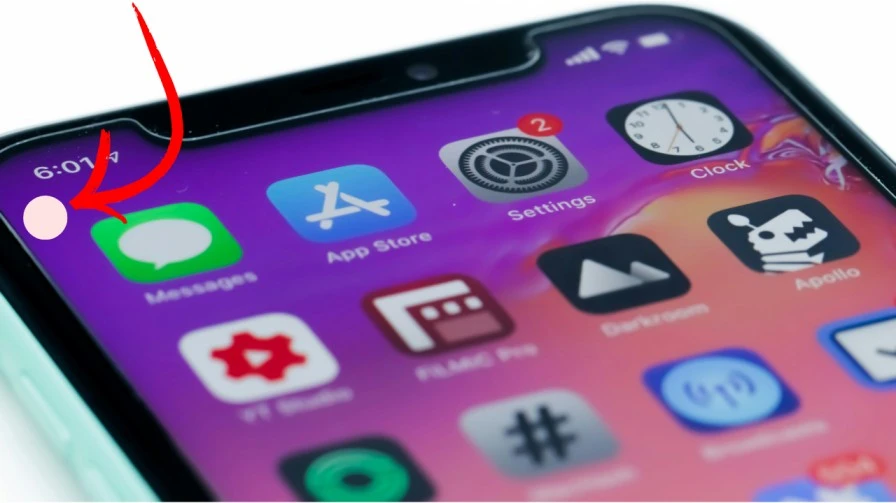
Not every white mark means something is broken. Some are completely harmless and disappear the moment you adjust a setting. Others are a genuine sign that the display itself has been damaged and needs attention. The trick is figuring out which one you are dealing with. And that is exactly what the rest of this article will help you do.
Common Causes of White Marks on an iPhone Screen
- Screen protector or case issues, trapped air, dust, or moisture under a screen protector can look like a white smudge or patch, especially right after you apply a new one.
- Pressure marks, resting something heavy on the phone, sitting on it, or packing it tightly in a bag can press on the display and leave a light patch, particularly on older LCD-screen iPhones.
- A drop or impact, even a fall that does not crack the glass can jar the internal display layers loose enough to cause a white spot or patch.
- A dead or stuck pixel, a single tiny white dot that never changes color, even when the rest of the screen does, usually points to one malfunctioning pixel.
- Software features you did not know were on, accessibility tools like AssistiveTouch or Vehicle Motion Cues both show up as small white dots and are frequently mistaken for a display fault.
- Moisture or heat exposure, liquid getting under the glass or the phone overheating can cause temporary or permanent discoloration.
- A previous screen replacement, displays swapped by unauthorized repair shops, or genuine parts installed incorrectly, sometimes show faint white patches or uneven brightness.
Whatever the trigger, these white marks on an iPhone screen almost always trace back to one of the causes above. Which is why working through the fixes in order tends to solve the problem faster than guessing.
Warning Signs You Should not Ignore
Most white marks are cosmetic, but a few signs suggest something more serious is going on underneath the glass. Watch out for:
- The mark is spreading or getting bigger over a few days
- It appeared right after you dropped the phone or it got wet
- The touchscreen is unresponsive in that area, or nearby
- You notice flickering, discoloration, or lines alongside the white mark
- The screen looks like it is lifting, bulging, or separating from the frame
That last point deserves its own mention. A bulging screen is often a sign of a swelling battery underneath, which is a genuine safety issue, not just a display problem. If your screen looks like it is popping up at the edges, stop using the phone and get it looked at right away rather than trying any of the fixes below.
How to Fix White Marks on Your iPhone Screen
Work through these in order. The first few take under a minute and solve the problem for a surprising number of people, so it is worth ruling them out before you assume the worst.
Fix 1: Rule Out AssistiveTouch or Vehicle Motion Cues
Before anything else, check whether the white mark on your iphone screen is actually a built-in accessibility feature. AssistiveTouch shows up as a small semi-transparent white square that you can drag around the screen, while Vehicle Motion Cues (available on newer iOS versions) shows small moving white dots near the screen edges when the phone senses you are in a moving vehicle.
To turn off AssistiveTouch: go to Settings > Accessibility > Touch > AssistiveTouch, and switch it off.
To turn off Vehicle Motion Cues: go to Settings > Accessibility > Motion, and turn off Vehicle Motion Cues.
If the mark disappears, you have solved it, no repair needed.
Fix 2: Remove Your Screen Protector and Case
Peel off your screen protector and take a close look at the underside. Trapped air bubbles, dust, or moisture between the protector and the glass very often look exactly like a white patch on the screen itself. If the white mark disappears after removing the screen protector, your iPhone screen is likely fine. You only need to replace the old screen protector and apply the new one carefully to avoid trapped air or pressure marks.
While you are at it, take the case off too. A tight-fitting case that presses on the screen edges can occasionally cause a similar effect.
Fix 3: Clean the Screen Properly
Smudges, grease, or a thin film of dust can catch the light in a way that looks like a white mark. Power off the iPhone, then wipe the display with a dry, soft microfiber cloth. Avoid paper towels, alcohol-based cleaners, or anything abrasive, since these can scratch the oleophobic coating on the glass.
Fix 4: Force Restart Your iPhone
A force restart clears out temporary software glitches without touching your data, and it is one of the most effective first steps for any strange display behavior.
- iPhone 8 or later: Press and quickly release Volume Up, then press and quickly release Volume Down, then press and hold the Side button until the Apple logo appears.
- iPhone 7 / 7 Plus: Press and hold both the Side (or Top) button and Volume Down button until the Apple logo appears.
- iPhone 6s or earlier: Press and hold both the Home button and the Side (or Top) button until the Apple logo appears.
Fix 5: Update Your iPhone to the Latest iOS Version
Display glitches are sometimes caused by a software bug that Apple has already fixed in a later update. Go to Settings > General > Software Update, and install any update that is available. Keep the phone plugged in and connected to Wi-Fi while it updates.
Fix 6: Reset All Settings to Remove White Marks on iPhone Screen
This resets things like display settings, Wi-Fi passwords, and preferences back to default, without deleting your photos, apps, or messages. Open Settings → General → Transfer or Reset iPhone → Reset → Reset All Settings. It is a low-risk step that occasionally clears up display quirks caused by a corrupted setting.
Fix 7: Check for a Stuck or Dead Pixel
If the mark is a single, tiny, unmoving dot, it may be one stuck or dead pixel rather than a wider display fault. Try running a full-screen color test, there are several safe pixel-test websites you can open in Safari that cycle through solid colors, which makes a stuck pixel much easier to spot. A pixel that never changes color no matter what’s on screen usually means that one pixel has failed. It typically requires a screen replacement to fix, since software can’t repair physical pixel damage.
Fix 8: Inspect for Physical or Pressure Damage
Look closely at the screen in good lighting. Gently run your finger over the area to feel for any unevenness, and check for hairline cracks near the mark. If the white patch appeared after a drop, a squeeze in a tight bag, or sitting on the phone, it is likely a pressure mark on the internal display layer rather than a software issue, and that generally needs professional repair rather than a settings change.
Fix 9: Back Up and Restore Your iPhone
If the mark is still there after trying the software fixes above, a full restore can rule out a deeper software issue. Back up your iPhone to iCloud or your computer first, then use a Mac or PC with Finder (or iTunes on older computers) to restore the iPhone to factory settings. This is a more involved step, so only try it once you have ruled out the quicker fixes.
Fix 10: Contact Apple Support or Book a Genius Bar Appointment
If none of the above resolves it, the white mark is almost certainly a hardware issue with the display itself. Contact Apple Support or book a Genius Bar appointment so a technician can properly diagnose it. They can tell you whether it’s covered under warranty or AppleCare+, and what a screen replacement would cost if not.
A Common Myth: Pressing on the Mark to Push It Out
A myth that circulates online is that pressing firmly on a white spot, or tapping it repeatedly, can push the pixel back into place. This is not a real fix, and it can genuinely make things worse, applying pressure to a display that already has internal damage can crack the glass, spread the white patch, or cause permanent discoloration. If you suspect pressure damage, the safe move is to stop touching that area and get the screen inspected instead.
When to Seek Professional Help
It is time to get your iPhone looked at by a professional if:
- The mark appeared after a drop, squeeze, or water exposure
- It is spreading, growing, or joined by lines or flickering
- The touchscreen does not respond properly near the mark
- None of the software fixes above made any difference
- The screen looks like it’s lifting or bulging at the edges
Stick to Apple, an Apple Authorized Service Provider, or a reputable local repair shop that uses quality parts. A cheap, uncertified screen replacement is one of the most common reasons people end up with white patches or dead spots on a display that was previously fine.
How to Prevent White Marks on Your iPhone Screen
- Use a good-quality screen protector, applied carefully to avoid trapped air or dust
- Choose a case with slightly raised edges so nothing presses directly on the glass
- Avoid stacking heavy items on top of your phone or sitting on it
- Keep your iPhone out of direct heat, like a hot car dashboard, for long periods
- Wipe the screen with a soft, dry cloth regularly instead of letting grime build up
- Keep iOS updated so you get display-related bug fixes as soon as they’re released
- If you ever need a screen replacement, choose a certified technician using genuine or high-quality parts
Final Thoughts
White marks on iPhone screen can be alarming the first time you spot them. But most of the time the cause is something simple, a screen protector, a settings feature, or a bit of dust, rather than a broken display. Work through the fixes above in order. Starting with the free and instant ones, and you will usually know within a few minutes whether you are dealing with a quick fix or a genuine hardware issue. If you have tried everything and the white marks on your iPhone screen are still there, don’t keep pressing or fiddling with it. Get it checked by Apple or a trusted repair professional so it does not turn into a bigger, more expensive problem.
Frequently Asked Questions:
Sometimes, yes. If the mark is caused by a screen protector, trapped moisture, or a software feature like AssistiveTouch, it can disappear as soon as you remove the cause. Marks caused by physical damage to the display layers usually don’t fix themselves and need a repair.
A single stuck pixel or a settings-related dot is not dangerous. The one exception is if the screen looks like it is bulging or lifting away from the frame, that can point to a swelling battery, which is a safety concern, so get it checked promptly.
A reset can fix white marks caused by a software bug, but it won’t help if the display itself has physical damage. It is worth trying after the quicker fixes, before assuming you need a repair.
The repair cost depends on several factors, including your iPhone model, whether your device is covered by Apple’s warranty or AppleCare+. And whether you choose an Apple Store or an independent repair shop.
If the dots move as your phone moves, especially in a car, that is very likely Vehicle Motion Cues, an accessibility feature designed to reduce motion sickness. You can turn it off in Settings.