

Before You Start Troubleshooting
Face ID not working on your iPhone can be frustrating, especially when it suddenly stops recognising your face or shows an error message. Face ID is one of the most useful features on modern iPhones. It lets you unlock your device, authorise App Store purchases, use Apple Pay, and sign in to apps without typing a password every time. Most of the time it works instantly, so when it suddenly stops recognising your face, it can be frustrating.
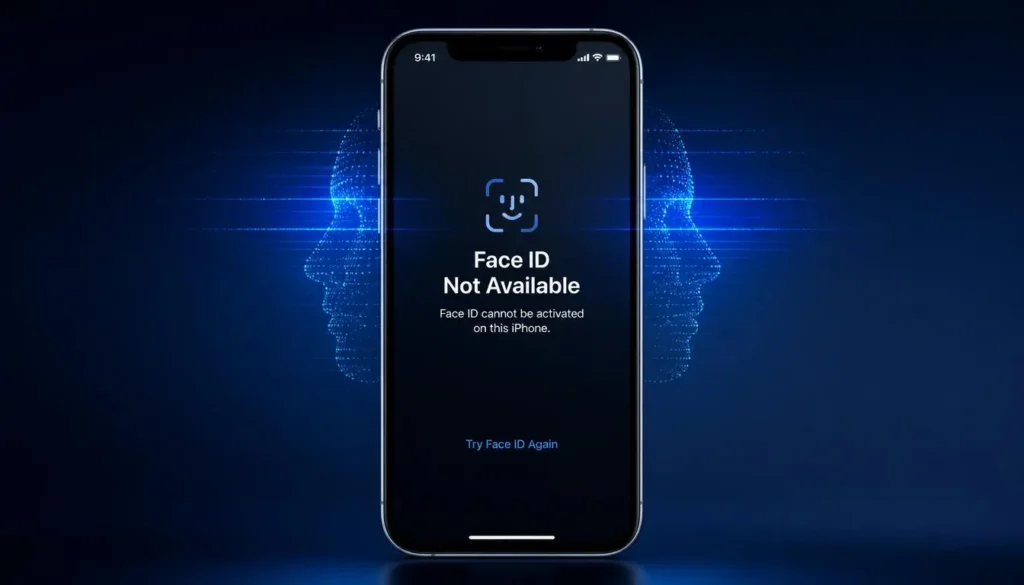
Many users experience Face ID problems after installing an iOS update, dropping their iPhone, replacing the screen, or even after applying a new screen protector. Sometimes the phone displays ‘Face ID Not Available’, while in other cases it simply refuses to recognise your face even though nothing appears to be wrong.
The good news is that most Face ID issues are caused by software settings or temporary glitches rather than permanent hardware failure.
In this guide, you’ll learn seven practical fixes that solve the majority of Face ID problems. We’ll also explain what to do if your Face ID is not working after an update or after a screen replacement.
Why Is Face ID Not Working?
Face ID relies on Apple’s TrueDepth camera system. Common causes include dirt covering the sensors, a thick case or screen protector, software glitches, incomplete iOS updates, incorrect settings, hardware damage, or non-genuine screen replacements.
Before You Start
Clean the front camera area, hold the phone at eye level, ensure your face is fully visible, and remove sunglasses if necessary.
Fix 1: Clean the TrueDepth Camera
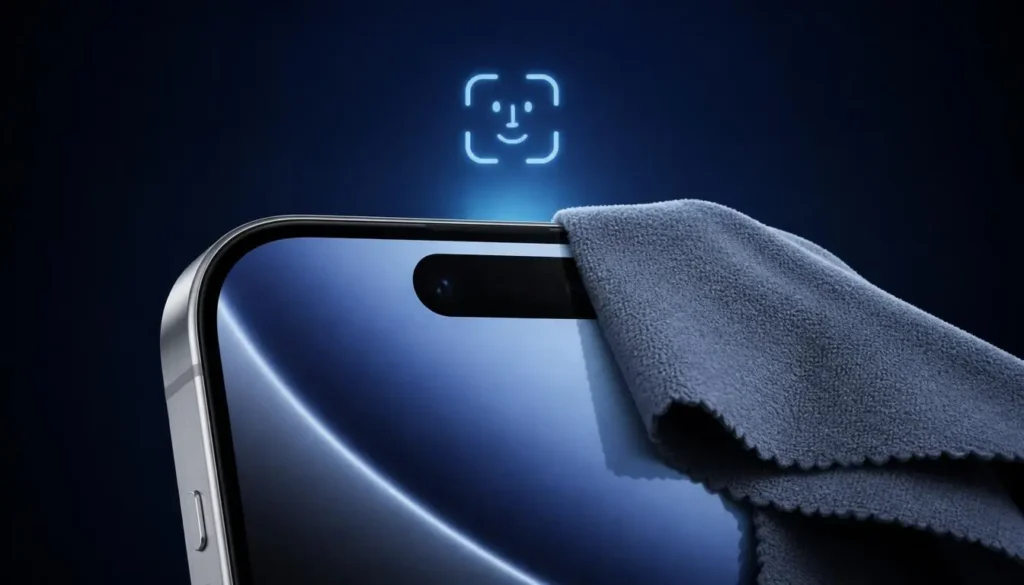
The sensors inside the notch or Dynamic Island must clearly see your face. Dust, fingerprints, lint, or oily marks can interfere with infrared scanning even though the selfie camera still works. Use a clean microfiber cloth to wipe the top of the display, check that your phone case is not covering the sensors, and temporarily remove any cheap screen protector. Test Face ID again after cleaning.
Fix 2: Restart Your iPhone
Temporary software glitches sometimes stop Face ID services from responding correctly. Turn your iPhone off, wait 30 seconds, then power it back on. After the restart, test Face ID before trying more advanced troubleshooting.
Fix 3: Check Your Face ID Settings
Open Settings > Face ID & Passcode and verify that iPhone Unlock, App Store, Wallet & Apple Pay, and Password AutoFill are enabled. If Face ID has been disabled after too many failed attempts, entering your passcode once usually restores normal operation.
Fix 4: Reset Face ID
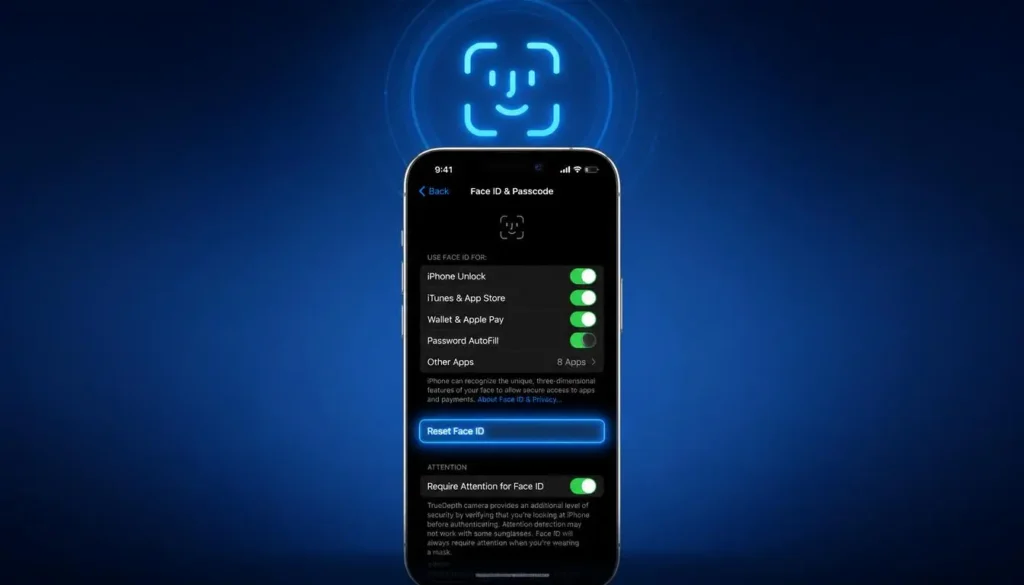
If Face ID still isn’t recognising you after checking the settings, the stored facial scan may be corrupted. This can happen after a major iOS update or if your appearance has changed significantly. Open Settings > Face ID & Passcode, tap Reset Face ID, then choose Set Up Face ID. Follow the on-screen instructions in good lighting and slowly move your head to complete both scans. After setup, lock and unlock your iPhone several times. If Face ID still reports that it is unavailable, continue with the next fix.
Fix 5: Update iOS
Apple regularly releases updates that fix software bugs affecting Face ID and other security features. Open Settings > General > Software Update and install any available update. Keep your iPhone connected to Wi-Fi and ensure the battery has enough charge. After the installation finishes, restart the phone and test Face ID again. If the issue started immediately after an update, check again a few days later because Apple often releases a follow-up update to correct newly discovered bugs.
Fix 6: Remove the Screen Protector or Case
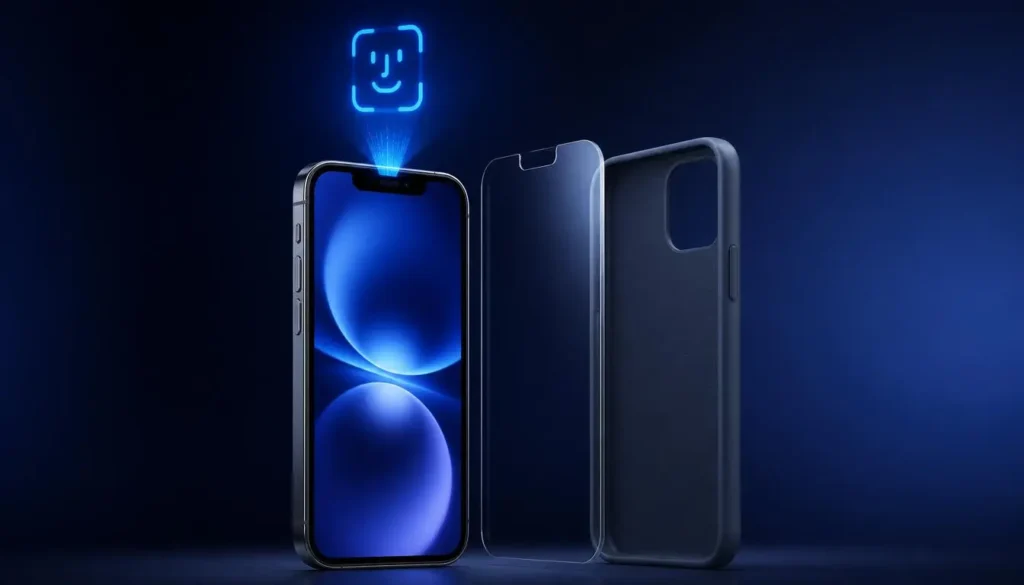
A poorly fitted case or cheap screen protector can partially block the True-Depth camera. Remove both accessories and test Face ID again. If it immediately starts working, replace them with products designed specifically for Face ID compatible iPhones. If Face ID stopped working after a screen replacement, the True-Depth camera may have been damaged or not transferred correctly during the repair. This usually requires professional inspection because the components are security paired to the logic board.
Fix 7: Contact Apple Support
If none of the previous solutions help, hardware damage is the most likely cause. Face ID can fail after heavy drops, water damage, or repairs using non-genuine parts. Visit an Apple Store or Apple Authorized Service Provider so the True-Depth camera can be tested properly. Avoid unknown repair shops that promise to ‘reactivate’ Face ID because incorrect repairs can make the problem worse.
Face ID Not Working After an iPhone Update
Some users notice Face ID problems immediately after installing a new iOS version. Start by restarting the phone, checking for another software update, and resetting Face ID. If the feature worked perfectly before the update, the problem is usually software related rather than hardware failure.
Face ID Not Working After Screen Replacement
Face ID depends on the original True-Depth camera assembly. If the screen was replaced using poor-quality parts or the original sensors were damaged, Face ID may never function correctly until repaired by Apple or an authorised technician.
How to Prevent Face ID Problems
Keep the front camera clean, avoid low-quality screen protectors, install iOS updates regularly, protect your iPhone from drops, and always choose genuine Apple repairs when hardware work is required.
Conclusion
Most Face ID problems can be solved by cleaning the sensors, checking settings, resetting Face ID, or updating iOS. If the issue began after a drop or screen replacement, hardware damage is more likely and professional repair may be required. Bookmark HowFixPro for more simple Apple troubleshooting guides.
Frequently Asked Questions:
Usually because of software glitches, blocked sensors, or hardware damage.
The True-Depth camera cannot communicate correctly with iOS.
Yes, impact can damage the camera system.
Yes, if it blocks the sensors.
Occasionally, but later updates often resolve them.