

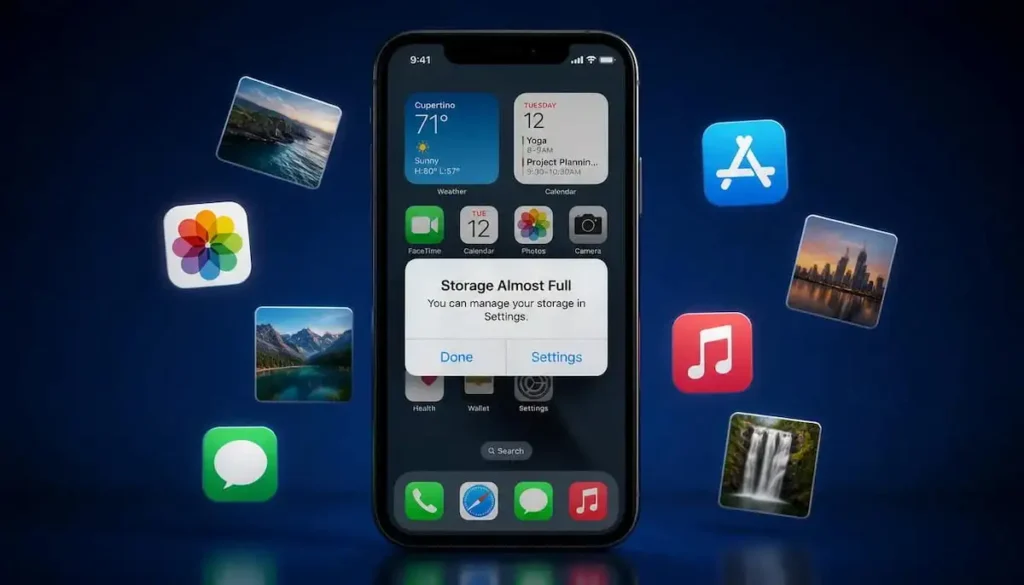
If you’ve ever seen the Storage Almost Full message on your iPhone right before an important photo or update, you already know how frustrating it is. Learning how to free up space on iPhone doesn’t have to mean buying a new phone or paying for more iCloud storage. In most cases, a few smart cleanup steps can get you back to normal in under 20 minutes.
This guide walks through exactly why your iPhone storage fills up so fast, and seven real fixes that work, starting with the ones that make the biggest difference first.
Why Does Your iPhone Storage Fill Up So Fast?
Before jumping into fixes, it helps to know what’s actually eating up your space. In most cases, it comes down to a handful of usual suspects:
- Photos and videos, especially 4K video and Live Photos, which take up far more space than people expect
- Apps you rarely open but never deleted
- Cached data from Safari, social media apps, and streaming apps
- Old text message attachments piling up silently over months or years
- Duplicate photos, particularly screenshots and burst shots
Once you know where the space is actually going, freeing it up becomes a lot more straightforward.
How to Check What’s Taking Up Space on Your iPhone
Before you start deleting things at random, take 30 seconds to see exactly what’s using your storage:
- Open Settings
- Tap General
- Tap iPhone Storage
You’ll see a breakdown by category, Apps, Photos, Messages, and more along with a color-coded bar at the top. This tells you exactly where to focus your cleanup effort instead of guessing.
Fix 1: Delete Unused Apps to Free Up Space on iPhone
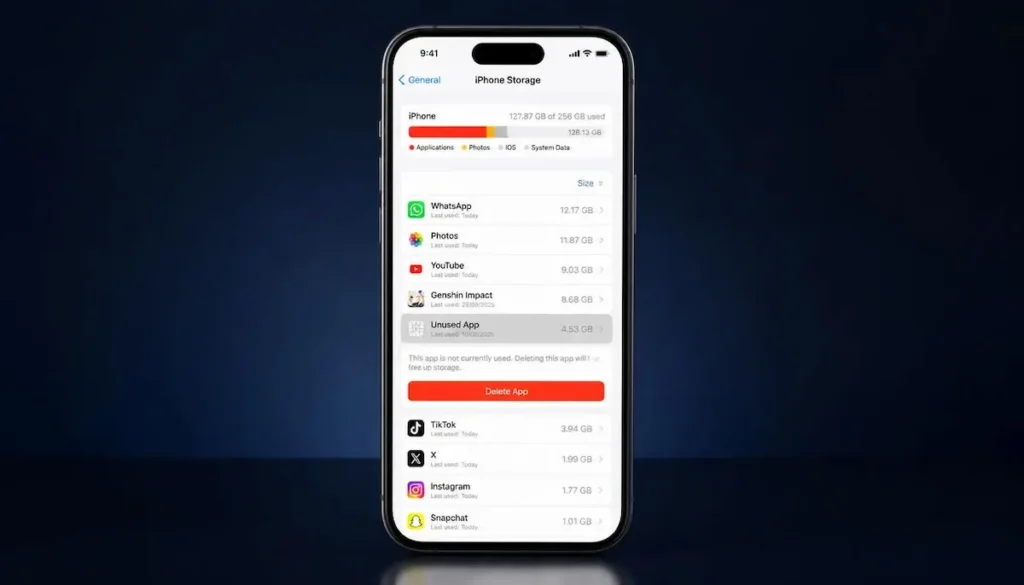
Why this works: Apps you haven’t opened in months are often quietly holding onto gigabytes of data, especially games and social media apps with large caches.
Steps:
- Go to Settings → General → iPhone Storage
- Scroll through the app list, sorted by size
- Tap any app you no longer use
- Tap Delete App
Expected result: You’ll often recover several gigabytes just from a handful of forgotten apps.
Fix 2: Offload Apps Instead of Deleting Them
If there are apps you use occasionally but don’t want to lose completely, offloading removes the app itself while keeping your data and documents saved.
Steps:
- Go to Settings → General → iPhone Storage
- Tap the app you want to offload
- Tap Offload App
Expected result: The app icon stays on your home screen (slightly greyed out), and reinstalling it later restores your data automatically. This is a great middle ground when you’re trying to free up storage on iPhone without losing anything important.
Fix 3: Clear Safari Cache and Website Data
Safari quietly stores cached pages, cookies, and browsing history that can add up to more space than people realize, especially if you haven’t cleared it in a long time.
Steps:
- Go to Settings → Safari
- Scroll down and tap Clear History and Website Data
- Confirm when prompted
Expected result: You’ll free up some space immediately, and Safari may run slightly faster too. Keep in mind this also signs you out of most websites, so you’ll need to log back in next time you visit them.
Fix 4: Manage Photos and Videos to Free Up Storage
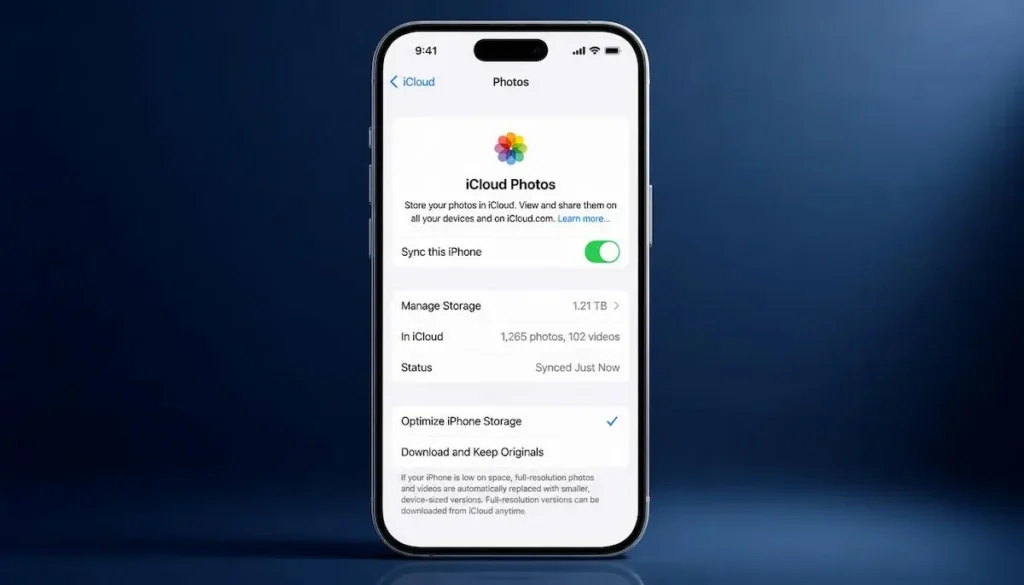
Photos and videos are usually the single biggest space hog on any iPhone, so this fix deserves extra attention.
Use Optimize iPhone Storage for iCloud Photos
This setting keeps smaller, space-saving versions of your photos on your iPhone while storing full-resolution originals in iCloud, downloading them only when you need them.
Steps:
- Go to Settings → [your name] → iCloud → Photos
- Select Optimize iPhone Storage
Expected result: Noticeably more free space, especially if you have a large photo library. You’ll need an active iCloud Photos subscription if your library exceeds your free 5GB.
Delete Duplicate and Screenshot Photos
Screenshots, burst-mode shots, and accidental duplicates quietly build up over time without you noticing.
Steps:
- Open the Photos app
- Go to the Albums tab and check Screenshots and Duplicates (if available on your iOS version)
- Select and delete anything you don’t need
- Don’t forget to empty the Recently Deleted album afterward, since deleted photos stay there for 30 days
Expected result: This step alone often frees up a surprising amount of space, especially for anyone who takes a lot of screenshots.
Fix 5: Clear Out Old Messages and Attachments
Years of text threads with photos, videos, and voice messages can quietly consume several gigabytes without you ever opening the Messages app storage settings.
Steps:
- Go to Settings → General → iPhone Storage
- Tap Messages
- Review large attachments and delete what you don’t need
- Alternatively, go to Settings → Messages → Keep Messages and change it from Forever to 1 Year or 30 Days
Expected result: Older conversations with lots of media typically free up meaningful space, and setting an auto-delete period keeps this from building up again in the future.
Fix 6: Use iPhone’s Built-In Storage Recommendations
Apple actually builds personalized suggestions right into your Storage settings, tailored to your specific usage.
Steps:
- Go to Settings → General → iPhone Storage
- Scroll to the Recommendations section near the top
- Follow suggestions like Offload Unused Apps, Review Large Attachments, or Empty Recently Deleted
Expected result: This is one of the fastest ways to manage storage on iPhone, since Apple has already identified your biggest opportunities for you.
How to Prevent Your iPhone Storage From Filling Up Again
Once you’ve freed up space, a few small habits keep it from filling back up:
- Turn on Optimize iPhone Storage for photos permanently
- Periodically check Settings → General → iPhone Storage every few months
- Set Keep Messages to auto-delete after a set period
- Delete apps as soon as you notice you’ve stopped using them, rather than letting them sit
Frequently Asked Questions:
Turn on Optimize iPhone Storage under iCloud Photos settings, this keeps space-saving versions on your device while storing full originals safely in iCloud, so you don’t have to delete anything.
Photos, videos, and cached data (especially in Safari and Messages) are often the real cause, even on phones with relatively few apps installed. Check Settings → General → iPhone Storage to see exactly what’s using space.
Yes, deleting an app removes its data too. If you want to keep your data but still free up space, use Offload App instead, which removes the app but keeps your documents and settings.
Checking every 2-3 months is a good habit, especially if you take a lot of photos or videos, since that’s usually the fastest-growing category.
It can help, especially if your storage was nearly full, since iOS needs some free space to run smoothly. However, if your iPhone is generally slow beyond just storage, other factors like an outdated iOS version or background app activity may also be involved.
Related Post: iPhone Stuck on Apple Logo: Complete Troubleshooting Guide